Instructions of Using Worldictionary with Worldictionary USB
If you have an OTG adapter for USB to Micro USB / USB Type-C, and your Android device supports OTG as well, you can use the adapter to connect the pen camera and Android device with the [Worldictionary] APP to query words, which provides you a different way of using.
When you connect your Worldictionary USB pen camera to your Android phone via the OTG adapter, the Worldictionary will switch to tap-to-query mode, allowing you to use the pen camera to catch and query words.
Bookmark Function / Historical Records
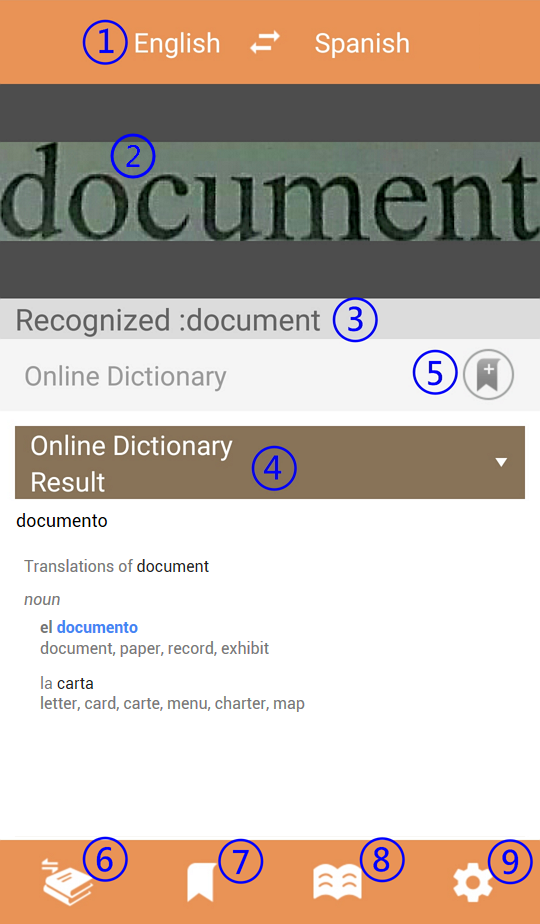
Please tap [Source Language / Translation Language] to set the language of the word you want to query and also set the translation language that you want to read.
World Dictionary APP takes
online dictionary as default, if you
have StarDict or Lingoes dictionary files,
click  on the top right of the screen to
import for use; If you have
professional dictionary or offline dictionary needs, you can
purchase
other
kinds of dictionaries in
here.
on the top right of the screen to
import for use; If you have
professional dictionary or offline dictionary needs, you can
purchase
other
kinds of dictionaries in
here.
After selecting the languages, you can start to use the pen camera to catch the words, the original image and the recognition result of every single word you catch, will appear on the screen for your reference. Please note that if you need to catch straight texts, please go to [Settings] \ [Writing habits], and choose that you want to use left hand or right hand to hold the pen camera.
When there are relevant results that queried by other dictionaries such as Baidu online dictionary, StarDict, Lingoes and other dictionaries as well, all the results will be listed together, you can slide down to see them by dictionary names, and tap on any of them to see the contents.
After reading the results, you can directly catch the next word to continue the queries.
Bookmark Function / Historical Records
After you query a word, if you want to keep the word in somewhere for you to study it repeatedly in the near future, you can click the [Add Bookmark] button to bookmark the word. Also you can categorize the bookmarks, and marked the level of importance, for you to quickly find specific word afterwards.
If you want
to browse bookmarks, please click on the [bookmark list] button at the bottom of
the main screen to see
the saved
words;
click the word to view the meaning of the word, and you can
also tap  to listen to pronunciation; Moreover,
you can
tap
to listen to pronunciation; Moreover,
you can
tap
 below to switch to other dictionary's query results
directly, or search the word
on Google
below to switch to other dictionary's query results
directly, or search the word
on Google  / Wikipedia
  / YouTube
  .
.
In the
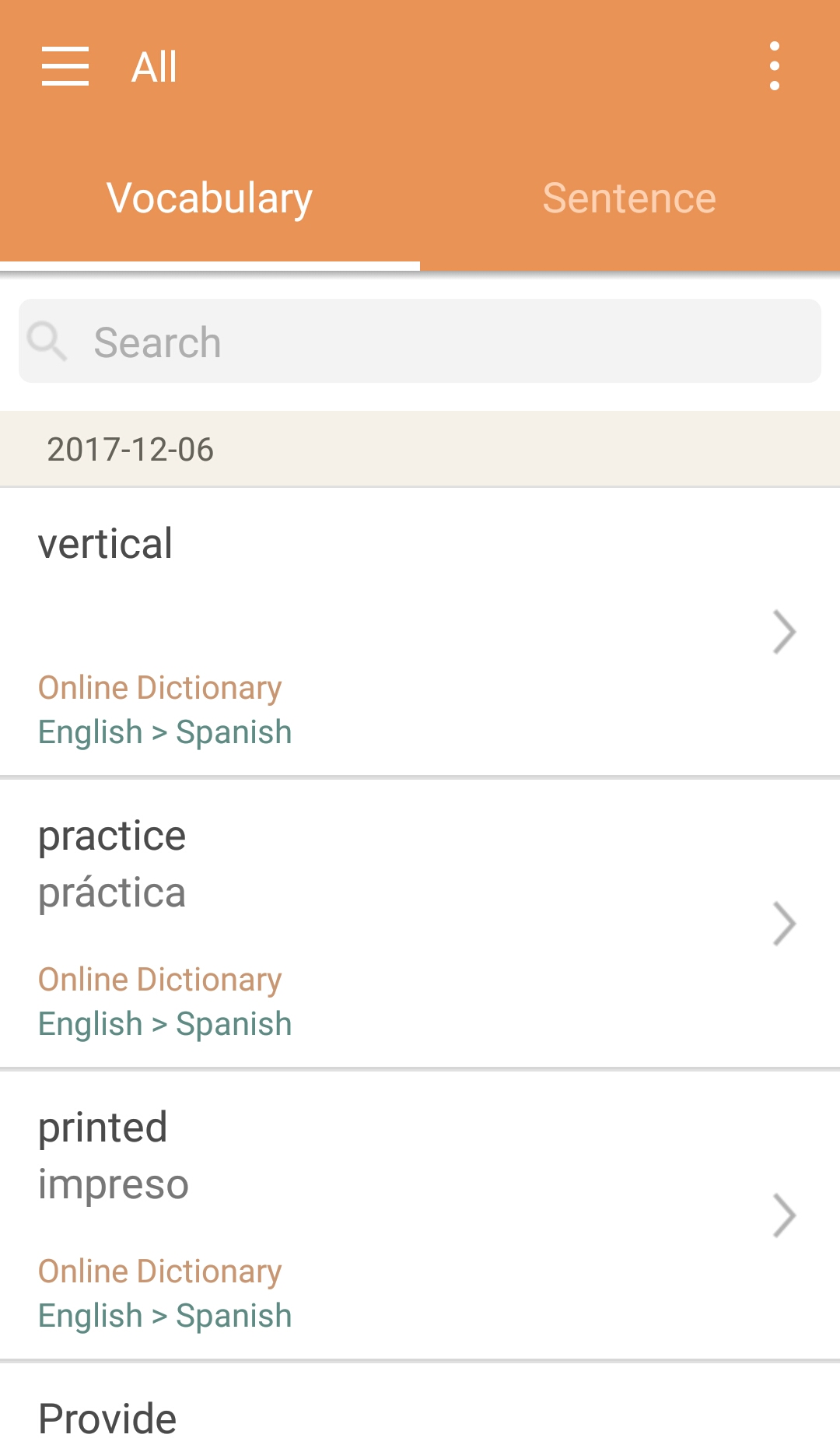
bookmark list, you can tap  on the upper left corner to
switch between different bookmark categories, or tap
on the upper left corner to
switch between different bookmark categories, or tap
 on the upper right corner,
and select [Sort] in the menu
to sort the bookmarks by different conditions,
or you directly enter the
keyword in the search bar
to search; Moreover,
you can choose [Edit] in the menu, then check
the bookmark items you want to edit,
then tap
on the upper right corner,
and select [Sort] in the menu
to sort the bookmarks by different conditions,
or you directly enter the
keyword in the search bar
to search; Moreover,
you can choose [Edit] in the menu, then check
the bookmark items you want to edit,
then tap  to change its category, or tap
 to delete it.
In
addition, bookmarks can be backed up. In [Edit], check the bookmarks
you want to backed up and tap
 on the bottom, then you can export the bookmarks to
the device or cloud space. Someday when you need to restore the bookmarks or import into other devices,
just tap
on
the top right corner of bookmark list
page, and then select [Import]
can restore
the bookmarks.
on the bottom, then you can export the bookmarks to
the device or cloud space. Someday when you need to restore the bookmarks or import into other devices,
just tap
on
the top right corner of bookmark list
page, and then select [Import]
can restore
the bookmarks.
If you want to review the words you queried before, you can tap the [History] button in the main screen to see the words you queried recently, and click the word to chek the word meaning.
If
you want to bookmark the word in the historical
records, tap the [Add bookmark] button; To
clear the history, please tap  on the upper right corner.
Tips: Bookmarks and history data are shared with the normal Worldictionary mode, so you can see and use them all in both modes.
2018/04/03