WorldCard Cloud FAQ
1. How to Scan Business Cards?
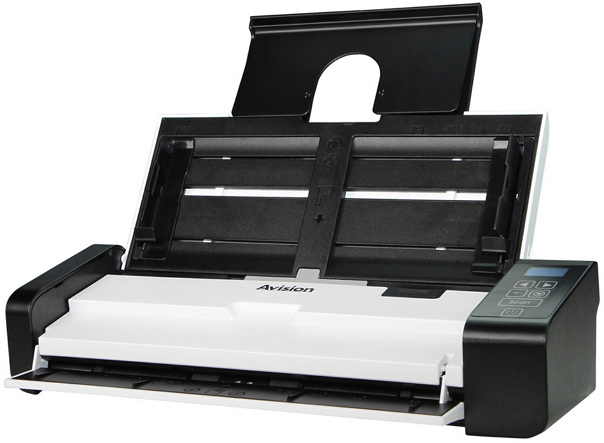
Please open the WorldCard Cloud software and log in, and then put the business card to be scanned in the middle of the scanner feeder. Please note that the front of the business card must be placed facing down.
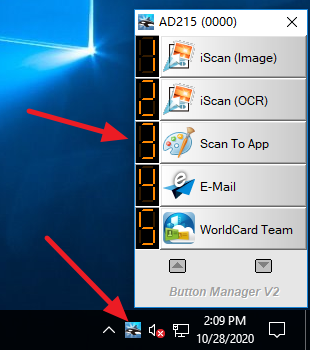
Open the Button Manager of the scanner and right-click on the "Scan To App" item to open the settings.
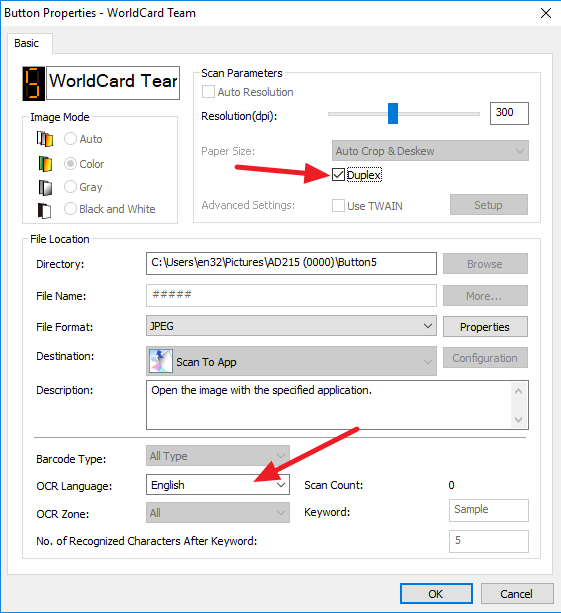
Choose
whether you want to scan single-sided or double-sided business cards, and choose
the recognition language to be used. If the front of the business card is
Spanish and the back is English, please select Spanish for recognition; if the
front of the business card is German and the back is English
, Please choose German to identify, and so on.
Then
click
[OK] to save the settings.
Open BM (Button Manager) again, left-click the "Scan To App" item, and the scan
will start.
After scanning, the business card data will be sent to
the WorldCard Cloud software for you to proofread.
You can also use the scanning wizard in the WorldCard
Cloud software to scan. Please remember to set the recognition language in the
scanning wizard before scanning.
2. How to Add New User Account for Other Colleagues to Use WorldCard Cloud?
Please go to WorldCard Cloud Settings (web version), [Manage
Account] page, click
 on the quick toolbar to add a user account.
Please enter the information in the above fields and check the ability to allow the user to use, such as printing or scanning for colleagues, then click [OK] to complete.

If the user account is created by mistake, if this account has never logged
in, you can easily click
 to delete it. But if this account has already logged in before, it cannot
be deleted, you can only click
to delete it. But if this account has already logged in before, it cannot
be deleted, you can only click
 to set this user account as inactive user or suspend user.
3. How to Share Contacts to colleagues?
The user will only see the contact information which created by self and subordinates. You cannot see the contacts that created by your supervisor or subordinates from the same department or other departments.
If you wish to share contacts with other users, you can select the contacts
you want to share and click
 on the toolbar to share. Or right click the contact and choose [Share to
Colleague] to open the list, then you will be allowed to specified users to see
the information.
on the toolbar to share. Or right click the contact and choose [Share to
Colleague] to open the list, then you will be allowed to specified users to see
the information.

Please sync with WorldCard Cloud server after share. The WorldCard Cloud server will send notification to the users you share to. If you share the contacts under [Shared Contacts], the users will receive the notification immediately.
The users will receive the notification and find the shared contacts data in the category of your name under the [Shared Contacts].
Reminder: When share the information to others, his/her supervisor will see that information as well.
4. How to Scan Business Cards for Colleague/Boss?
With WorldCard Cloud software on each platform, you can scan business cards for other users. Please refer to the following steps to help your colleague/boss scan business cards.
Operations on PC:


 on the quick toolbar to send the scanned data to Alex and complete the task.
Operations on APP:
Click
 on the main screen icon, select [Scan
business card for colleagues], and
select the colleague also
the
category
who you want
to scan
to, then press
on the main screen icon, select [Scan
business card for colleagues], and
select the colleague also
the
category
who you want
to scan
to, then press
 in the upper right corner to
confirm;
here you can
tap
[Add Category] at the bottom left of the screen to help
your colleague to
create a new category.
in the upper right corner to
confirm;
here you can
tap
[Add Category] at the bottom left of the screen to help
your colleague to
create a new category.
Click the [Camera]
button to start taking the photo, and after confirming that the
recognitions are correct,
tap the
 in the upper right corner of the screen to send,
then you can go ahead to take
the next business card.
in the upper right corner of the screen to send,
then you can go ahead to take
the next business card.
The contact data will disappear after sending to Alex, and Alex will receive a message notification. When Alex synchronizes with the WorldCard Cloud server, the contact data you send to him will automatically download it to [My Contacts] for Alex to see the business card you helped him scan.
