
WorldCard for Salesforce User Manual
User Interface
Introducing
Add Contact
Edit Contact Information
View and Use the Contact
Information
Settings
WorldCard for Salesforce provides many ways to add contact:
Using Camera
to Shoot Business Card
Scanning the Contact's QR Code
Add Contacts From the Email
Signature
Add Contacts From Picture
Using Camera to Shoot Business Card
After tapping the  icon on the main page to launch camera, please
check the mode is selected on [Handheld] mode.
icon on the main page to launch camera, please
check the mode is selected on [Handheld] mode.
Next to the camera icon is
the [Recognize Language]
option, tap it to select the language you want
to use first, and then rotate your mobile phone
to portrait or landscape according to the
business card, and make sure the business card
image is fully loaded in the screen. Shoot above
the business card and try to avoid shadows as
possible, and then tap
 to shoot.
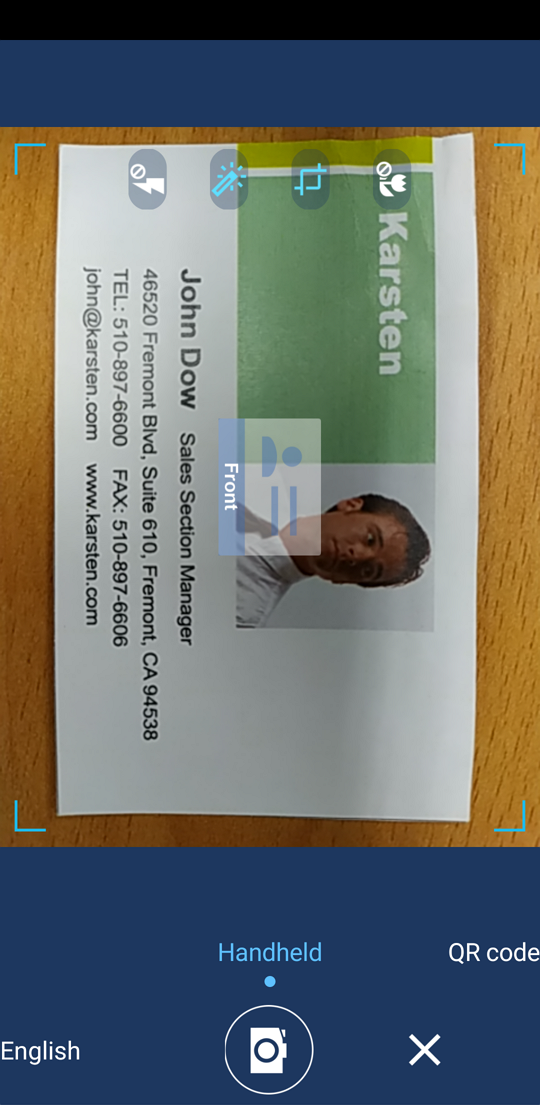
There are Flashlight  ,
Lighten
,
Lighten  ,
Auto Crop
,
Auto Crop  functions on the screen for you to choose to
turn on/off the flashlight when shooting, or
lighten the picture automatically to make the
texts become more recognizable, or auto crop the
part outside of the
business card.
functions on the screen for you to choose to
turn on/off the flashlight when shooting, or
lighten the picture automatically to make the
texts become more recognizable, or auto crop the
part outside of the
business card.
After
shooting, you will see the result with lighten
and cropped in the next step, you can also tap

 to rotate the picture, if you are not satisfied
with result, please tap
to rotate the picture, if you are not satisfied
with result, please tap  to shoot again.
If the back side of the card
also has information, you can tap  to add the picture of back side, then turn the
card to the back side and remember to choose the
correct language for recognize before shooting.
to add the picture of back side, then turn the
card to the back side and remember to choose the
correct language for recognize before shooting.
If you have lots of cards to be
managed, after shooting the first card (include
back side), you can tap  to do batch shooting for you to shoot all the
cards in one time and then do the recognition in
the end.
to do batch shooting for you to shoot all the
cards in one time and then do the recognition in
the end.
Final step, tap  to start recognition, once it is recognized,
you'll see it in the list of Ready for
upload.
to start recognition, once it is recognized,
you'll see it in the list of Ready for
upload.
Tap the
icon to launch the camera, and slide the mode
to [QR
code] , and let the camera point to the QR code you want to
scan, WorldCard for Salesforce will focus and recognize
it automatically. If the shooting environment is
too dark, you can tap  to enable the flashlight lights constantly.
Add Contacts From the Email Signature
Please select and copy the contact's Email signature in the Email first.
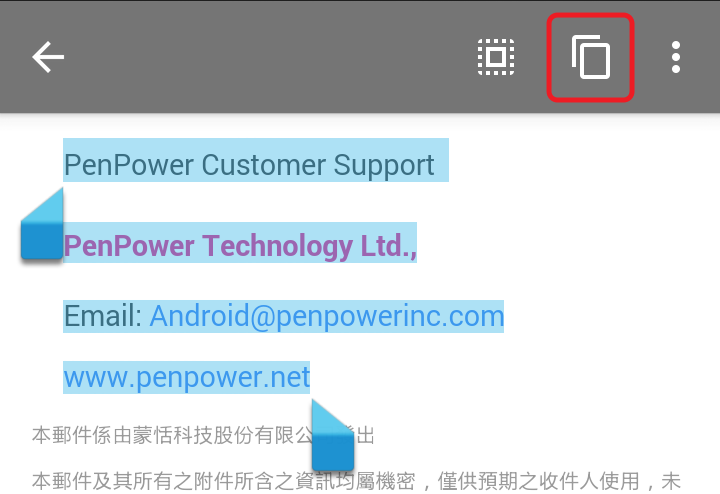
Open WorldCard Salesforce, and
tap  icon on the main screen to choose
[Email Signature] , the Email signature will paste into the
WorldCard for Salesforce automatically, and then tap
icon on the main screen to choose
[Email Signature] , the Email signature will paste into the
WorldCard for Salesforce automatically, and then tap  to start recognizing.
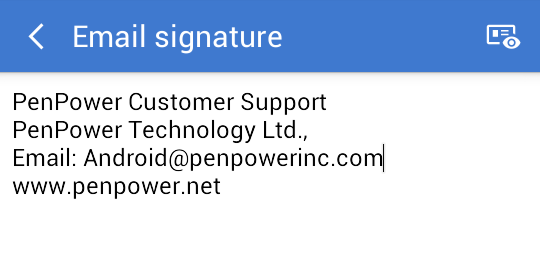
Note: If the pasted signature was mess, please adjust the paragraphs before recognizing.
Tap
icon on the main screen to choose
[Add Contact from Album], and select the card images you want to
add, and then choose the recognize language on
the top of the screen, and then tap  to import and recognize, after that, tap
  icon on the up-right corner to save.
Note: After adding new contacts, you can still add/change the contact's card image and partial the information on the card image to recognize, and also add notes for the contact. Please refer to the next chapter for more details.
Edit Text Information
After you add a new contact by shooting or your contacts information have changed, you will need to edit your contacts information; Please note that the new contact information needs to be edited/verified then can be uploaded to Salesforce.
Tap the contact you want to edit in [Ready for upload] to enter the editing page, you will see the first field [Save to] under card image, please select Contacts or Leads of Salesforce to save, and check whether there are errors or omissions in the subsequent fields.
When you tap the field you want to edit, the original image area which belongs to that field will appear on the top of the screen for you to double check, please note this feature only available on the contacts which are added by shooting via this mobile device and import from image, it is not available if the contact is added from email signature.
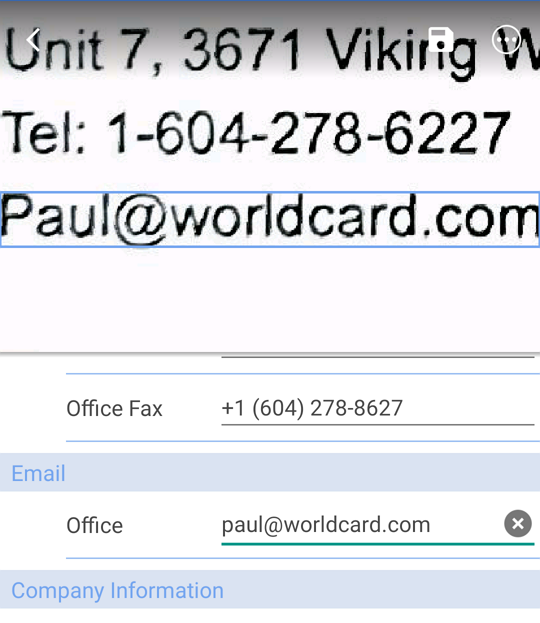
After editing, please remember to top
to save,
once
edited, it will be uploaded to Salesforce and
moved to [Uploaded Area].
If you use the way of batch shooting/loading
multiple card images to add contacts, you will
see a mark
 on those contacts which mean the contacts
information has not been verified, and you can
just tap them to enter the editing page to
confirm.
on those contacts which mean the contacts
information has not been verified, and you can
just tap them to enter the editing page to
confirm.
Edit Card Image
Tap a contact to enter information page, and tap
the card image to enter card image viewing mode.
her you can rotate the image, refresh or
add back side card image, tap
 icon can delete the image or choose [Image
Process].
icon can delete the image or choose [Image
Process].
In the image process page,
you can tap
 to lighten the image to make the texts become
more recognizable, and move and scaling the
green frame in the image to select the card, and
then tap
to lighten the image to make the texts become
more recognizable, and move and scaling the
green frame in the image to select the card, and
then tap
 to cut off the extra parts outside the card
image, after that, tap
to cut off the extra parts outside the card
image, after that, tap
 to save the changes.
If the contact has no card
image, tap
 can add a card image for this contact.
View and Use the Contact Information
After establishing your own contacts, you can review and use these contact information anytime.
If
you have lots of contacts, you can use the full text search
function  to find your data, you can enter any keyword of any field, and
it will list all the results.
to find your data, you can enter any keyword of any field, and
it will list all the results.
When you review the contact information, you can tap the following icons to trigger the related functions:
Phone  : Tap to call this contact or tap
  to send text.
Email  : Tap to send Email to the contact.
Address  : Tap to open the map to search the contact's
address.
: Tap to open the map to search the contact's
address.
Web Page  : Tap to open the contact's web page.
If the contact's card has double sides
information, tap  to switch the card image to the other side.
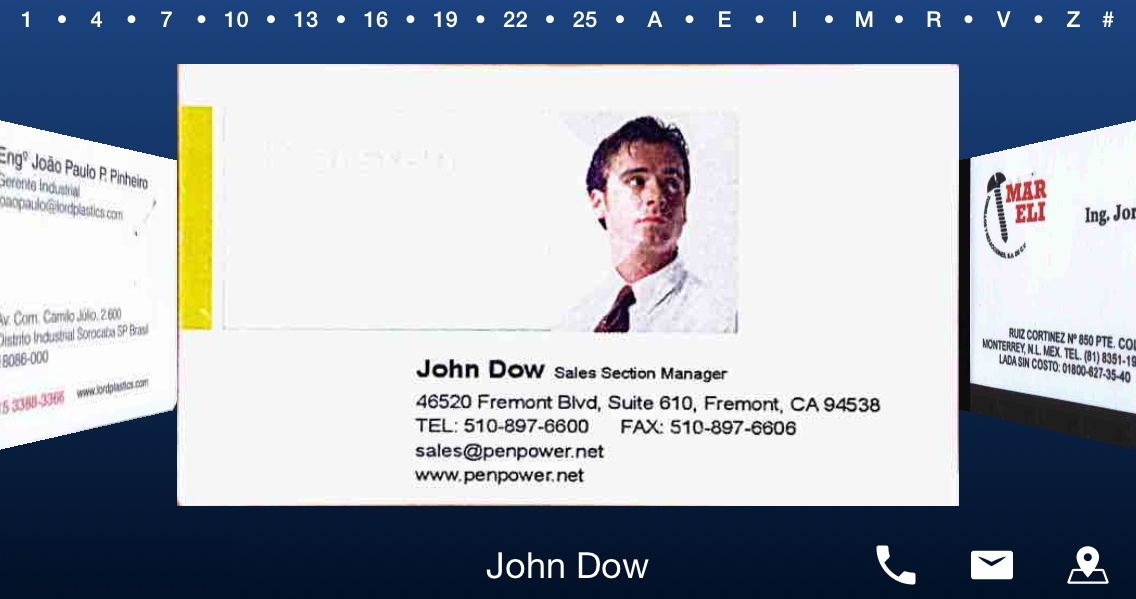
When you put your phone
horizontally,
the screen will automatically switch to
[Cover
Flow Mode] for you to easily look up the contacts by flipping
images, you can slide the card images or the index bar on top to
find
contacts,
and there are  [Call],
 [Send
Email] and
[Send
Email] and
 [Open
the Map of Contact's Address] function buttons at the
bottom-right corner for you to use.
[Open
the Map of Contact's Address] function buttons at the
bottom-right corner for you to use.
Tap  icon on the up-right corner of the screen to add note for this
contact, and then tap
icon on the up-right corner of the screen to add note for this
contact, and then tap  to insert the current date for you to do a record. In addition,
tap
to insert the current date for you to do a record. In addition,
tap  icon to open the menu for you to search the contact on social
websites, or share the contact information to other people, also
you can edit/delete the contact information or recognize it
again.
icon to open the menu for you to search the contact on social
websites, or share the contact information to other people, also
you can edit/delete the contact information or recognize it
again.
Also when in the main page, you can tap  icon to select the contacts, and then tap
  /
/  to send Email or text to the selected contacts, you can also tap
 to save to system contacts, or tap
 to delete.
Please note the action of deleting contact only deletes the data in the phone, will not affect the data that has been uploaded to Salesforce.
Please tap
icon on the main screen to open the menu, and tap [Settings].
2019/07/16