 / [Settings] / [PC software download] in the APP to install the software.
Install software on
PC
Start to Use
- Voice Typing Function
- Translation Function
- Mouse Function
- Slide Presentation
Function
- Document Signing
Function
- Voice2Text Function
Software Settings
Please plug Phone2PC USB Bluetooth receiver to the computer, and open Phone2PC APP on the phone. Please turn on the Bluetooth function if you were asked to, and the APP will pop up a guideline for software downloads, please follow the steps to download and install the PC software.
Or later you can click
/ [Settings] / [PC software download] in the APP to install the software.
If you cannot properly install with the guidelines, please download the Phone2PC PC software via the following URL depending on your computer system.
Windows: http://mobile.penpower.net/download/Phone2PCW
Mac: http://mobile.penpower.net/download/Phone2PCM
Before using Phone2PC, please remember to launch the PC software first, and then open the Phone2PC APP; At this point your phone will ask to turn on Bluetooth function as well , and once the Bluetooth function is turned on, your phone will automatically connect with the receiver.
When the connection is established, you will see
[connection success] message appears on the PC software, and APP's Bluetooth
icon will become  from
from  .
.
Phone2PC requires network connection on your phone and PC, if your phone has network usage restrictions, please switch to Wi-Fi to get better user experience, and also avoid to reduce the network usage after long-term use.
Tap  on the main page of APP, the
  icon on the PC software will light up, and the [Simple Editing Toolbar] will
appear as well for you to edit the sentences you entered;
icon on the PC software will light up, and the [Simple Editing Toolbar] will
appear as well for you to edit the sentences you entered;
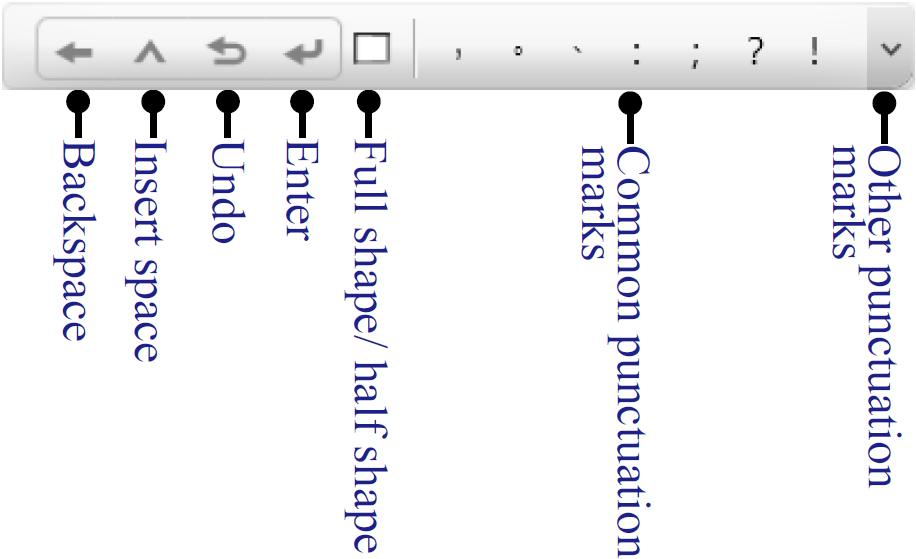
Open any text editing software you want to use, such as MS Word, and click the cursor to the input area.
 and tap
 to choose the language you want to speak and recognize.
 will become Green when you tap it, and at this
point you can start to talk to your phone's microphone; When the
program detects you stop talking, or when it comes to a certain
length, the microphone icon will turns Red and
start the voice recognition. Please wait for the microphone icon
turns Green again, which means the recognition
is done, then you can start to talk again.
will become Green when you tap it, and at this
point you can start to talk to your phone's microphone; When the
program detects you stop talking, or when it comes to a certain
length, the microphone icon will turns Red and
start the voice recognition. Please wait for the microphone icon
turns Green again, which means the recognition
is done, then you can start to talk again.Microphone icon (Green): Start
talking.
Microphone icon (Red): Stop talking, your voice is under recognizing.
Tips: You can tap the microphone icon to pause or resume talking anytime.
.png) ,
and then use the keyboard to type.
,
and then use the keyboard to type. on the upper-right corner to switch Auto/Manual mode of sending
out texts; Please remember to tap [Submit] button on the screen
to send out the texts when you in manual mode.
on the upper-right corner to switch Auto/Manual mode of sending
out texts; Please remember to tap [Submit] button on the screen
to send out the texts when you in manual mode.
and tap
to choose the language you want to speak and recognize.
will become Green when you tap it, and at this
point you can start to talk to your phone's microphone, and it
will recognize your voice in real time; Remember to tap [Submit]
button to send the texts to PC when you are done of talking.Note: Maximum length of the iPhone recording is up to about 40 seconds, then it won't record anymore, so remember to send the results out if it stopped recording, then tap the microphone icon to continue.
 on PC software, then choose the language you want to speak and
recognize in the drop down menu at the top of the window, and
then choose language you want to translate in the drop down menu
at the bottom of the window.
on PC software, then choose the language you want to speak and
recognize in the drop down menu at the top of the window, and
then choose language you want to translate in the drop down menu
at the bottom of the window.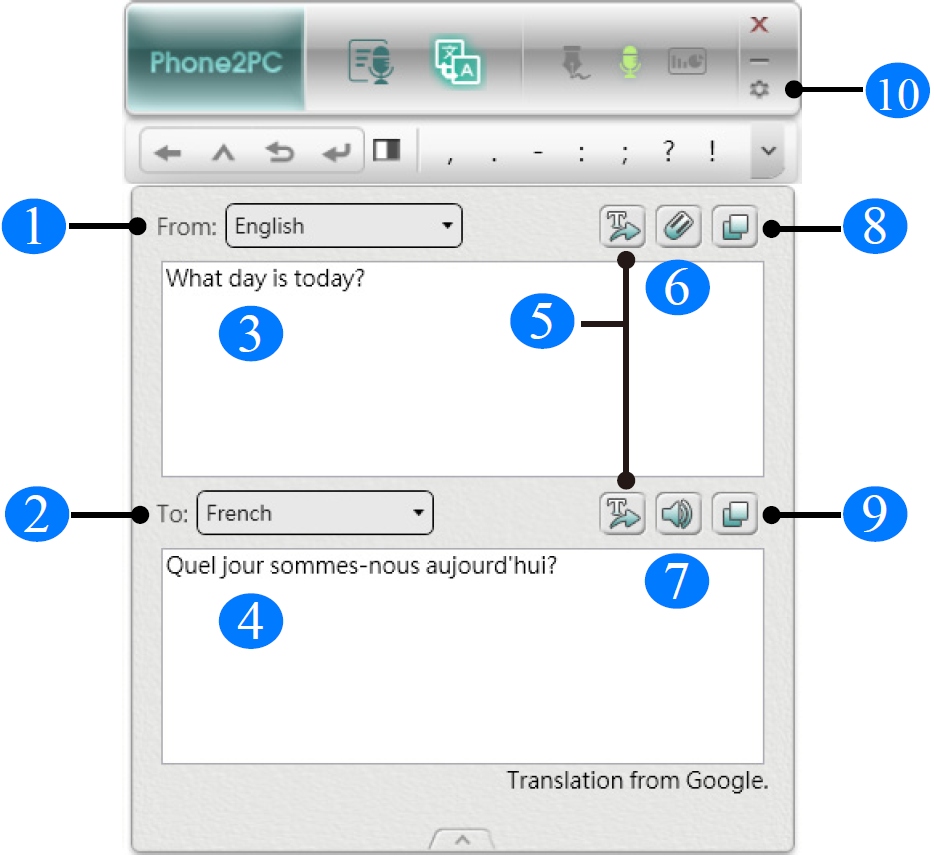
| 1 | Input language | 6 | Clear texts |
| 2 | Translation language | 7 | Pronunciation |
| 3 | Text area | 8 | Copy original texts |
| 4 | Translation area | 9 | Copy translated texts |
| 5 | Send out texts to application | 10 | Settings |
Tips:
 at the bottom edge of the software window.
Phone2PC also provides mouse function, whether you are sitting on the sofa listening to music or lying in bed to see the film, you can easily remote through the phone to control computer.
 ,
then you don't need to open the PC software and take the phone
as a mouse, and control the computer by moving finger in the
operation area of middle of the screen.
,
then you don't need to open the PC software and take the phone
as a mouse, and control the computer by moving finger in the
operation area of middle of the screen.
 that correspond to the Left/Right button of mouse, and
single-tap or double-tap in the operation area of middle screen
can also correspond to the single-click or double-click of left
mouse button.
that correspond to the Left/Right button of mouse, and
single-tap or double-tap in the operation area of middle screen
can also correspond to the single-click or double-click of left
mouse button.
In addition,
 can turn your phone into a presenter to control your slides. (PC software needs
to be opened)
can turn your phone into a presenter to control your slides. (PC software needs
to be opened)
 on the PC software will light up, please select the slide
presentation software you use, such as MS PowerPoint, and select
your screen ratio; if you need countdown reminders, please
enable [Timing] function, and tap
on the PC software will light up, please select the slide
presentation software you use, such as MS PowerPoint, and select
your screen ratio; if you need countdown reminders, please
enable [Timing] function, and tap  to set the length of countdown time.
 on the upper-right corner can temporarily turn off the slides if
you need the audience focused on you, tap again to return.
on the upper-right corner can temporarily turn off the slides if
you need the audience focused on you, tap again to return. .
.
Document signing function allows you to sign in PDF, Word, Excel and other format files, also can let you digitalize the document by taking pictures, and send to PC to for you sign.
 on the main page of APP, the icon
  on the PC software will light up, and you phone will enter the
signing mode, please tap
on the PC software will light up, and you phone will enter the
signing mode, please tap  button to start signing.
Note: On Windows, Phone2PC only supports Adobe v11.0.8 and above version / Foxit v6.0 and above version PDF document software; On Mac, Phone2PC only supports Adobe DC version PDf document software. If you use Phone2PC with Windows MS Office 2007, please update it to Service Pack 3 suite.
 to switch thin/thick stroke and tap to change color; tap
  to change color; tap
  to clean the stroke to re-write.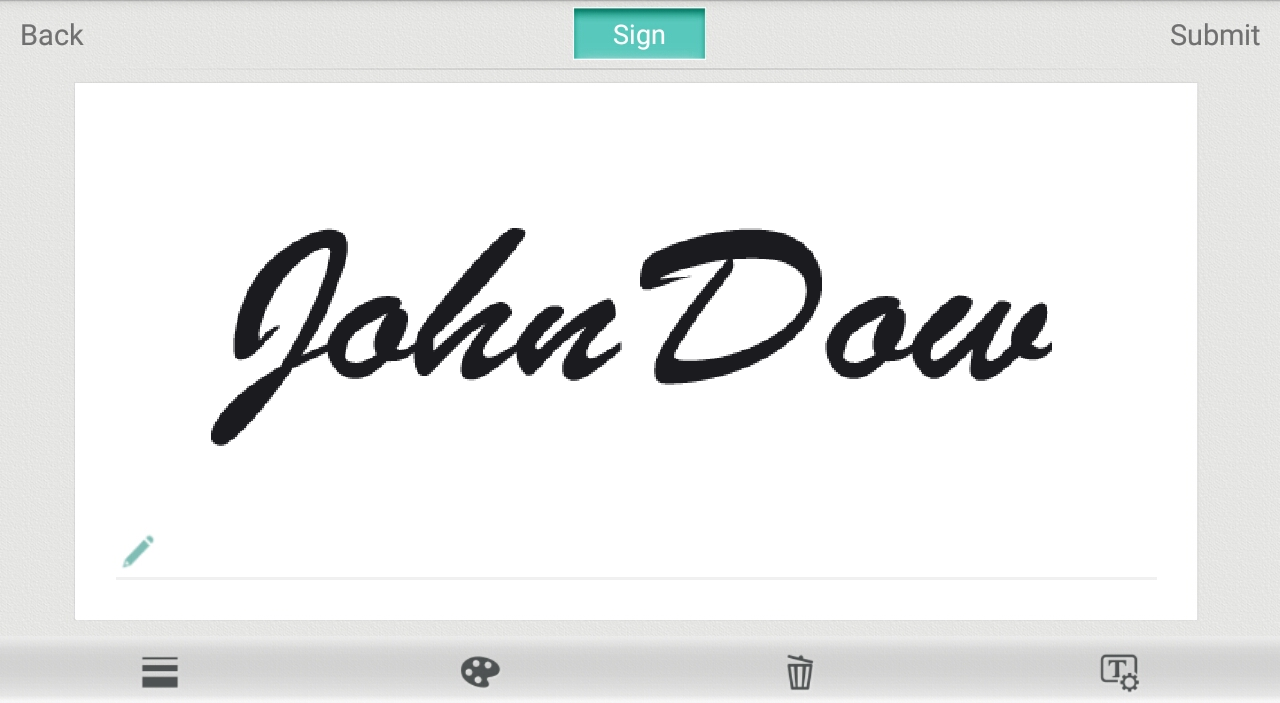
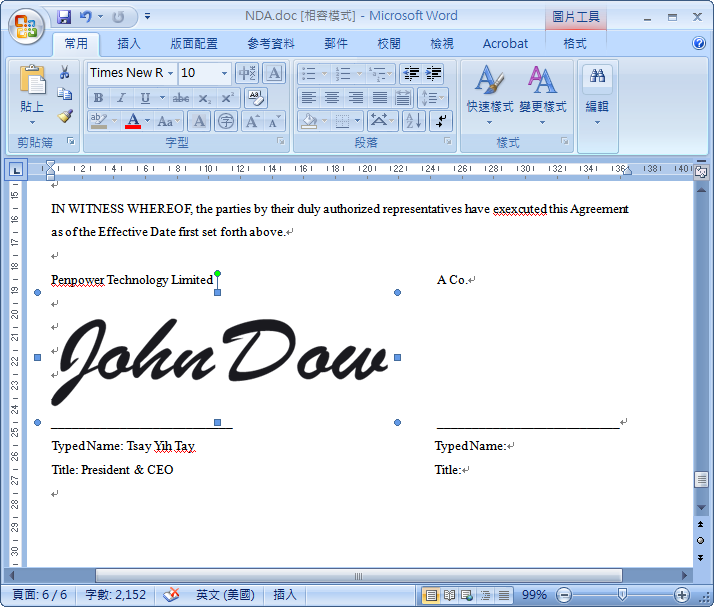
After signing, you can tap  to
set the template of signature before you sign, and you can choose to attach the
date of signing or your digital name.
to
set the template of signature before you sign, and you can choose to attach the
date of signing or your digital name.
 to set your [Digital name], and after that you can tap
  to add the date of signing, or tap
  to add digital name. Meanwhile, you can tap
  to set the font of name and date as [Bold], [Italics] or
[Underline], also you can tap
to set the font of name and date as [Bold], [Italics] or
[Underline], also you can tap  to set the sequence of date and name.
 ,
or hold press the digital name and date to move the position.
,
or hold press the digital name and date to move the position.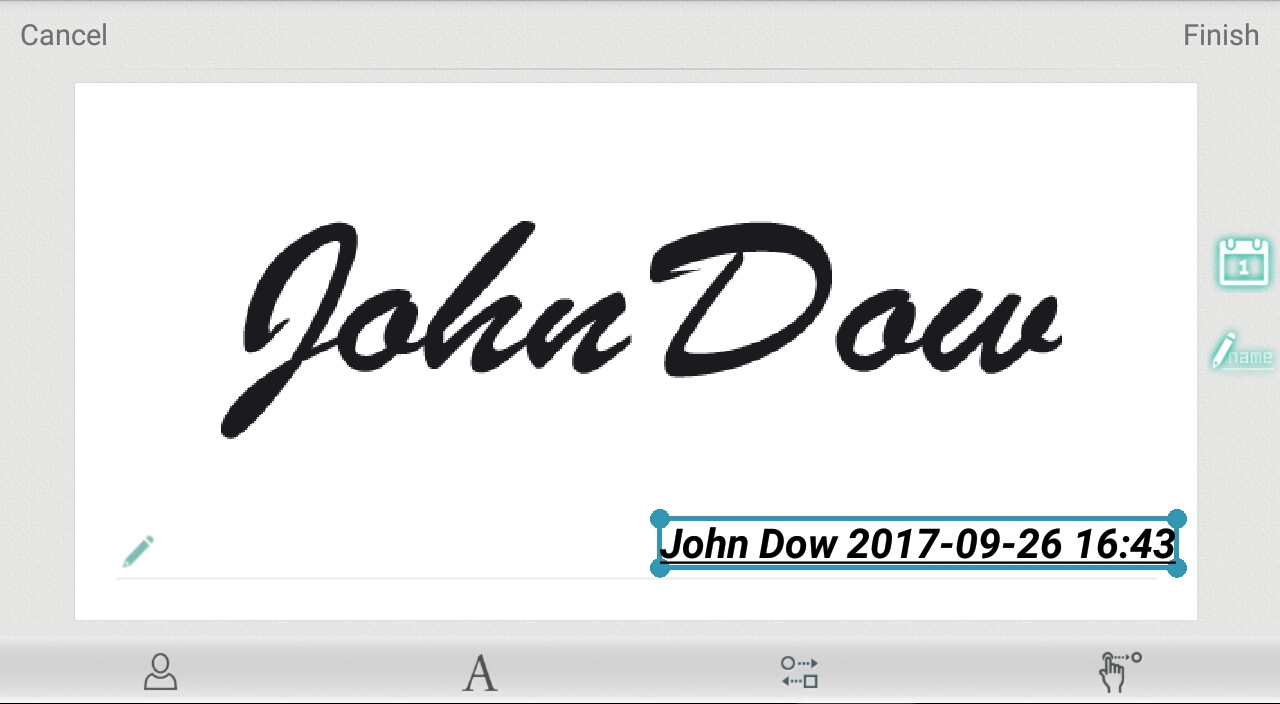
Note: If you use Adobe PDF software to open the document which you are going to sign, the template of digital name and date will be displayed as watermark as the sample below.

The [Text Information] can help you to send the texts you use quite often into documents on PC.
 in the main page on E-signature, and tap [Edit] to add the
information; The are default items like [Name], [Address] and
[Company Name]. The attached digital name in the template of
signature is the [Name] item here, please tap any item to start
editing.
in the main page on E-signature, and tap [Edit] to add the
information; The are default items like [Name], [Address] and
[Company Name]. The attached digital name in the template of
signature is the [Name] item here, please tap any item to start
editing. can add more information fields; If you need to delete any
field, just tap
can add more information fields; If you need to delete any
field, just tap  .
.
Phone2PC also provides document digitization function, just take a picture for the document you want to sign, the APP will convert the pictures into a PDF file, and send to PC through the cloud storage space for you to sign.
 on the main page of [E-Signature] top open camera, and you can
tap
on the main page of [E-Signature] top open camera, and you can
tap  first to turn of the Flash Light
  ,
Auto Lighting
,
Auto Lighting  and Auto Crop
  functions.
 and
and  to rotate the image, or tap
  to turn the image to gray or black and white; If you need to
discard, please tap
to turn the image to gray or black and white; If you need to
discard, please tap  and shoot again.
 ,
and you will see a number increasing next to the [Finish]
button.
,
and you will see a number increasing next to the [Finish]
button.Tips: If you want to change the cloud
storage space or switch to another account, please tap  on the main page of E-Signature to log out, and then you can log in again with
another account.
on the main page of E-Signature to log out, and then you can log in again with
another account.
When you join an interviewing or listening to a class, the Voice2Text function can help you record your files and transfer them to your computer to convert them into editable text, help you to write reports or press words. Before recognizing the recording file, please click
 on the PC software first, and you will be asked to install additional
necessary components. Please follow the instructions on the screen to complete
the installation.
on the PC software first, and you will be asked to install additional
necessary components. Please follow the instructions on the screen to complete
the installation. on the main page, and tap
button to start recording, and tap it again can pause the
recording; If you want to cancel, tap
on the main page, and tap
button to start recording, and tap it again can pause the
recording; If you want to cancel, tap  .
. button in the APP [Voice2Text] page to choose recording file to
send again.
button in the APP [Voice2Text] page to choose recording file to
send again.Tips:
Note: When there is any asking dialog of firewall appears on the PC, please click [Allow] to allow the establishment of the route.
 on the [Voice2Text] page of PC software, and
select the recording file you want to recognize,
and set correct [Recognize Language] to start
recognizing.
on the [Voice2Text] page of PC software, and
select the recording file you want to recognize,
and set correct [Recognize Language] to start
recognizing. button on lower left corner to listen to the contents again, and
click [Finish] to complete the correction.
button on lower left corner to listen to the contents again, and
click [Finish] to complete the correction.Note: Considering the performance of transferring and recognizing the recording files, it is recommended that the maximum recording time is 60 minutes, and the volume is too low or the sound source is not clear will affect the recognize results.
 button to save the results, or open any text editor like MS
Word, and click the mouse to the text editor, then click
button to save the results, or open any text editor like MS
Word, and click the mouse to the text editor, then click  to send the results out to the text editor for other purposes.
 above the recognition result, it will show the information of
recording file, you can click
button next to it to play the recording file, or click the
button to open the storage location.
above the recognition result, it will show the information of
recording file, you can click
button next to it to play the recording file, or click the
button to open the storage location.
◎ Windows / Mac
Click  on the upper right corner of PC software to open software settings.
◎ Android / iPhone
Tap
on the main page to open menu.
2017/10/05