Getting
Started with Worldictionary
This user’s guide will put you on the path to use Worldictionary.
Introduction
Make your first search via real-time translation
Tap image to translate
Type in word to search
Bookmarks
History List
Import dictionary file
Settings
Introduction
Welcome to Worldictionary! Spend a few minutes going through this guide to learn
how to use Worldictionary. We will introduce you to a number of useful
Worldictionary functions, including real-time translation that will help you the
meaning of words, wherever you are.
Note:
You can only scan/type 300 words in the free version Worldictionary. If
you'd like to scan/type unlimited words, please purchase the full version. To
upgrade to the full version, please tap [Upgrade to full license] on the main
screen.
Return to Content
Make your first search in
real-time Translation
Worldictionary can recognize Traditional Chinese (Horizontal/Vertical),
Simplified Chinese (Horizontal/Vertical), Japanese (Horizontal/Vertical),
English, Korean, Germany, French, Spanish, Portuguese, Italian, Dutch, Swedish,
Finnish, Danish, Norwegian,
Indonesian,
Arabic,
Vietnamese,
Greek,
Turkish
and leverage cloud translation technology to translate recognized words into 59
languages. Simply point your phone’s camera to words that you want to look up,
Worldictionary will return the corresponding translation result within seconds.
Step 1. Upon opening Worldictionary, you will see a large magnifier glass with a
crosshair in the center.
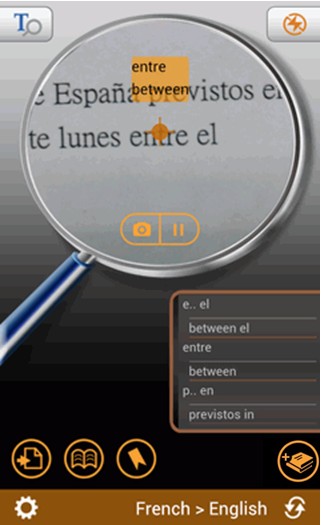
Step 2. Aim the crosshair on the word you want to look up.
Note:
1) Tap the language bar
 to select the source and target languages. Source languages are on the left, and
target languages are on the right. If you want to switch the language pair,
simply tap
to select the source and target languages. Source languages are on the left, and
target languages are on the right. If you want to switch the language pair,
simply tap
 .
Tap the back button to close the language menu.
.
Tap the back button to close the language menu.
2) You also can select the translation engines by tapping the
 button on the top of the the screen, or tapping the
 button to purchase other dictionaries. Purchasing dictionaries will also get you
an offline dictionary.
button to purchase other dictionaries. Purchasing dictionaries will also get you
an offline dictionary.
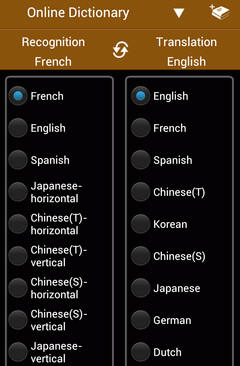
3) Worldictionary can recognize horizontal and vertical text for Traditional
Chinese, Simplified Chinese, and Japanese.
4) If the source languages are Traditional Chinese (Horizontal/Vertical),
Simplified Chinese (Horizontal/Vertical), or Japanese (Horizontal/Vertical),
please aim the crosshair on the initial character.
5) If you are in a low-light condition, please tap the flash button
 to
enable the flash function. Tap
to
enable the flash function. Tap
 again
to disable the flash function.
again
to disable the flash function.
6) To get the best recognition quality, please hold your phone right above the
text, keep the word in focus, and hold your phone steady.
Step 3. Worldictionary will show the recognized word and its translation result
in the list on the right side. In addition to word by word translation,
Worldictionary will also recognize phrases next to the crosshair and list the
phrase's translation as the second item in the list.
Step 4. The lower right corner lists your searching history. Tap a word here to
see more information about it.
Note:
If the source languages are Traditional Chinese (Horizontal/Vertical),
Simplified Chinese (Horizontal/Vertical), or Japanese (Horizontal/Vertical),
this list will show other probable recognition candidates for you to choose.
Scroll down and you can view previous searching history.
Step 5. Tap a word in this list and you can see more information about this
word.
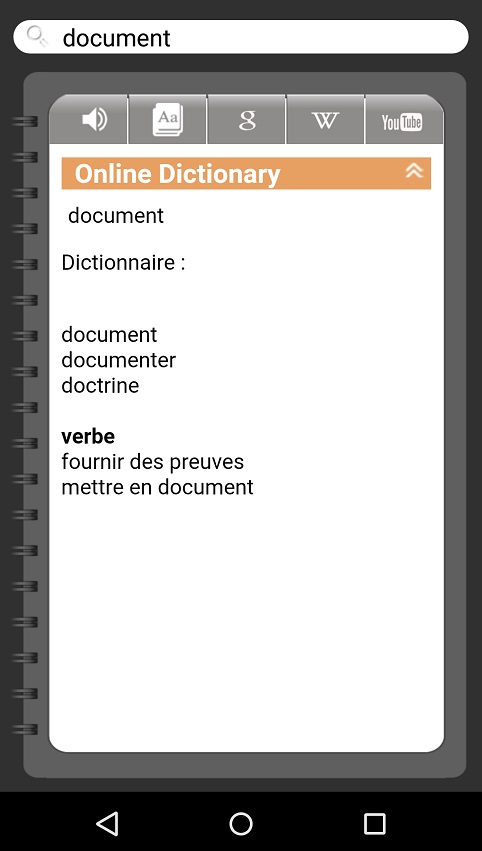
There are more:
- Tap
 to
listen to how this word is pronounced. Please note that an SD card is
required for this function.
to
listen to how this word is pronounced. Please note that an SD card is
required for this function.
- Tap
 to choose a dictionary, all of online/offline dictionaries you've purchased
or free to access will be listed in the drop-down menu.
to choose a dictionary, all of online/offline dictionaries you've purchased
or free to access will be listed in the drop-down menu.
- You can search more information about the word from [Google]
 ,
[YouTube]
,
[YouTube] ,
or [Wikipedia]
,
or [Wikipedia] .
.
- Tap the search field on the top of the screen or the
search icon in the phone menu, you can type the word you'd like to look up.
Please refer Type in word to search.
Return to Content
Tap image to
translate
Worldictionary is a great tool for looking up words, not just via real-time
translation. You can take a picture of a paragraph from a printed screen, such
as newspapers and road signs, or load a picture from your phone’s photo album.
Worldictionary can recognize words or phrases in the image and show the
translation result on the screen.
Step 1: Launch Worldictionary and you will see a large magnifier glass with a
crosshair in the center.
Step 2. Tap
 to take a
photo for documents. The document image will be shown on the screen after taking
the photo. You can also tap
to take a
photo for documents. The document image will be shown on the screen after taking
the photo. You can also tap
 icon
to load in an image directly from your phone’s photo album.
icon
to load in an image directly from your phone’s photo album.
Note:
1) To get the best recognition quality, please hold your phone right above the
text, keep the texts in focus, hold your phone steady, and take a picture.
2) Tap
 to rotate the image if necessary.
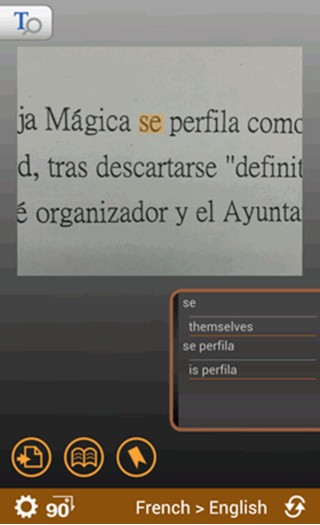
Step 3. Tap on a word in the image to check the translation of it. This will be
highlighted and the corresponding translation result will be listed in the lower
right list. In addition to word by word translation, Worldictionary will also
recognize phrases next to the crosshair and list phrase's translation as the
second item in the list.
Tip: Tap
 to listen to how this word is pronounced. Please note that an SD card is
required for this function.
to listen to how this word is pronounced. Please note that an SD card is
required for this function.
Note:
1) Tap the language bar
to select the source and target languages. Source languages are on the left, and
target languages are on the right. If you want to switch the language pair,
simply tap
.
Tap the back button to close the language menu.
2) You also can select the translation engines by tapping the
button on the top of the the screen, or tapping the
button to purchase other dictionaries. Purchasing dictionaries will also get you
an offline dictionary.
3) If the source languages are Traditional Chinese (Horizontal/Vertical),
Simplified Chinese (Horizontal/Vertical), or Japanese (Horizontal/Vertical),
please tap on the initial of the word.
Step 4. Tap a word in this list and you can see more information about this
word. If the source languages are Traditional Chinese (Horizontal/Vertical),
Simplified Chinese (Horizontal/Vertical), or Japanese (Horizontal/Vertical),
this list will show other probable recognition candidates for you to choose
from. Scroll down and you can view previous searching records.
There are more:
- Tap
to
listen to how this word is pronounced. Please note that an SD card is
required for this function.
- Tap
to choose a dictionary, all of online/offline dictionaries you've purchased
or free to access will be listed in the drop-down menu.
- Search the word from [Google],
[YouTube],
or [Wikipedia].
Tap the search field on the top of the screen or the
search icon in the phone menu, you can type the word you'd like to look up.
Please refer Type in word to search.
Now that we’ve learned how to add images to Worldictionary, let’s take a look at
how you can also type in to check the words.
Return to Content
Type in words to
search
While Worldictionary is immensely useful as an
escort interpreter, it also acts as a traditional translation machine. This
allows you to type words and get the meanings instantly.
Step 1. Tap the
 icon
on the upper-left corner of Worldictionary’s main screen to bring up the search
field.
icon
on the upper-left corner of Worldictionary’s main screen to bring up the search
field.
Step 2. Type a word into the search field and start to search this word.
Step 3. You will get the translation result with the detailed information of
this word.
Step 4. Tap the search filed on the top of the screen or press
the search button on the phone, you can type the word you'd like to look up.
Return to Content
Bookmarks
Add
Bookmarks
With Worldictionary bookmark function, saving favorite words to the
bookmark list is quick and easy. Let’s look at an example:
Tip: The bookmarks of
Worlddictionary and WorldPenScan can be mutually imported each other.
Step 1. You can open Bookmark to view words you have bookmarked.
Step 2. Tap
 on the main screen to open the Bookmark list.
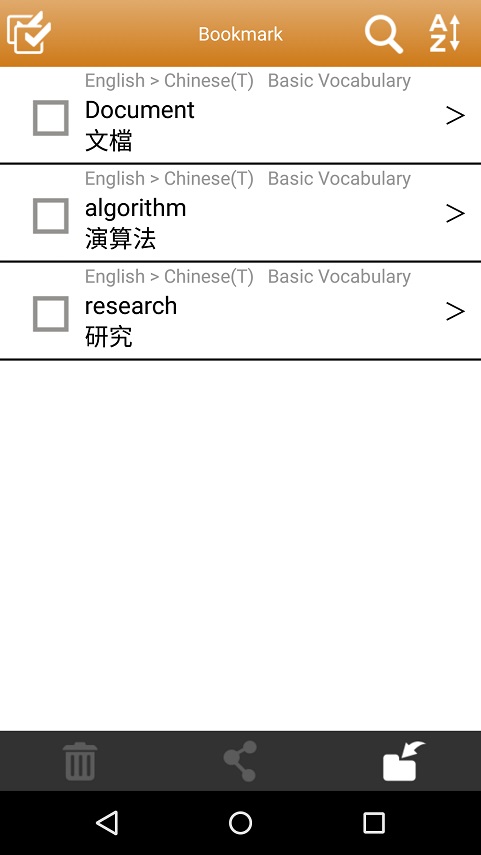
Step 3. The words are listed alphabetically. Tap a word in this list and
you can see more information about it. To search the vocabulary in the
bookmark list, please tap
 .
.
There are more:
- Tap
to listen to how this word is pronounced. Please note that an SD
card is required for this function.
- Tap
to choose a dictionary, all of online/offline dictionaries you've
purchased or free to access will be listed in the drop-down menu.
- You can search more information about the word from [Google],
[YouTube],
or [Wikipedia].
Step 4. If you'd like to remove words from the bookmark
list, please select the words and tap
 to
delete.
to
delete.
Tips:
Tap
 to select all of the words in the bookmark list.
Import Bookmarks
Tap  to import
.ppbm format bookmarks from the file system directory or Dropbox.
to import
.ppbm format bookmarks from the file system directory or Dropbox.
Tip: To
upload files to Dropbox, you need to install the Dropbox App
 . Please
log in Dropbox account before using the Dropbox function. If you don't
have the Dropbox account, please go to Dropbox website to apply one.
. Please
log in Dropbox account before using the Dropbox function. If you don't
have the Dropbox account, please go to Dropbox website to apply one.
Export Bookmarks
- Tap to open
the [Bookmark] page.
- Choose bookmarks you'd like to export.
- Tap
 to
export, and then choose the export format:[Text] or [Bookmark].
to
export, and then choose the export format:[Text] or [Bookmark].
- Choose the application that supports exporting bookmarks, for
example: E-mail, Message, Bluetooth or Dropbox, etc.
Tip: To
upload files to Dropbox, you need to install the Dropbox App
. Please
log in Dropbox account before using the Dropbox function. If you don't
have the Dropbox account, please go to Dropbox website to apply one.
Return to Content
History List
All the words you have searched will be listed
into History for you to view quickly. History can collect as many as 500 words.
How to check your searching history? Let’s take a look.
Step 1. Tap
 on the main screen to go to History.
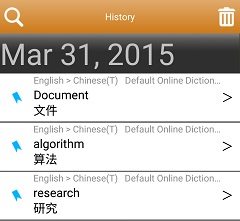
Step 2. The words are listed by date. You can make keyword search by inputting
keywords in the search field.
Step 3. Tap any word and you can see more information about this word, such as
pronunciation, usage, and etc.
There are more:
- Tap
to
listen to how this word is pronounced. Please note that an SD card is
required for this function.
- Tap
to choose a dictionary, all of online/offline dictionaries you've purchased
or free to access will be listed in the drop-down menu.
- You can search more information about the word from [Google],
[YouTube],
or [Wikipedia].
- Press
 to add this word into Bookmark.
Tip:
The bookmarks of Worlddictionary and
WorldPenScan can be mutually imported each other.
Tap the search field on the top of the screen or the
search icon in the phone menu, you can type the word you'd like to look up.
Please refer Type in word to search.
Step 4. If you want to delete all words in the history list, please press the
menu button on the phone and tap [Clear].
Step 5. Press the back button on the phone to return to the previous screen.
Return to Content
Import StarDict dictionary file
Worldictionary allows you to import StarDict dictionary files (*.bz2), if you
have the dictionary file, please follow the steps below to import:
1. You can find the shared StarDict files on internet, and tap the link to
download then save the dictionary file into your Android phone, for example you
save the file in the Android phone's SD card, or load the files you stored in
the Dropbox or via Email, then open any file browse APP to find the saved path
of *.bz2.
Note: If your Android phone has no any file browse APP inside, please go to
Google Play and install one.
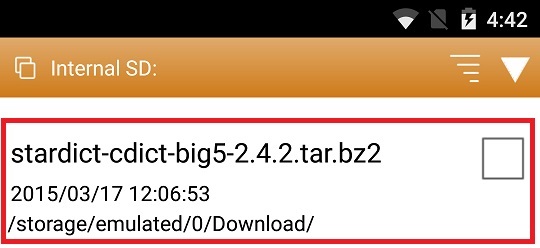
2. Tap the
dictionary file you want to import, an asking message will come out, please tap
[Yes] to continue.

3. Or tap
on the main page and choose the StarDict files stored in the phone to import.

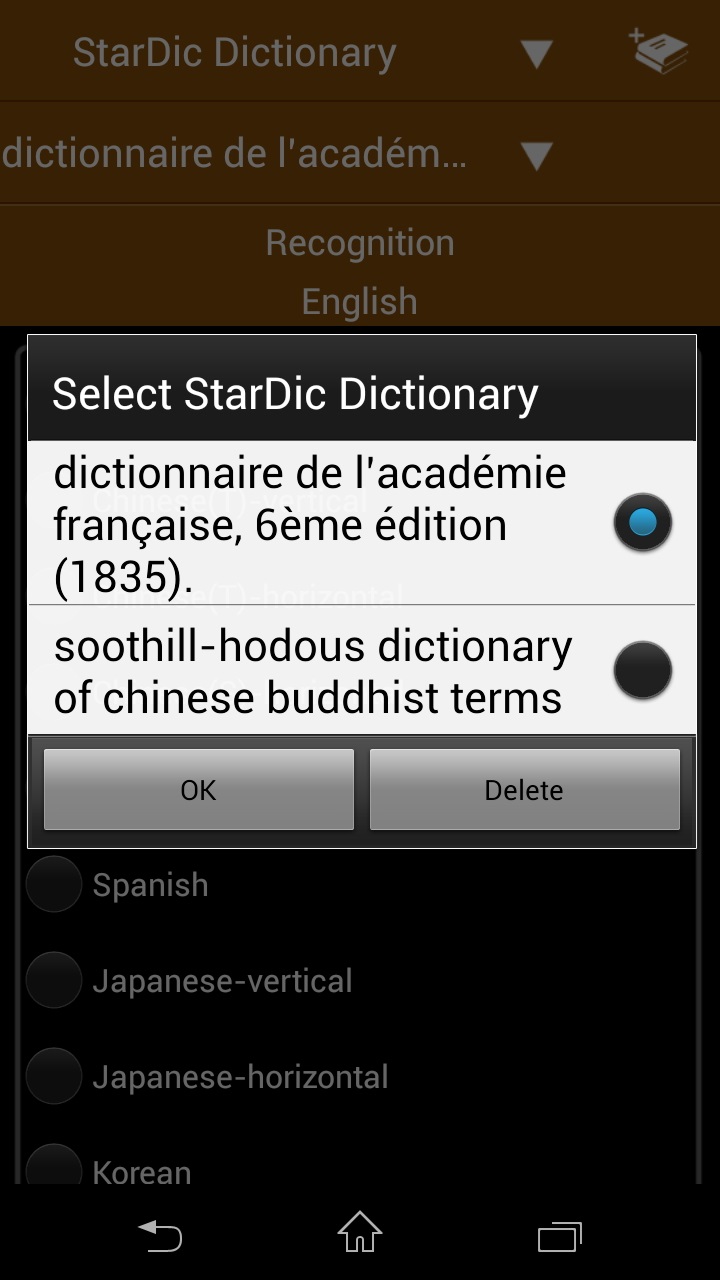
4.
You can choose the new dictionary to use once you imported.
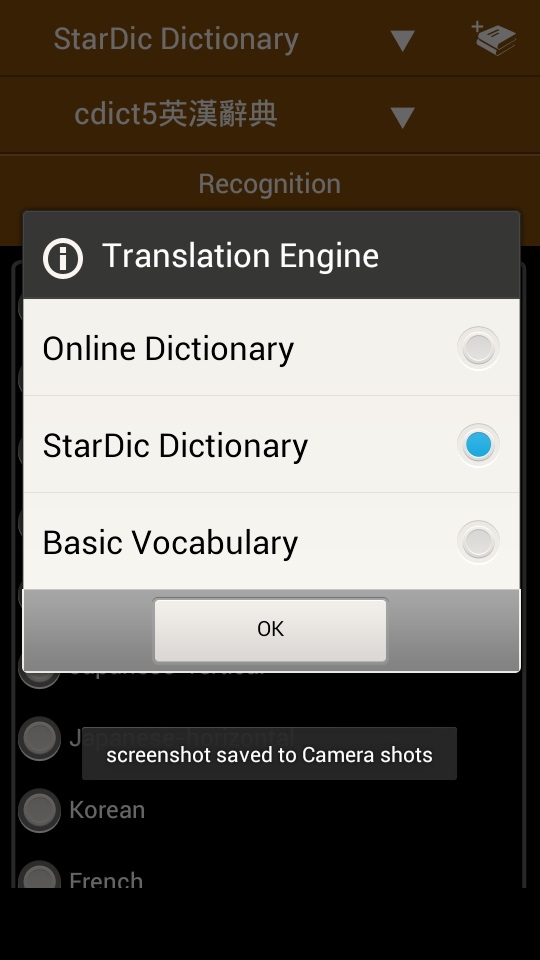
5. You can switch the
dictionaries to use if you have imported various dictionary files.
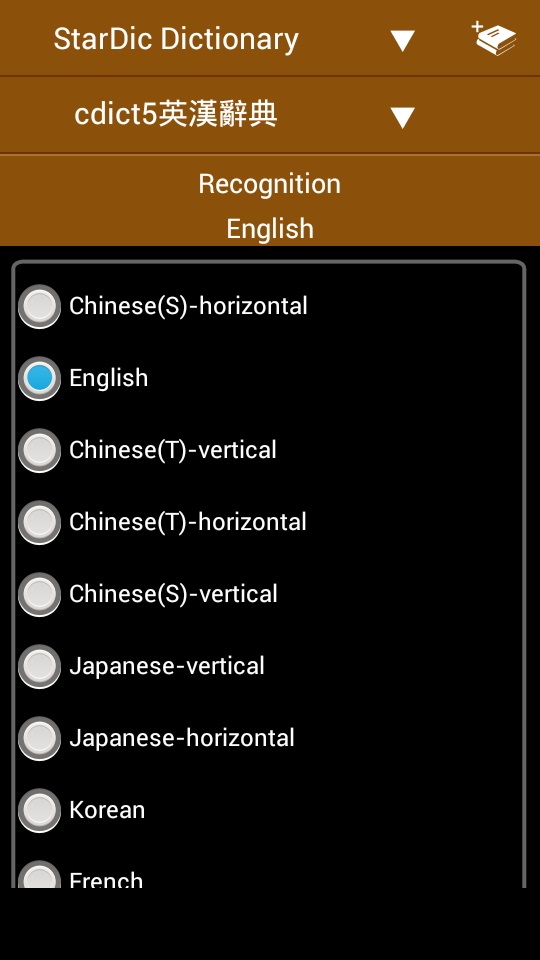
6. Choose the
recognize language which that dictionary file supports, for example you import a
English - Chinese dictionary, you have to choose English as
recognize language.
Return to Content
Settings
Tap the settings icon
 to set whether you want to save mages taken in Worldictionary to phone’s photo
album, view the user’s guide, and know more about Worldictionary.
to set whether you want to save mages taken in Worldictionary to phone’s photo
album, view the user’s guide, and know more about Worldictionary.
1. Translation Engine: Tap it to choose the translation engine.
2. Purchase dictionary: Tap it to buy other dictionaries. Select one dictionary
to see its details and tap [Download] to buy it.
3. Save image to photos: Switch this function on to save the image taken in
Worldictionary in your phone’s photo album or vice versa.
4. About: Tap it to see the version of this app and more information about
Worldictionary.
5. Help: Tap it to view the user’s guide.
6. Contact us: Tap it to write email to contact tech support for help.
2015/4/7