Overview
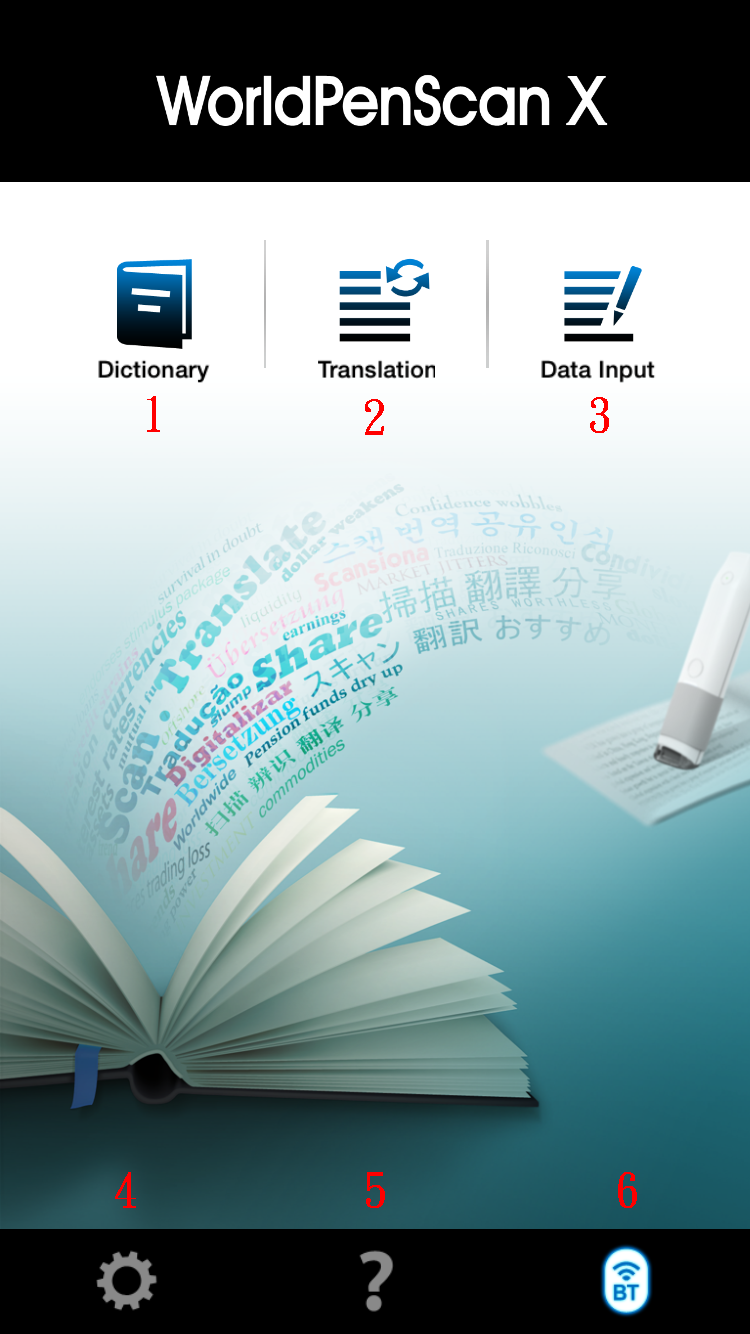
This user’s guide will put you on the path to use WorldPenScan
X
Overview
Connect to WorldPenScan X
Dictionary
Sentence Translation
Data Input
Settings
Note 1:
If there are more than one WorldPenScan X turned on when you first time use this
product, WorldPenScan X app will provide a menu for you to choose which scan pen
you want to use. Once you connect, WorldPenScan X app will remember the pen
forever until you connect another WorldPenScan X manually.
Connect to WorldPenScan X
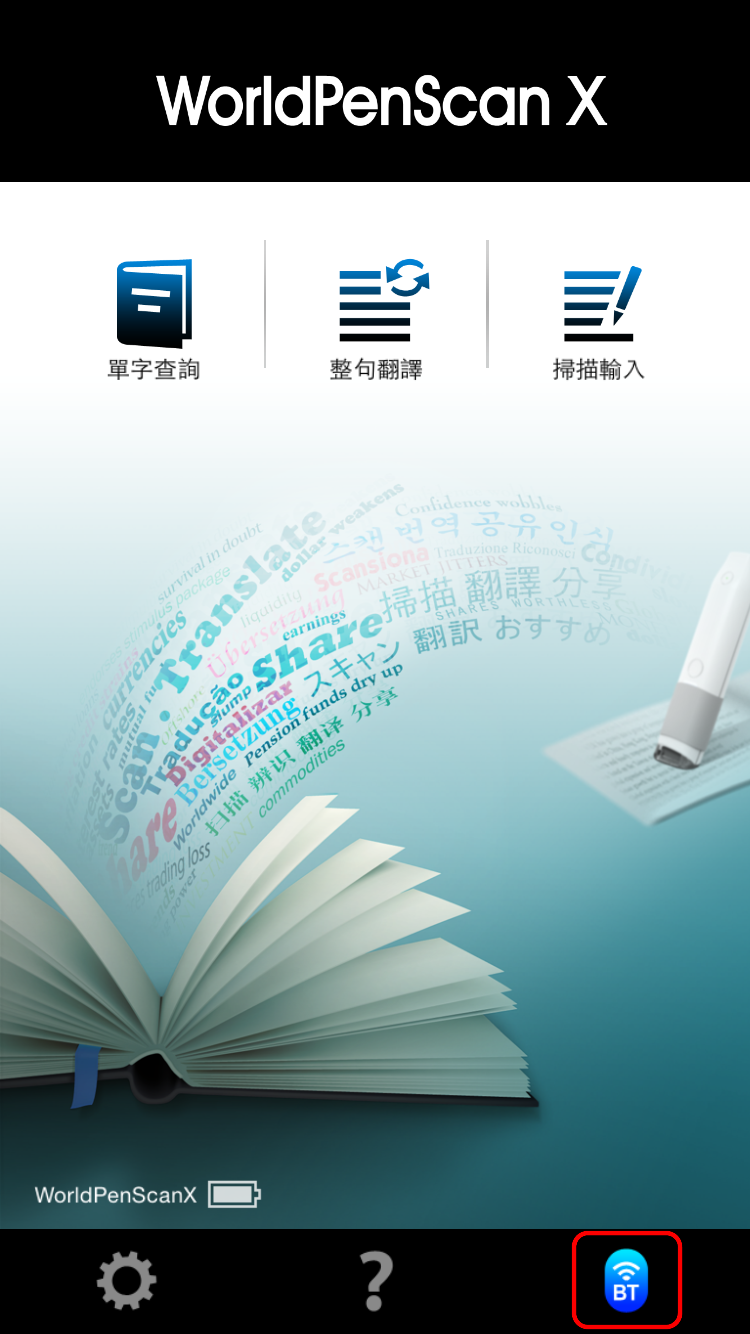
Please follow the instructions to pair your mobile phone and pen scanner with Bluetooth at first time use.
Note 2:
If
you want to use other WorldPenScan device, please go to the Settings of Android
system and enter Bluetooth option first, and then forget the current scan pen in
order to pair with the other one.
Tip 1: While disconnecting with pen scanner, you also can use Dictionary, Translation, and Data Input function by typing text manually.
Tip 2:
Tap the status icon  can disconnect the pen scanner.
Dictionary
Dictionary function can provide you the translation result of every scanned word.
 on the main screen.
 to select the language you want to translate from and the language you want to translate to. You also can select the translation engines by tapping the
 button on the top of the the screen, or tapping the
 button
to switch the languages, then tap the blank space
to save.
button
to switch the languages, then tap the blank space
to save.
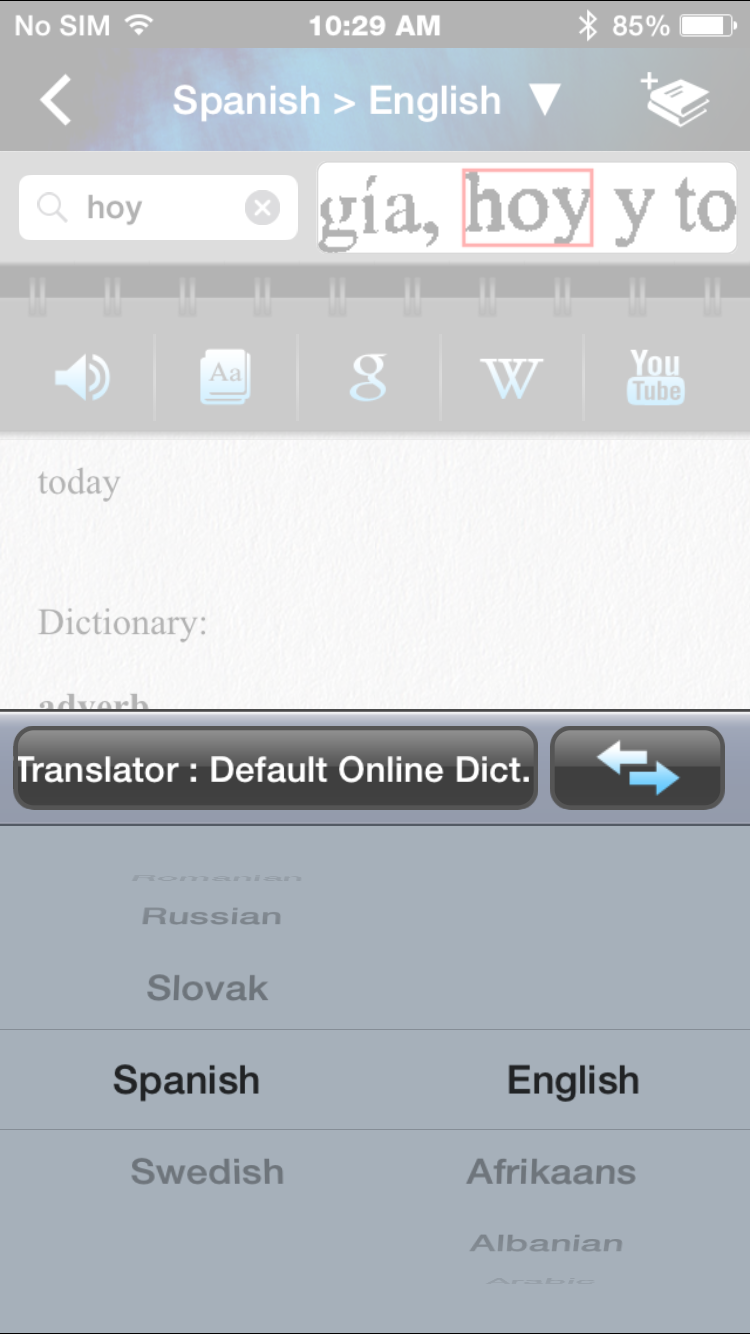
Tip: Except [Default Online Dictionary], you can use the other two engines with offline.
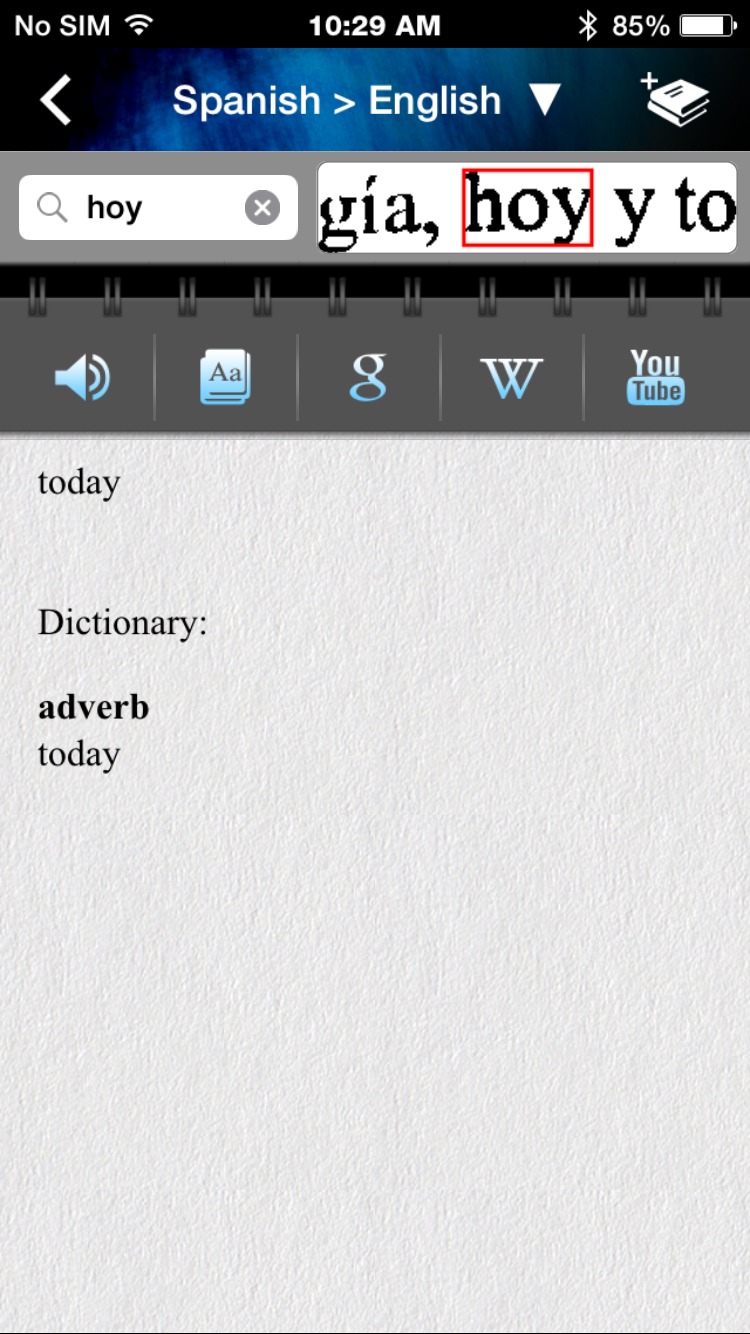
Tip 1: You can scan a sentence and press the function button on the pen scanner to see the translation of the next recognizable word or listen to the pronunciation of the scanned word. You can set an action of the function button in
Settings.
Tip 2: You can tap the original image and flick left or right to see more.
Moreover, you can:
 to listen to how this word is pronounced.
 to look up the translation of the word on the internet.
 ,
,
 , or
, or
 to search for more information of this word on Google, Wikipedia, or YouTube.
 to
download Dr. eye or TranStar dictionaries.
to
download Dr. eye or TranStar dictionaries.
Sentence Translation
Translation function can provide you the translations of the sentences you scan.
 on the main screen.
to select the language you want to translate from and the language you want to translate to.
on the main screen.
to select the language you want to translate from and the language you want to translate to.

Tip 1: To press the function button on the pen scanner can
read the scanned tests, clear scanned result, or etc. You can set an action of the function button in
Settings.
Tip 2: You can input as many as 500 letters for sentence translation.
Tip 3:
You can decide to use Google
online translation or Baidu online translation in the
Settings.
Moreover, you can:
to listen to the scanned sentence. Tap again to stop reading.
 to close the keyboard and translate.
 to delete all the scanned sentences and translation results.
 to share the scanned text and translation results to others.
 on the main screen.
 of text you want to scan.
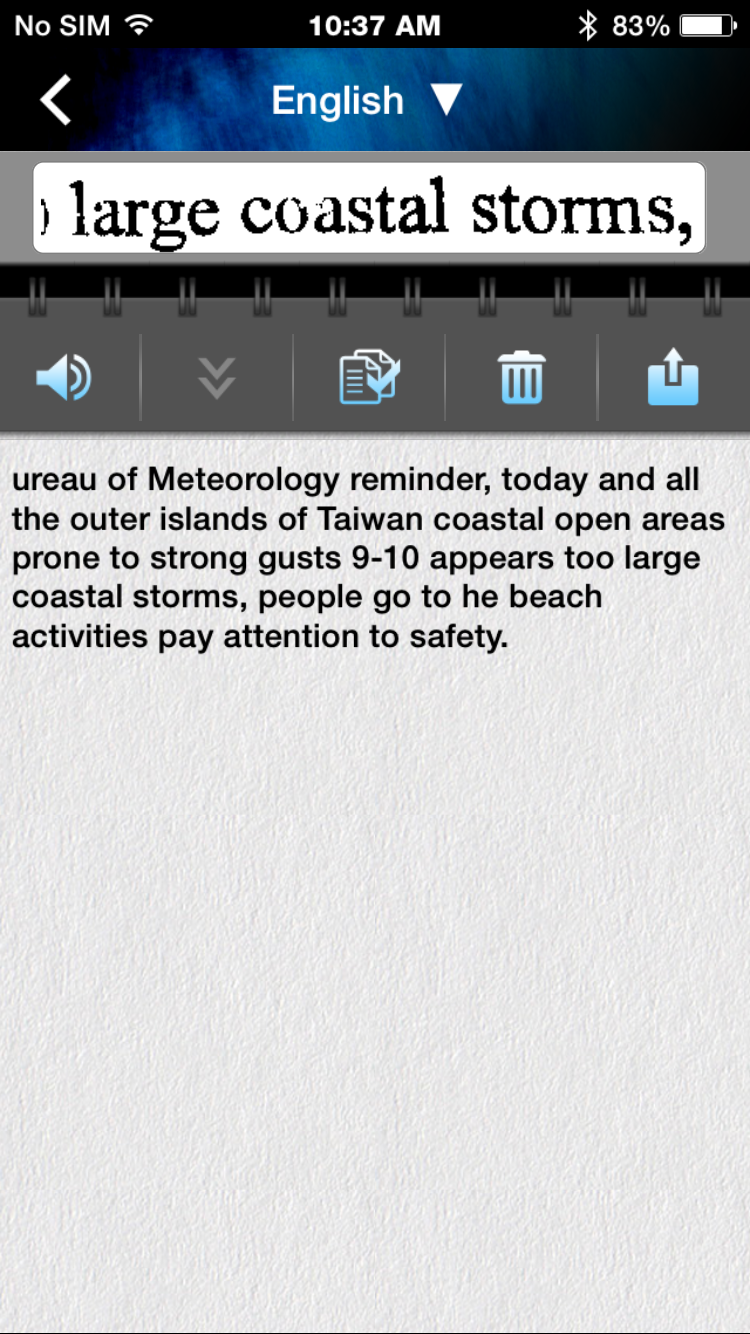
Moreover, you can:
to listen to the scanned sentence. Tap again to stop reading.
to close the keyboard and translate. to copy all the scanned
text and paste it to anywhere.
to delete all the scanned sentences and translation results.
to share the scanned text and translation results to others.
to copy all the scanned
text and paste it to anywhere.
to delete all the scanned sentences and translation results.
to share the scanned text and translation results to others.
 button on the
main screen to open settings.
button on the
main screen to open settings.