Getting Started with WorldPenScan BT
This user’s guide will put you on the path to use WorldPenScan BT
WorldPenScan BT Input Method
Overview
Connect to Pen Scanner
Dictionary
Sentence Translation
Data Input
Bookmark List
History List
Voice Record
Settings
WorldPenScan BT Input
Method
Except the WorldPenScan BT
app for translating and data inputting, we now provide the input method mode for
you to scan texts while using other apps.
a. Active
the input method
After installing the WorldPenScan BT app, please follow the
steps below to active the input method:
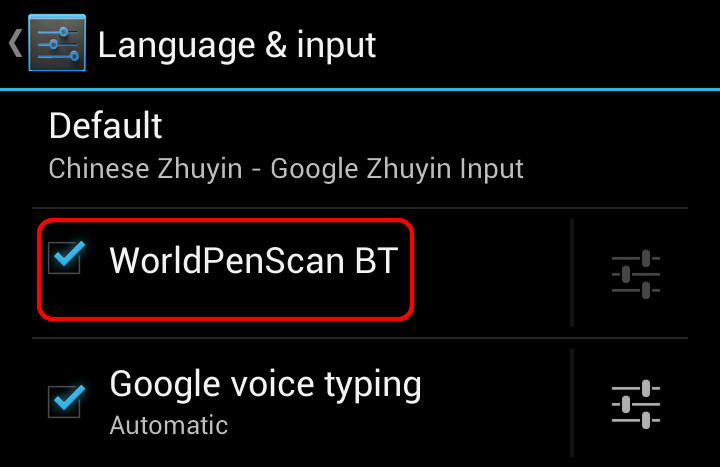
- Go to the System settings,
and enter [Language & inout].
- Find WorldPenScan BT, and
check it to active, if there was any notification, please tap [OK] to
continue.
b. Input Method Settings
You can tap
 to set the input method according to your habits before using the WorldPenScan
BT input method:
to set the input method according to your habits before using the WorldPenScan
BT input method:
- Sound on keypress:
Choose to turn on the keyboard sound when typing.
- Vibrate on
keypress: Choose to turn on the keyboard vibration when typing.
- Add spce after Eng
word: Automatically adding one space after any English word.
- Input Method
Settings: Choose the input method you want to use, like ZhuYin or Chang Jie.
- Handwriter
settings: Choose to output the handwrite Chinese characters as Traditional
Chinese, Simplified Chinese or both, also you can switch the multiple
characters writing mode or overlap
characters writing mode here.
c. Launch WorldPenScan BT Input
Method
Launch the app like [Notes] where you want to input first.
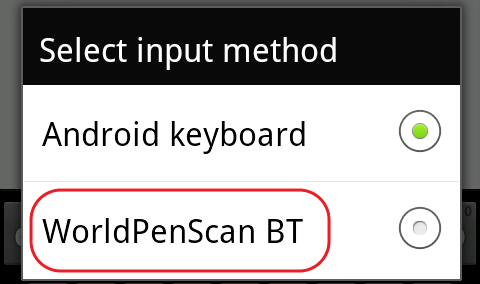
- If you are using
Android 2.x system, please long press the text box, the menu will show up,
please choose [Input method], and choose [WorldPenScan BT].
2.
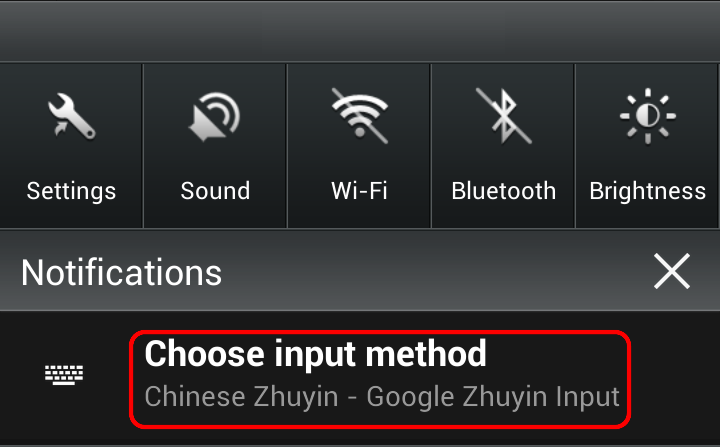
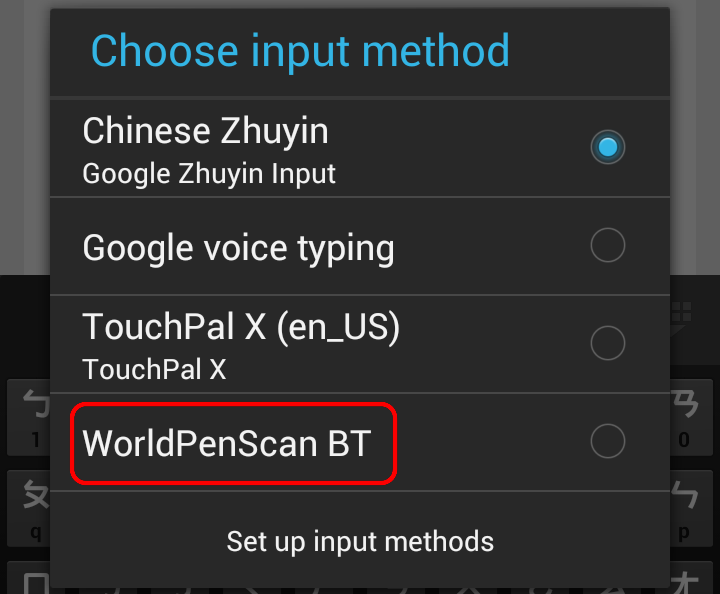
If you are using Android 4.x system, please slide down the status screen from
the upper edge of the screen, and you can see the current input method, tap it
to chage to [WorldPenScan BT].
3.
The WorldPenScan BT hardware will pair with the Android device when first
launching the WorldPenScan BT input method, please refer to the next chapter.
d.
Pairing
(For WorldPenScan BT)
- After launching the
WorldPenScan BT input method,
in power off mode, press the function button on pen scanner for around 6
seconds until the status light blinks. When the status light blinks, you can
begin to pair the pen scanner with mobile phone.
-
The system will ask you to type PIN number for pairing with pen scanner. Please type the default PIN number: 1234.
-
When pen scanner is paired with your phone successfully, the pen scanner will
connect with Android device automatically. You can begin to use WorldPenScan
BT when pen scanner connecting status
 on main screen is "on"
-
Long press the function button on pen scanner will turn off pen scanner. Next time you want to use WorldPenScan BT, simply press function button to turn on pen scanner and the pen scanner will connect to WorldPenScan BT app automatically. There is no need to pair mobile phone and pen scanner again.
(For WorldPenScan X)
- Turn on WorldPenScan
X, power light shows green.
After launching the
WorldPenScan BT input method,
the system will prompt to pair, please tap [Next] to continue.
- The system will
connect the scan pen directly, and the function light will turn into blue and
flash slowly once connected.
-
You can begin to use WorldPenScan
BT when pen scanner connecting status
on main screen is "on"
-
Long press the function button on pen scanner will turn off pen scanner. Next time you want to use WorldPenScan BT, simply press function button to turn on pen scanner and the pen scanner will connect to WorldPenScan BT app automatically. There is no need to pair mobile phone and pen scanner again.
e. Functions of WorldPenScan
BT Input Method
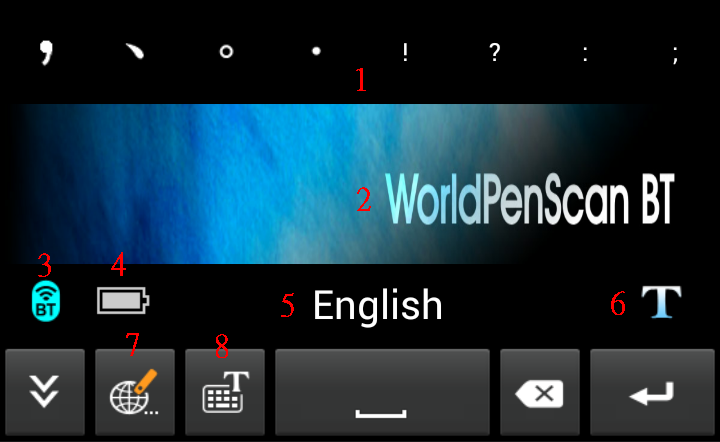
- Common symbols:
Common symbols her for you to input immediately.
- Original image: The
original image will show in here, you can drag it to see the whole image.
- Bluetooth status:
The icon will become blue when connecting with the WorldPenScan BT, turn into
gray when disconnecting.
- Battery: The battery
of WorldPenScan BT.
- Language of
recognition: Please remember to choose the right language before scanning.
- Single word/
sentence mode: Tap to switch the scanning mode as single word or sentences. At
single word mode, press the button on the WorldPenScan BT after scanning to
recognize next word in the original image; at the sentence mode, it changes
the line for you.
- Switch keyboard:
Change to other PenPower keyboard, like Zhuyin or handwriting keyboard, please
click here for the
manual of PenPower Handwriter.
- Switch input method:
Change to other input method.
Return to Content
Overview
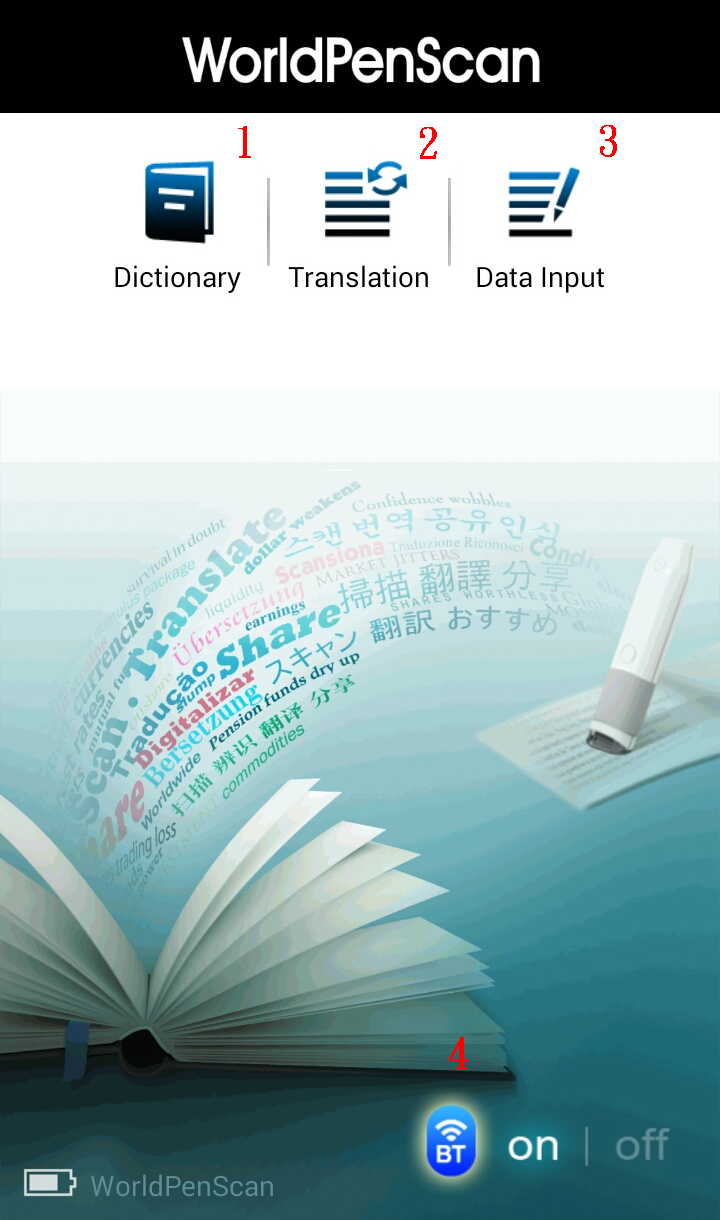
1. Dictionary - Provide translation of every scanned word.
2. Translation - Provide translations of scanned sentences.
3. Data Input - Scan text and copy or save it.
4. Pen Scanner Connecting Status - Show the status of whether the pen scanner is connected with WorldPenScan BT.
Tip: Pressing menu button on the phone can find more functions, such as bookmark list, history list, and etc.
Return to Content
Connect to Pen Scanner
Please follow the instructions to pair your mobile phone and pen scanner with Bluetooth at first time use.
(For WorldPenScan BT)
- In power off mode, press the function button on pen scanner for around 6 seconds until the status light blinks. When the status light blinks, you can begin to pair the pen scanner with mobile phone.
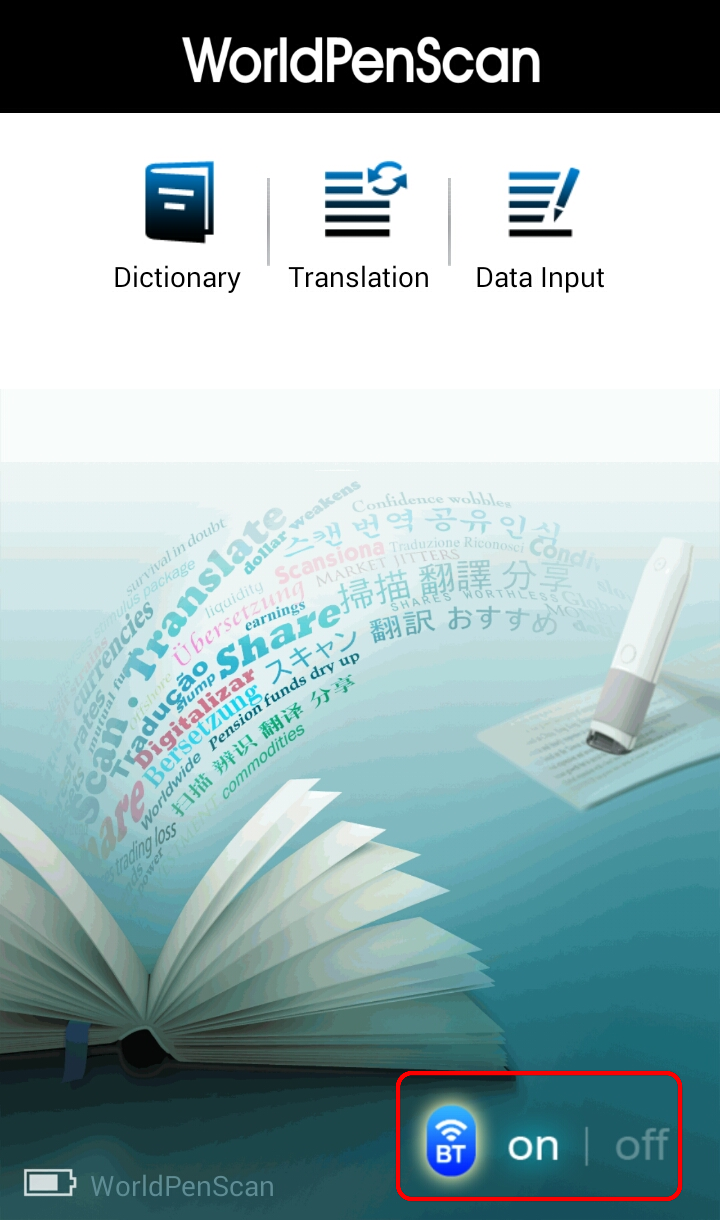
- Turn on WorldPenScan BT app and tap status button on the main screen.
- The system will ask you to type PIN number for pairing with pen scanner. Please type the default PIN number: 1234.
- When pen scanner is paired with your phone successfully, the status light on pen scanner blinks slowly (blink every 3 seconds), and the pen scanner will connect with WorldPenScan BT automatically. You can begin to use WorldPenScan BT when pen scanner connecting status on main screen is "on".
- Long press the function button on pen scanner will turn off pen scanner. Next time you want to use WorldPenScan BT, simply press function button to turn on pen scanner and the pen scanner will connect to WorldPenScan BT app automatically. There is no need to pair mobile phone and pen scanner again.
Note: If your mobile phone has paired with pen scanner but cannot connect to pen scanner for use, you can go to Bluethooth settings to unpair [WorldPenScan] device; and then pair your phone and pen scanner again.
(For WorldPenScan X)
- Turn on WorldPenScan X, power light shows
green.
- Open WorldPenScan X App, the system will
connect the scan pen directly, and the function light will turn into blue and
flash slowly once connected.
Note 1:
If there are more than one WorldPenScan X turned on when you first time use this
product, WorldPenScan X app will provide a menu for you to choose which scan pen
you want to use. Once you connect, WorldPenScan X app will remember the pen
forever until you connect another WorldPenScan X manually.
Note 2:
If
you want to use other WorldPenScan device, please go to the Settings of Android
system and enter Bluetooth option first, and then forget the current scan pen in
order to pair with the other one.
Tip 1: While disconnecting with pen scanner, you also can use Dictionary, Translation, and Data Input function by typing text manually.
Tip 2: While scanning, you can see the label  beside original image. It shows if your pen scanner is connected.
Return to Content
Dictionary
Dictionary function can provide you the translation result of every scanned word.
- Tap the Dictionary icon
 on the main screen.
- Tap
 to select the language you want to translate from and the language you want to translate to. You also can select the translation engines by tapping the
  button on the top of the the screen, or tapping the
  button to purchase Collins dictionaries. Tap [Done] to save your selection.
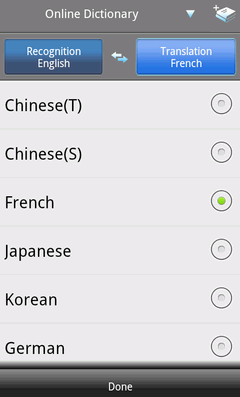
Tip: Except [Online Dictionary], you can use the other two engines with offline.
- Aim the scan tip arrow at the center of the desired scan area, and then press and drag the pen scanner in a straight line across the area like a highlighter. During the scanning, please make sure the white auxiliary light is on.
- Stop applying pressure to the pen scanner to stop scanning. The original image and its translation result will be displayed as below.
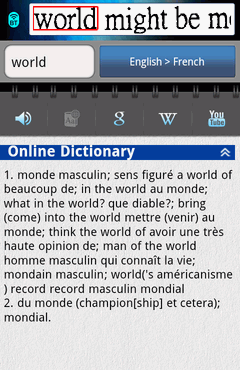
Tip 1: You can scan a sentence and press the function button on the pen scanner to see the translation of the next recognizable word or listen to the pronunciation of the scanned word. You can set an action of the function button in Settings.
Tip 2: You can tap the original image and flick left or right to see more.
Moreover, you can:
- Tap
 to listen to how this word is pronounced.
- If you use offline dictionary engine, you can tap
 to look up the translation of the word on the internet.
- Tap
 ,
,  , or
, or  to search for more information of this word on Google, Wikipedia, or YouTube.
- Tap the menu button on the phone and select
 to add the word and its translations into Bookmark.
Note: All the data in WorldPenScan BT you saved will be put in [sdcard\WorldPenScan]. If you did not have SD card in your phone, it is unavailable to save data, record voice, and use the voice reading functions.
Return to Content
Sentence Translation
Translation function can provide you the translations of the sentences you scan.
- Tap the Translation icon
 on the main screen.
- Tap to select the language you want to translate from and the language you want to translate to.
- Aim the scan tip arrow at the center of the desired scan area, and then press and drag the pen scanner in a straight line across the area like a highlighter. During the scanning, please make sure the white auxiliary light is on.
- Stop applying pressure to the pen scanner to stop scanning. The translation results will be displayed as below.

Tip 1: To press the function button on the pen scanner can undo/redo scan, clear scanned result, or etc. You can set an action of the function button in Settings.
Tip 2: You can input as many as 500 letters for sentence translation.
Tip 3:
You can decide to use Google
online translation or Baidu online translation in the
Settings.
Moreover, you can:
- Tap
 to clear the last scanned sentence and tap
  to redo the last step.
- Tap to listen to the scanned sentence. Tap again to stop reading.
- Tap
 to delete all the scanned sentences and translation results.
- Tap
 to save scanned text and translation results or to open an exsiting file.
- Tap
 to share the scanned text and translation results to others.
Note: All the data in WorldPenScan BT you saved will be put in [sdcard\WorldPenScan]. If you did not have SD card in your phone, it is unavailable to save data, record voice, and use the voice reading functions.
Return to Content
Data Input
Tap Data Input to scan text and copy, save, or share to others.
- Tap the Data Input icon
 on the main screen.
- Select the language of text you want to scan.
- Aim the scan tip arrow at the center of the desired scan area, and then press and drag the pen scanner in a straight line across the area like a highlighter. During the scanning, please make sure the white auxiliary light is on.
- Stop applying pressure to the pen scanner to stop scanning. The scanned text will be displayed as below.
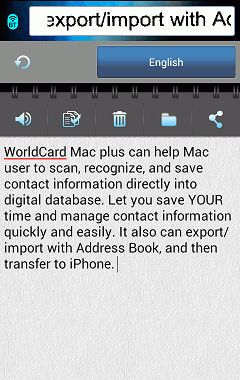
Tip: To press the function button on the pen scanner can undo/redo scan, clear scanned result, or etc. You can set an action of the function button in Settings.
Moreover, you can:
- Tap to clear the last scanned sentence and tap to redo the last step.
- Tap to listen to the scanned sentence. Tap again to stop reading.
- Tap
 to copy all the scanned text and paste it to anywhere.
- Tap to delete all the scanned sentences and translation results.
- Tap to save scanned text and translation results or to open an exsiting file.
- Tap to share the scanned text and translation results to others.
Tip: All the data in WorldPenScan BT you saved will be put in [sdcard\WorldPenScan]. If you did not have SD card in your phone, it is unavailable to save data, record voice, and use the voice reading functions.
Return to Content
Bookmark List
With WorldPenScan BT bookmark function, saving favorite words you looked up with Dictionary to the bookmark list is quick and easy. You can open Bookmark to view the words you have bookmarked.
- Pressing menu button on the phone and tap
 to open the Bookmark list.
- The words are listed alphabetically by default. You can set the list to sort by other way in Settings. Moreover, you can make keyword search by inputting keywords in the search field.
- You can tap any word to see its translation, usage, and etc.
Moreover, you can:
- Tap
 to listen to how this word is pronounced.
- Tap
 ,
,  , or
, or  search from [Google], [Wikipedia], or [YouTube] to make a quick search for this word.
- Or you can select words to delete , share , or save and share the words.
Tip: Even in offline mode, you still can review the scanned words and their translation results from online dictionary in bookmark.
Return to Content
History List
All the words you have searched through Dictionary will be listed into History for you to view quickly.
- Pressing menu button on the phone and tap
 to open the History list.
- The words are listed by date.
- You can tap any word to see its translation, usage, and etc.
Moreover, you can:
- Tap to listen to how this word is pronounced.
- Tap , , or search from [Google], [Wikipedia], or [YouTube] to make a quick search for this word.
- The bookmark function is also available in History list. To add the word in History into Bookmark list, simply tap the bookmark icon
 . When the bookmark icon is
  , the word was listed in bookmark list. If the bookmark icon is , the word is not in bookmark list.
Return to Content
Voice Record
Additionally, WorldPenScan BT provides Voice Record function to help you to record voice data.
- Pressing menu button on the phone and tap
 to open Voice Record.
- Tap
 to record voice, and tap
  stop recording.
- Tap
 to listen to your record.
- Tap
 to save the record.
Moreover, you can:
to save the record.
Moreover, you can:
- Tap
 to share the voice file by Email or Bluetooth.
- Tap
 to listen to the history record.
Note: If you did not have SD card in your phone, it is unavailable to save data, record voice, and use the voice reading functions.
Return to Content
Settings
Pressing menu button on the phone and select  .
.
-
WorldPenScan Detail: Display current paired pen, you can forget the pen
here, too.
-
Translator
:You
can decide to use Google online translation or Baidu online translation in the
Settings.
-
Image Quality: Please set as 600dpi
if you need to scan small font size.
- Handedness: For vertically aligned text, you can select to scan it
with [Right-hand] or [Left-hand]. The right way to hold pen scanner is that your
index finger can press on the pen's function button.
- Pronounced after scanning: While using the Dictionary function, you can select this option to automatically pronounce the translation result.
- Auto save: Save the words or sentences you scan automatically.
- Recognize Hong Kong characters: When the language you scan is Traditional Chinese, you can select Recognize Hong Kong Characters to scan Hong Kong characters as well.
- Sort by: Set the display sequence of words in Bookmark by alphabet, created time, or last used time.
- Back up: Tap to back up data in Bookmark.
- Restore: If you have backed up the data in Bookmark, you can restore them.
- Tap [Restore].
- Select a backup file from the list to restore and tap [Yes] to start restoring.
- Button Action: The function button on pen scanner can be set as different action for Dictionary, Translation, and Data Input function. Tap this option to select which function you want the function button to be.
- TTS: TTS is used on voice reading for English, German, Spanish, French, and Italian. If the language shows "Tap to download voice data", it means you can tap on the language to download voice data of the language from TTS, or the language will be speeched by Internet. If the language has installed voice data by TTS, this option is hidden.
- Send Feedback: Tap it to send an Email to tech support for help.
- More Penpower App: Tap to see more apps provided by PenPower.
Return to Content
2014/11/03