WorldNote Help
Overview
Edit & Manage Notebooks
Edit & Re-sequencing Notes
Classify & Manage Notes
Search Notebooks
Settings
Overview
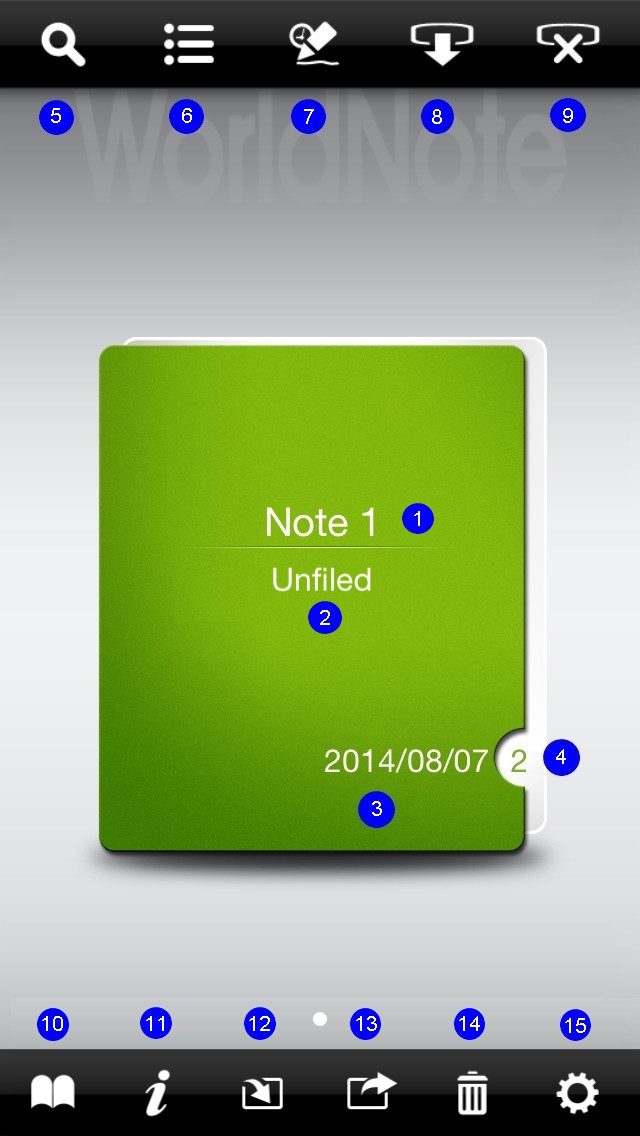
- Notebook name
- Notebook group
- Create date
- Note quantity
- Searching
- Category
- Online mode
- Download handwritten notes
- Delete handwritten notes
- Searching
- Notebook Information
- Export Notebook
-
Import Notebook
-
Delete Notebook
-
Settings
Note:
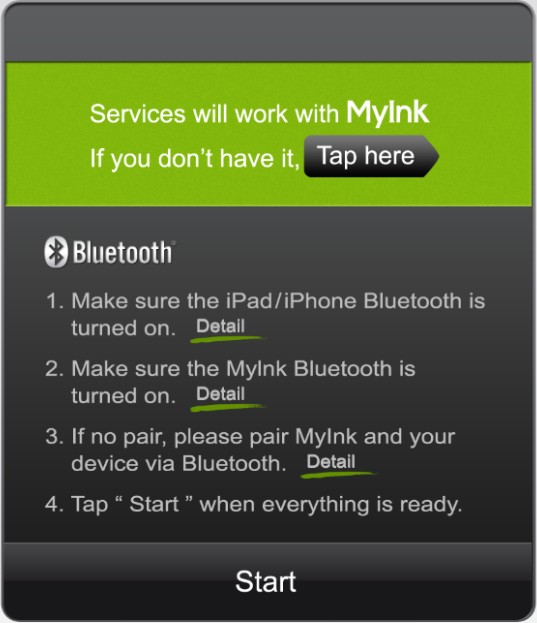
If you see the screen below when you're adding/ deleting handwritten notes, it means the
Bluetooth function of MyInk and mobile device are disconnected to each other. Please follow the instructions shown on the screen, confirm the
Bluetooth status and complete the pairing procedure.
Return to Content
Edit & Manage Notebooks
Create a new notebook
Edit notebook information
Read the notes
Delete the notebook
Export the notebook
Import the notebook
a.
Create a new notebook
- Turn on the Bluetooth of MyInk receiver.
- Tap
 on the WorldNote
when the MyInk receiver has connected with your mobile device.
on the WorldNote
when the MyInk receiver has connected with your mobile device.
- To download handwritten notes to the new notebook, please choose [Create a new notebook]. Or if you'd like to import handwritten notes into the current notebook, please choose [Import to the current notebook] .
Notes: After downloading handwritten notes, the Bluetooth function of
MyInk will be automatically turned off. If you'd like to download/delete
handwritten notes again, please push the Bluetooth button on MyInk, the
Bluetooth function will be turned on.
Return to Content
b.
Edit notebook information
Tap  to edit the information of this notebook, you can setup the notebook's property
and the keywords for searching. Tap [Back] will save the changes.
to edit the information of this notebook, you can setup the notebook's property
and the keywords for searching. Tap [Back] will save the changes.
- Name: Name the notebook. To clear the text in the field, tap
 on the right.
 -
Category: Define a group for notebook.
- Style: Choose the cover for the notebook, the app currently provides five colors: [Apple Green] , [Ocean Blue] , [California Orange] , [Violet Purple] , [Ruby Red].
- Description: Input the descriptions for the notebook, it can help you quickly recognize the content of the notebook in the future.
- Keywords: By defining keywords for the notebook, you can use the keywords to search the notebook later.
- Create time: The application will save the current time when the notebook is created.
- Modify time: The application will save the current time when the notebook is modified.
Tip: The search function of WorldNote will search texts in the [Name]
, [Description] and [Keywords] text field of notebook information. It would help
you find notebooks easily if you edit these three information as detailed as you
can.
Return to Content
c.
Read the notes
- You can use fingers to choose the notebook you'd like to read by swiping left or right on the main screen.
- Tap the notebook to read the notes.
- After you opened the notebook, you can double-tap the screen to zoom in/out the note. Or pinch two fingers together to zoom out or spread them apart to zoom in.
- To read the previous/next page, please use your fingers to swipe left or right.
- Tap once on the screen, you will see the tool bar showing on the top and
bottom. You can edit and manage the current note. Learn more about how to manage notes, please refer to [Edit
& Re-sequencing Notes] .
- If you'd like to return to the main screen, please tap the screen, then tap [Back].
Notes:
- When the Bluetooth of MyInk is turned on, you can only download or delete the handwritten notes, you can not write notes. If you'd like to write notes, please push the
Bluetooth button on MyInk again, you can start to write after the Bluetooth function is turned off.
- After downloading handwritten notes, the Bluetooth function of MyInk will be automatically turned off. If you'd like to download/delete handwritten notes again, please push the
Bluetooth button on MyInk, the Bluetooth function will be turned on.
Return to Content
d.
Delete the notebook
- Choose the notebook you'd like to delete.
- Tap
 .
.
- Tap [Ok] to delete the notebook.
-
If there was any note in the
notebook, the note will be deleted together.
Tip: You can delete all of handwritten notes of the receiver by tapping  when MyInk receiver is connect with your mobile device.
Return to Content
e.
Export the notebook
WorldNote provides you export notes with different formats to many environments, helping you to read notes on other environments conveniently.
- Choose the notebook you'd like to export.
- Press
 to
export.
to
export.
- WorldNote provides three ways to export the notebook:
- Save to album: You can go to the album to see the notes pictures you've chosen to export.
- E-mail: WorldNote provides three formats as attachments for sending a E-mail: [WorldNote format] , [JPG format] and [PDF format] .
- Dropbox: Please log in your Dropbox account first, then choose one of the formats: [WorldNote format] , [JPG format] or [PDF format] .
Tip:
- To read notes on PC, you can export the notebook as a [WorldNote format]
file, then import the file to WorldNote on PC.
- If you don't have a Dropbox account, please go to Dropbox website to apply one.
- To log in/ out Dropbox account, please refer to [Settings] .
Return to Content
f.
Import the notebook
-
Press
 to import.
- Any [WorldNote format] file (*.wnxf) in the
Dropbox will be shown in the list.
- Just choose the file you want to import, if you
didn't log in the Dropbox, at this time the app will switch to the login page
of Dropbox first, and return to the list once you logged in.
- You can also put the [WorldNote format] file (*.wnxf)
in your mobile device, then tap that file to open with WorldNote, and the
notebook will import to the WorldNote.
Return to Content
Edit & Re-sequencing Notes
Tap on the note, you can see the tool bar showing upon the screen.
Create new notes
Real-time handwriting
Delete the note
Export the note
Recognition
Edit the handwriting
Re-sequencing the handwriting
a.
Create new
notes
You can download handwritten notes from the device when you are reading a
notebook.
- Please turn on the Bluetooth function of the device first.
- Tap.
- Choose the notebook where you'd like to download your notes to.
[Create a new notebook]: Create a new notebook and download the
handwritten notes to it.
[Import to the current notebook]: Download the handwritten notes to
the notebook you're currently reading.
Tip: You can also put the [WorldNote format] file (*.wnxf)
in your mobile device, then tap that file to open with WorldNote, and the
notebook will import to the WorldNote.
Return to Content
b.
Real-time
handwriting
You can new a note by real-time handwriting when MyInk receiver is connected
with your mobile device.
- Tap
 on the
up-right corner of main page to write a note immediately.
on the
up-right corner of main page to write a note immediately.
- Also you can enter the notebook, and tap
 to write a note immediately.
- You will see the inking shows up on the screen when writing on the paper, please
remember to tap [Done] to save.
Return to Content
c.
Delete the
note
Tap to delete the note you're currently reading. After all of the notes have been deleted, there's a white page existing in the notebook instead.
Return to Content
d.
Export the note
The same as the way to delete the notebook, please refer to [Export the notebook].
Return to Content
e.
Recognition
Note: iPhone only support the recognition function
and will directly enter the results editing page after recognition,
it doesn't support to recognize the strokes into other objects and re-sequencing
the handwriting as well.
Tap  to
enter edit mode, and tap
to
enter edit mode, and tap
 to recognize the
handwritings into character object or other objects such
as lines, forms.
to recognize the
handwritings into character object or other objects such
as lines, forms.
- If you want to recognize the handwritings into
character object, please press
 on the up-right
corner first to set the recognition
language.
on the up-right
corner first to set the recognition
language.
- Tap
 ,
and then drag a range to include the handwritings you'd like to recognize.
,
and then drag a range to include the handwritings you'd like to recognize.

- Tap
to do the recognition, and you will see the results after that.
- Tap
 ,
and choose the object in the edit area, you can choose [Cut], [Copy], [Delete] functions in the menu.
If you ever cut or copy any object, you can tap
,
and choose the object in the edit area, you can choose [Cut], [Copy], [Delete] functions in the menu.
If you ever cut or copy any object, you can tap  on the bottom-right corner to paste. If you choose one character object, you will find additional [Object editor] functions in the menu, you can use
[Object editor] to edit the recognition, if you select multiple objects,
you can see the [Order] function and use it to switch the front/
back display.
on the bottom-right corner to paste. If you choose one character object, you will find additional [Object editor] functions in the menu, you can use
[Object editor] to edit the recognition, if you select multiple objects,
you can see the [Order] function and use it to switch the front/
back display.
- Choose [Edit the recognize result] or [Stroke editor] after tapping [Object
editor], choose [Edit the recognize result] to revise the texts, you can tap
 to change the recognition language, tap
  separate the characters, if "日" and "月" be recognized as "明",
tap it to take apart "明" into "日" and "月"; and if "明"
be recognized as "日" and "月", tap
separate the characters, if "日" and "月" be recognized as "明",
tap it to take apart "明" into "日" and "月"; and if "明"
be recognized as "日" and "月", tap  to combine them into "明"; besdies, tap
  copy the texts
into clipboard, or tap
copy the texts
into clipboard, or tap  to send the recognized
texts via E-mail, tap
to send the recognized
texts via E-mail, tap  to share the results to other APP.
- Following above, tap [Stroke
editor], you can add or remove the strokes.
- Tap [Done] to save and close the edit page, return to the note.
- When the results come out, you can tap
 to switch to view the original handwriting or recognize results, or choose a
object and tap
to switch to view the original handwriting or recognize results, or choose a
object and tap  to
change the thickness/ thinness of original handwriting, also you can long press
to switch to function of color changing
to
change the thickness/ thinness of original handwriting, also you can long press
to switch to function of color changing  or font size changing
  .
. -
You can select few or many objects, and tap
 to align aside, to center or divide equally. If you choose two or more text
objects, tap to
combine and turn them into one text object.
to align aside, to center or divide equally. If you choose two or more text
objects, tap to
combine and turn them into one text object. -
You can tap
 to insert texts or pictures to enrich the note.
Tips:
- Tap
 or
or  to zoom in or zoom out the recognized text.
 -
You can tap
 to see which handwritings have already became objects, the objects will be
high-lighted with the dotted line.
to see which handwritings have already became objects, the objects will be
high-lighted with the dotted line.
- If you want to restore the objects to handwriting, choose the object and tap
 to clear the definition of object, or tap
without choosing any object to clear all the definitions. Please noted if you
canceled the definition after removing the object, the handwriting will stay at
the current position.
to clear the definition of object, or tap
without choosing any object to clear all the definitions. Please noted if you
canceled the definition after removing the object, the handwriting will stay at
the current position.
Return to Content
f.
Edit the handwriting
- WorldNote can let you add or delete handwritings, tap
 to add or tap
  to erase. When there is any change, you will see
  shows up, tap
  to
undo the stroke, and tap
to
undo the stroke, and tap  to redo the stroke. You can tap
  anytime to
drag the position of handwriting of edit.
anytime to
drag the position of handwriting of edit.
- You can tap
 to on/off the guides or tap
  to adjust the interval of the guides.
- Tap
 and
and  can let you
quickly return to the top or the left of notes when the screen is zoomed in.
can let you
quickly return to the top or the left of notes when the screen is zoomed in.
Return to Content
g.
Re-sequencing the handwriting
-
Select the range of handwriting of sentences that you want to re-sequencing,
and also set the recognition language then tap
 ,
WorldNote will turn the characters into objects, and do the re-sequencing.
,
WorldNote will turn the characters into objects, and do the re-sequencing.
- At the bottom of screen, there is a bar for you to change the thickness/
thinness of handwriting, and you can tap [Grid] to enhance the results of
re-sequencing.
Note: After re-sequencing, the position and thickness/ thinness of
original handwriting will change, and after saving it, you cannot restore the
changing even you cancel the definition of objects.
Return to Content
Classify & Manage Notes
a.
Category
- Tap
 to choose specific
category or choose [All] to see all the notebooks.
to choose specific
category or choose [All] to see all the notebooks.
- Tap [Edit] to new or delete a category, and tap [Done] to go back to the
main page.
Note: After deleting a category, all the notes which were belong to
that category will become [Unfiled].
b. Bookmark
WorldNote provides bookmark for you to find the marked notes easily while
browsing. Every note has a bookmark icon on the up-right corner ,
tap it to mark (the icon becomes red), tap it again to unmark. You can tap
,
tap it to mark (the icon becomes red), tap it again to unmark. You can tap
 on main page to
preview the marked notes when browsing the notebooks.
on main page to
preview the marked notes when browsing the notebooks.
c. Copy, move, delete, export
Tap  on the up-right corner
to see the marked note's thumbnail, tap [Edit] then you can do the following
actions:
on the up-right corner
to see the marked note's thumbnail, tap [Edit] then you can do the following
actions:
- Please choose the note you want to duplicate, or tap
 to select all.
- Tap
 , then tap [Ok] to confirm.
- Choose the notebook where you'd like to copy your notes to.
- Tap [Done], you can see the notes you've just copy in the destination notebook.
- Select the notes you'd like to move.
- Tap
 , then tap [Ok] to confirm.
- Choose the notebook where you'd like to move your notes to.
- Tap [Done], you can see the notes you've just move in the destination notebook.
The same as the way to delete the notebook, please refer to [Delete the notebook].
The same as the way to delete the notebook, please refer to [Export the notebook].
Return to Content
Search Notebooks
The searching function will search texts in the [Name] , [Description] and [Keywords] fields of the notebook information to help you find notebooks you'd like to read.
- Tap
 , go to the searching page.
- Input the searching texts in the [Note Search] field.
- The searching result will be listed below, you can read the notebook by tapping it.
- Tap [Done] , return to the main screen.
Return to Content
Settings
Tap  to go to the setting page of WorldNote.
a. Account
setting
Login Dropbox: Log in the Dropbox account to export your WorldNote notebook. If you don't have the Dropbox account, please go to Dropbox website to apply one.
b. Others
-
- Help: If you have any problems in using WorldNote, please look up the [Help].
- About: The information of WorldNote.
- Privacy Policy: The policy claims how the application uses your personal information.
- Contact Us: Feedback errors or problems of the application.
- More Apps: Link to the iPhone/iPad App zone of PenPower Technology website, you can find more apps of other products.
Return to Content
2015/02/13