WorldCard Cloud provides personal platform for managing business cards. In [My Favorites] area, users can add, recognize and use card information; also, users can build their own category system for sorting the cards. Moreover, every information that added or edited in [My Favorites] will be uploaded to [Public Contacts]. Through the update system, you can share your contacts information with other users and get theirs information as well so as to immediately update and enlarge your contacts network.
Application in Public Contacts
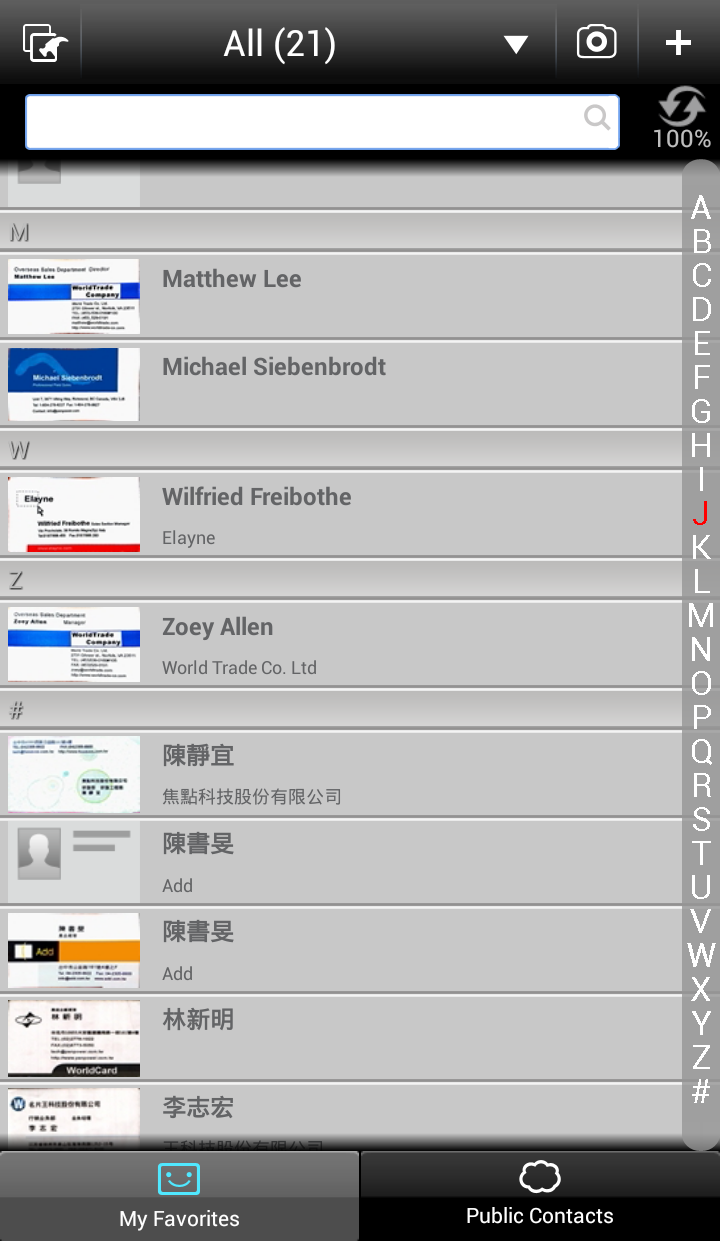
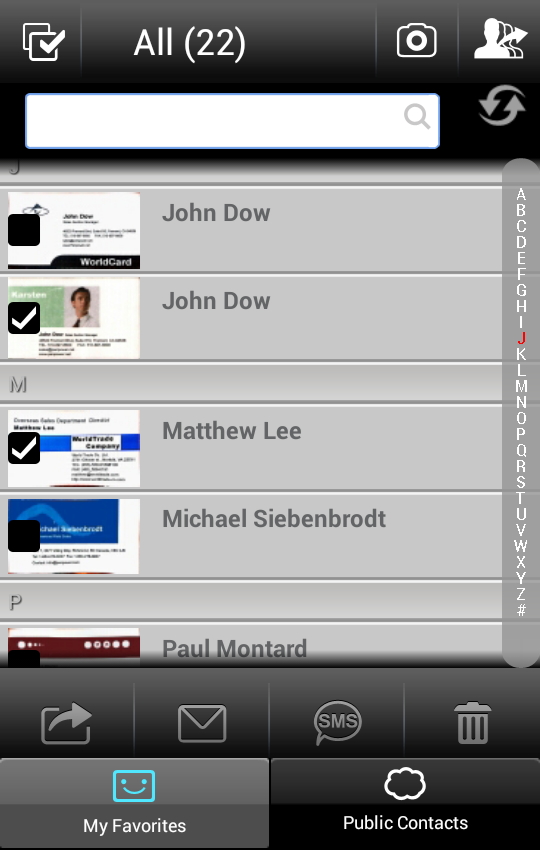
When you log in to WorldCard Cloud app, you will enter to the preset page [My Favorite]. At the top of the page, there are buttons for advanced card function, switching category, adding cards, updating card information and search bar. The contacts will be listed according to field sorting and index mode. Below the contacts list are the tabs of [My Favorites] and [Public Contacts]. You can switch to these two pages by tapping the tab.
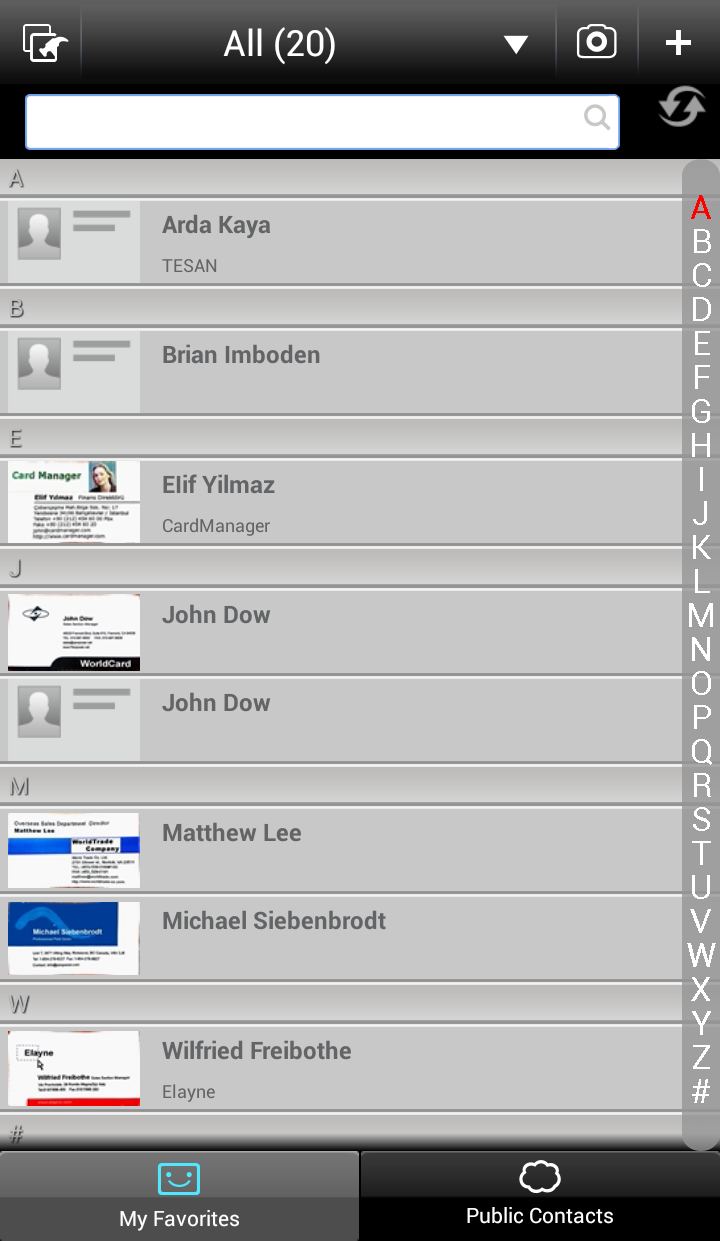
 Advanced
Function- Export card information, send e-mails/text to the contact and
categorize/delete contacts information.
Advanced
Function- Export card information, send e-mails/text to the contact and
categorize/delete contacts information. Switch
Category- Open the category list to switch the category and edit cards
information.
Switch
Category- Open the category list to switch the category and edit cards
information.
 Camera-
Use camera to add cards.
Camera-
Use camera to add cards.
 Add
Contacts- Choose the way to add cards.
Add
Contacts- Choose the way to add cards.
 Update-
Update the information between [My Favorites] and [Public Contacts].
Update-
Update the information between [My Favorites] and [Public Contacts]. My
Favorites- The cards in this area is for personal use and can be
updated to [Public Contacts] automatically or manually.
My
Favorites- The cards in this area is for personal use and can be
updated to [Public Contacts] automatically or manually. Public
Contacts- The cards in this area is for all users to use. You
need to log in online so as to have the access to [Public Contacts].
Public
Contacts- The cards in this area is for all users to use. You
need to log in online so as to have the access to [Public Contacts].
 Select All-
Click this button to select all the options.
Select All-
Click this button to select all the options.
 Export
card information- Export the selected card information to the
Phone Contacts or Gmail Contacts.
Export
card information- Export the selected card information to the
Phone Contacts or Gmail Contacts.
 Edit
Category- Categorize for the selected cards.
Edit
Category- Categorize for the selected cards.
 Copy to
My Favorites- Copy the card information in [Public Contacts] to [My
Favorites].
Copy to
My Favorites- Copy the card information in [Public Contacts] to [My
Favorites]. Send
E-mail- Send e-mails to the selected contact.
Send
E-mail- Send e-mails to the selected contact. Text-
Send text messages to the selected contact.
Text-
Send text messages to the selected contact. Trash Can-
Delete the selected cards.
Trash Can-
Delete the selected cards. Setting- Adjust
user settings and edit account information.
Setting- Adjust
user settings and edit account information.
 Search Bar- Type
in the keywords to search for contact information.
Search Bar- Type
in the keywords to search for contact information.
Index List- Click on the index character or scroll the index list to view the contact and its card image.
Click
to add contact by selecting pictures from Camera, existing
photo, eSignature, creating manually.
a. Create Contacts from Camera
b. Create Contacts from
Existing photo
c. Recognize eSignatures
d. Create Contacts Manually
a.
Create Contacts from Camera
1. Click
in [My Favorites] and choos
.
2. Rotate your mobile phone to landscape mode and make sure the business card image is fully loaded in the screen.
Tip: If the text in your business card is vertical, please also rotate your mobile phone to landscape mode to capture the image.
3. Get the camera to focus the image by tapping the screen.
Tip 1:Tap
 can use macro
function and tap
can use macro
function and tap  is to open the auto focus function.
Tip 2:Tap Image Process
 to
twist and lighten the photo automatically.
to
twist and lighten the photo automatically.
 : No image
process.
: No image
process.

 : Lighten the photo.
 Tip 3:Tap flash mode(where exists) to select Auto
 , On
, On
 or Off
  to get clear light.
Tip 4:Tap
 or
or
 to rotate
the image.
to rotate
the image.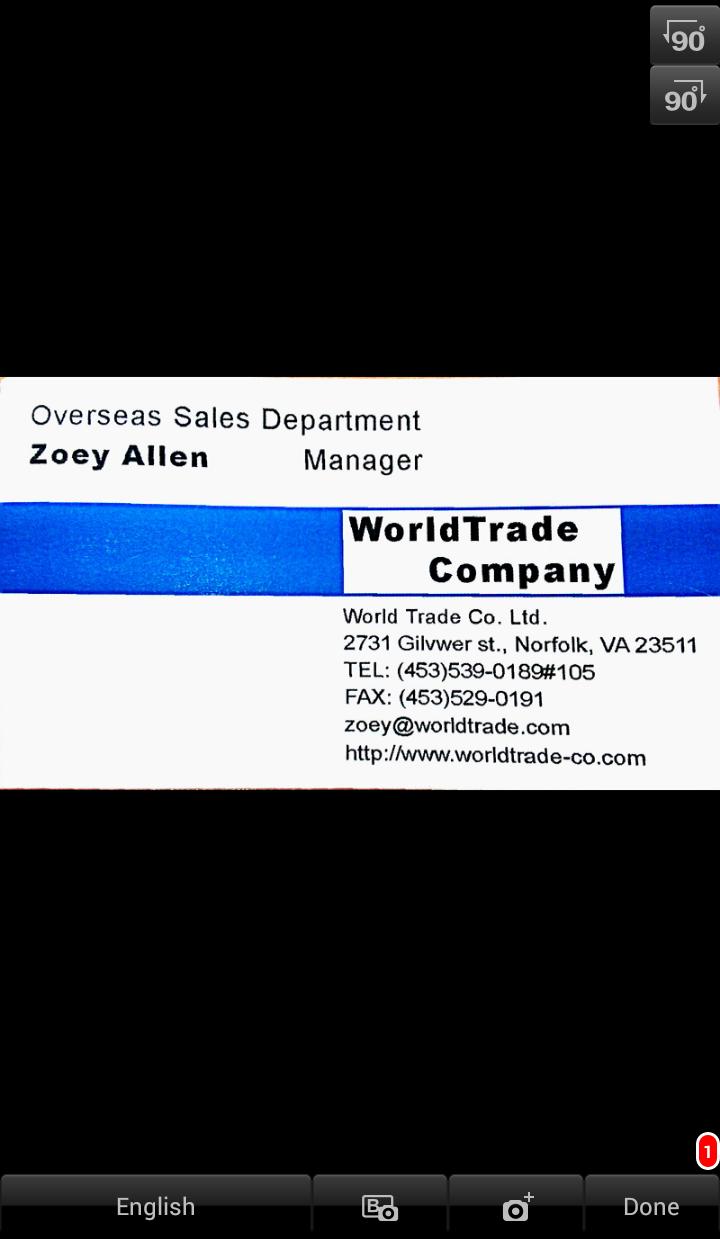
5. Select the recognition language. This version supports Traditional Chinese, Simplified Chinese, English, Hong Kong, Japanese, Korean, French, German, Italian, Spanish, Spanish (Mexico), Portuguese, Portuguese (Brazilian), Dutch, Polish, Hungarian, Czech, Slovak, Russian, Turkish, Danish, Finnish, Greek, Swedish and Norwegian.
6. Tap the [Done] button to start recognizing the card image. If you want to recognize the back side of the business card, just tap
 to capture the back side image and the information on it will be recognized.
Also,
If you want to capture more images, just tap
to capture the back side image and the information on it will be recognized.
Also,
If you want to capture more images, just tap
 to take the next card's photo.
Tip: The number beside [Done] displays how many card images have been recognized but unedited.
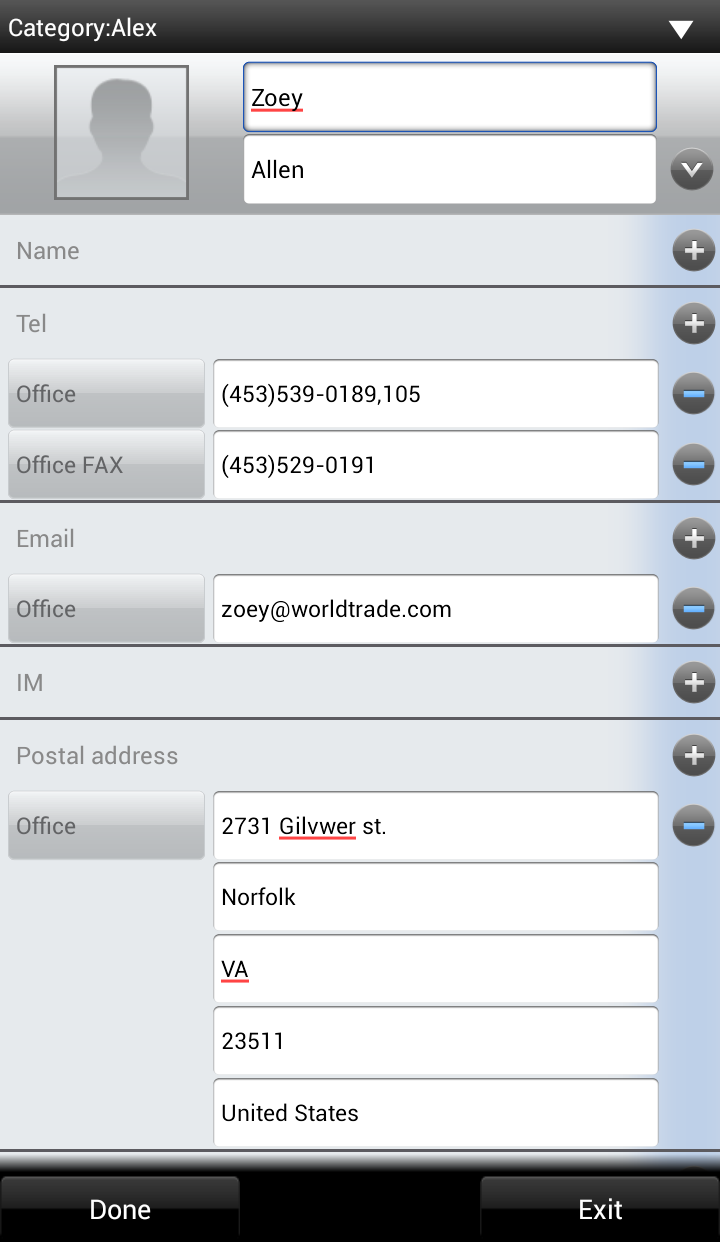
7. When the recognition process finishes, you can view and edit the contact information.
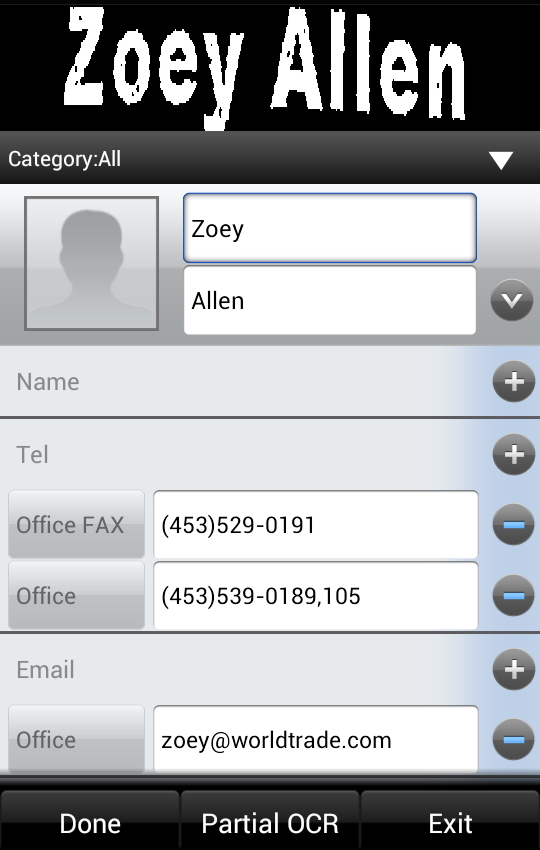
8.
Click [Done] and the contact information will be saved in
[My Favorites].
b. Create Contacts from Existing Photo
1. Click
in [My Favorites] and choose [Choose existing photo] from the list.
2. Choose a business card image from the album and preview it.
Note: The chosen image has to be in jpg format.
Tip: Tap
or
to rotate
the image.3. Click [Image Process] to twist and lighten the card image.
4. Select the recognition language. This version supports Traditional Chinese, Simplified Chinese, English, Hong Kong, Japanese, Korean, French, German, Italian, Spanish, Spanish (Mexico), Portuguese, Portuguese (Brazilian), Dutch, Polish, Hungarian, Czech, Slovak, Russian, Turkish, Danish, Finnish, Greek, Swedish and Norwegian.
5. Tap the [Done] button to start recognizing the card image.
6. When the recognition process finishes, you can view and edit the contact information.
7. Click [Done] and the contact information will be saved in [My Favorites].
c. Recognize eSignature
1. Open any document with email signature information (ex. Gmail).
2. Select and copy the text that you want to recognize in the email signature area.
3. Open WorldCard Cloud app and click
. Choose [eSignature]
in the list. 4. Tap the [Recognize] icon. the system will recognize the text you have chosen and then automatically build the contact information according to the attribute of each column.
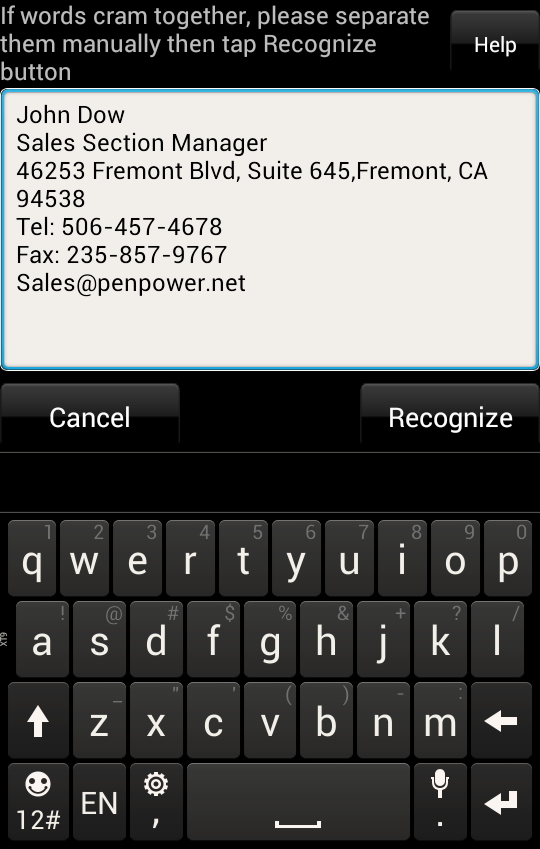
5. When the recognition process finishes, you can view and edit the contact information.
6. Tap [Done] and the contact information will be saved to [My Favorites].
d. Create Contacts Manually
1. Click
in [My Favorites] and choose [Add a contact manually] from the list.2. Fill in the contact information in each field.
3. Tap [Done] and the contact information will be saved to [My Favorites].
Tip: If you want to add a new contact who share the same company information with the other contact, please long-press the other contact's information in the contact list and choose [Add a card from the same company]. The system will open a new editing page and enter the related company information in the corresponded columns automatically. After filling other information fields, click [Done] to finish editing.
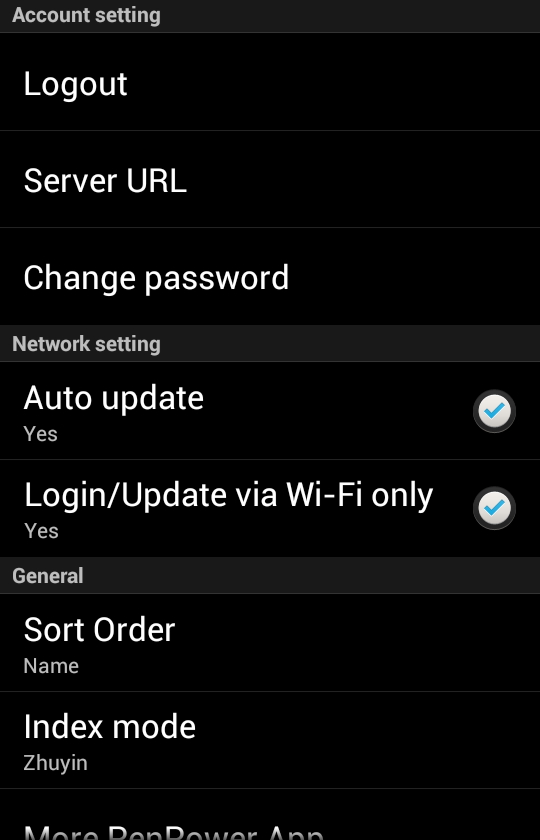
WorldCard Cloud provides automatic update system. Every added or edited contact information in [My Favorites] will be updated to [Public Contacts]. On the other hand, the information edited in [Public Contacts] will be instantly updated to [My Favorites] as well. When you add cards in [My Favorites], the unuploaded icon
 will show
in the contact list. You can wait fot the system to update automatically or
click
will show
in the contact list. You can wait fot the system to update automatically or
click  to update
the information manually.
to update
the information manually.
When
starts to
rotate or the number is changing, these mean the system is conducting the update
process. When the process finishes, a update success message will appears and will disappear from the contact list.
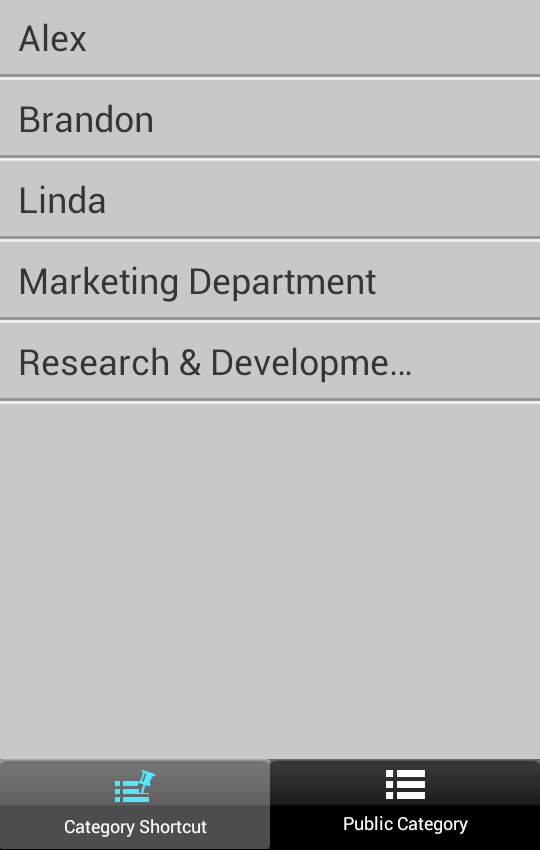
You can add, edit and delete card category in [My Favorites]. you can also switch the category in [My Favorites] to view business cards.
a. Add Category
b. Edit Category
c. Delete Category
d. Switch Category
1. Click the category name or the
button
to enter the category list.
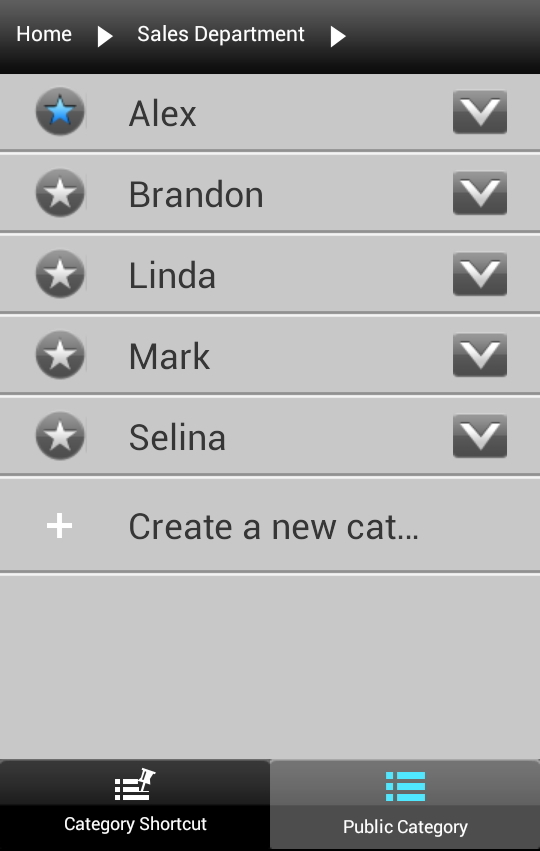
2.
Click
 beside the root
category to open the sub-category list.
beside the root
category to open the sub-category list.
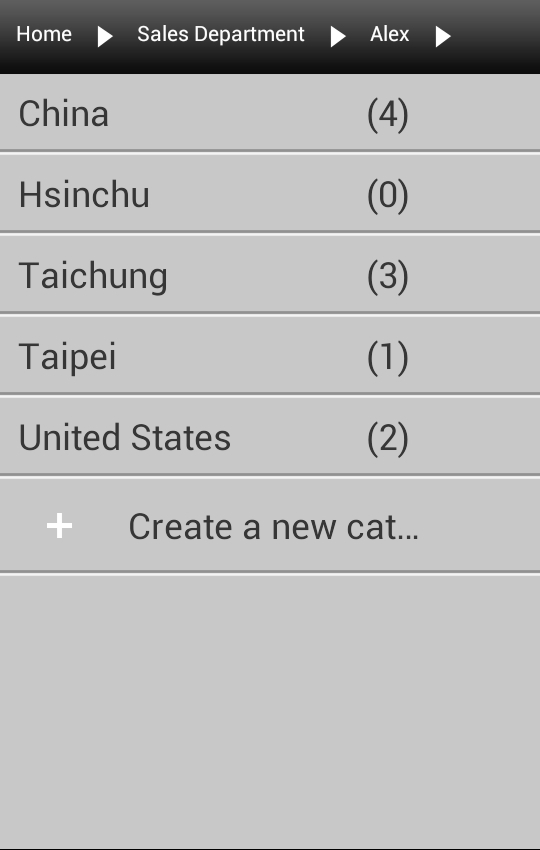
3. Click
 below the
list and enter the new category name in the opened window. Click [Done] and the
new category can be found in the category list.
below the
list and enter the new category name in the opened window. Click [Done] and the
new category can be found in the category list.
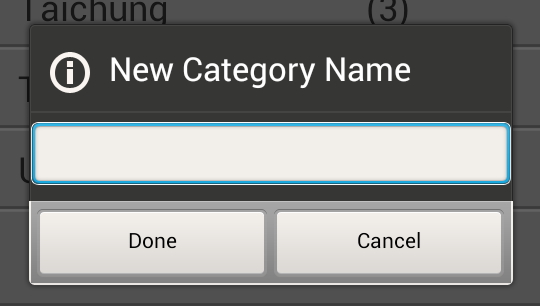
Note: You can only add sub-category in the category of root category.
1. Click the category name or the
button
to enter the category list.2. Long-press on the category name you want to edit and choose [Edit the category] to rename the category.
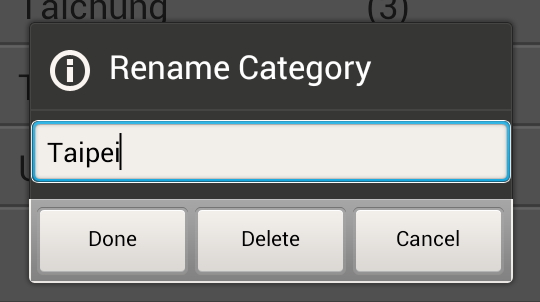
3. Click [Done] and the newly edited category can be found in the category list.
1. Click the category name or the
button
to enter the category list.2. Long-press on the category name and choose [Edit the category].
3. Click [Delete] to remove the category from the list.
Note: You need to clear all the sub-categories and contacts information from the category before deleting it.
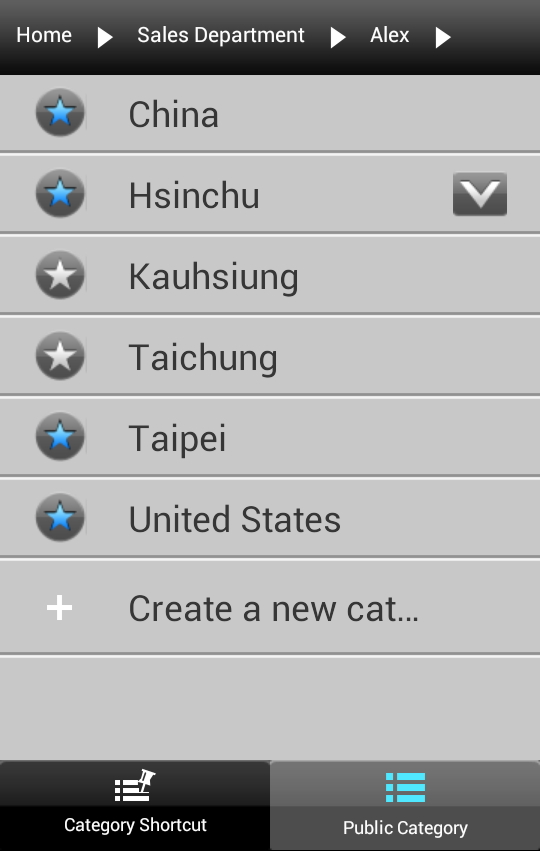
1. Click the category name or the
button
to enter the category list.2. You can click the root category to view its card information or click
beside
it to click on sub-categories and view the cards inside.
 beside the category name and make it turn into
 , then you can view the category in [My Favorites] category list.

 to make phone call,
 send text message,
  send
send  search for the
address,
search for the
address,  open
the website.
open
the website. to select
all contacts.
to select
all contacts. Send e-mail to the selected contact.