WorldPenScan Input Method Help
WorldPenScan Input Method provides Penpower Handwriter, Onscreen Keyboards, and Voice Input functions. Penpower Handwriter can recognize Traditional Chinese, Simplified Chinese, English, and Numbers/Symbols. The Onscreen Keyboards contain English Keypad, Zhuyin Keypad, Cangjie Keypad, simplified Cangjie Keypad, and Pinyin Keypad.
Add
WorldPenScan Input Method into the input method list
WorldPenScan Input Method introduction
Writing grid mode
Fullscreen mode
Overlap Character
Onscreen keypads
Settings
Add
WorldPenScan Input Method into the input method list
- Choose [Settings] > [Language & input].
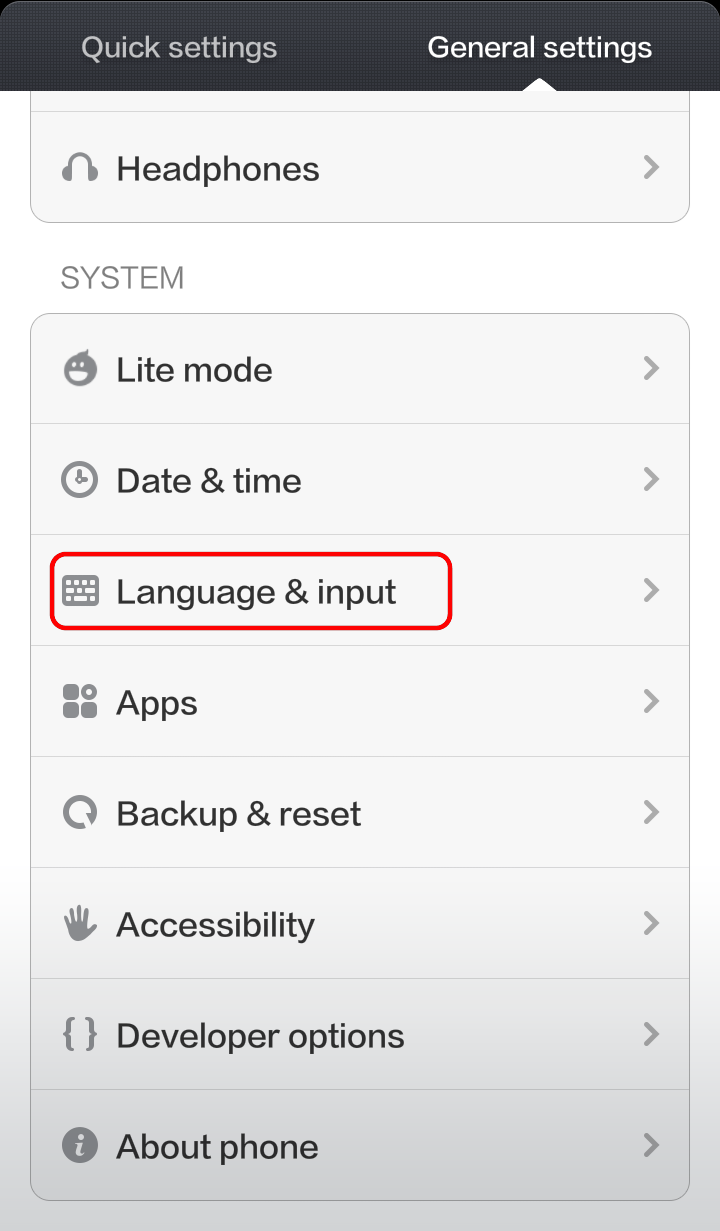
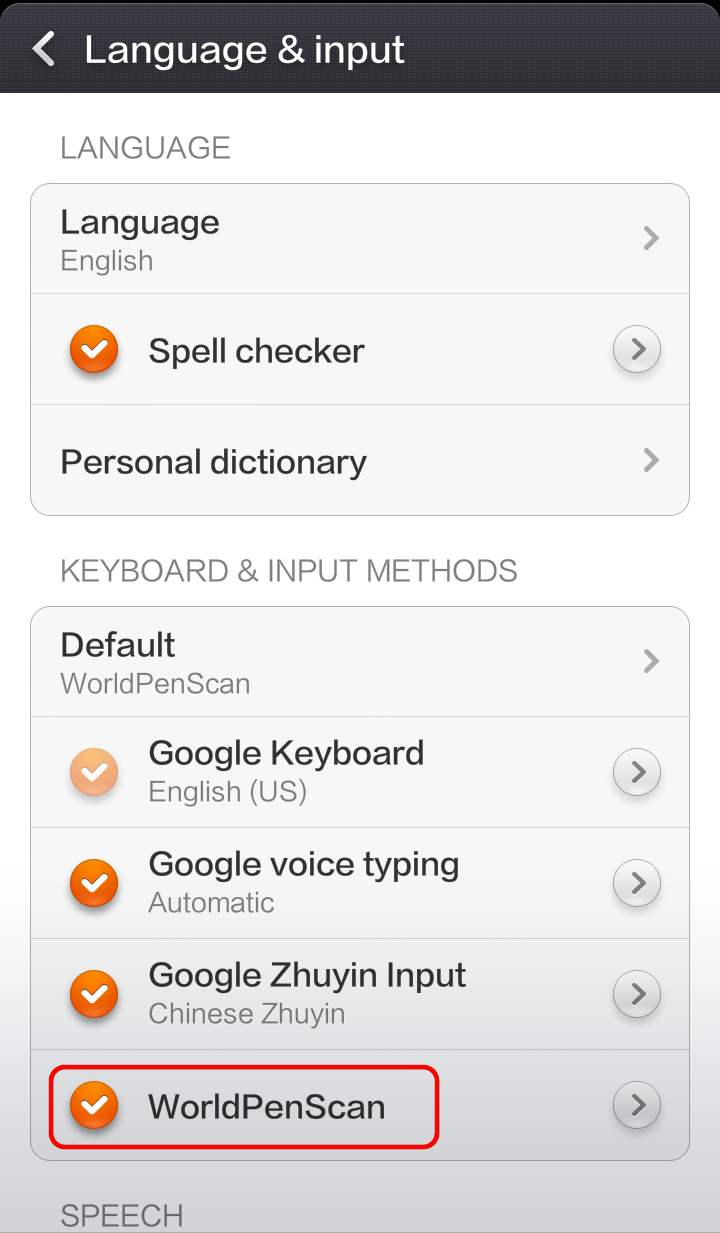
- Select [WorldPenScan] to add WorldPenScan Input Method into the input method list.
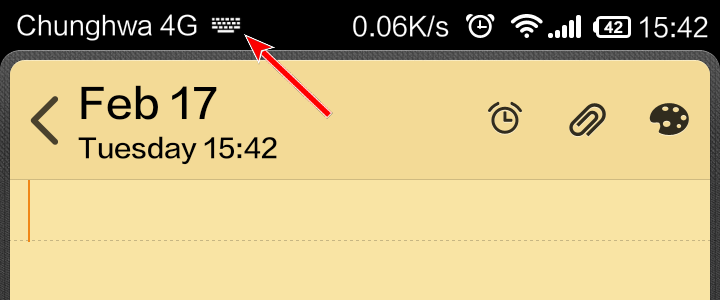
- Tap a text field, such as in a note or new contact, and a keyboard symbol constantly appears in notification bar.
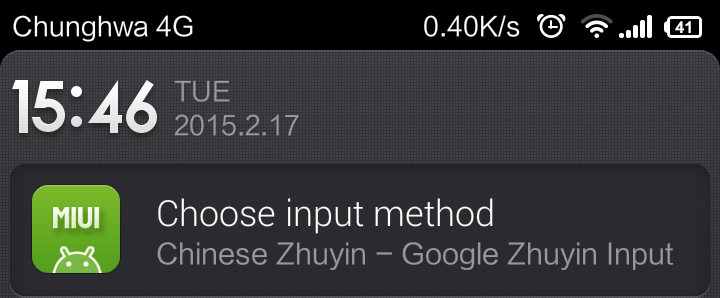
- Slide down the notification bar and then tap the [Select input method] option.
- Select [WorldPenScan] from the menu and then WorldPenScan Input Method will be brought up and set as the default input method.
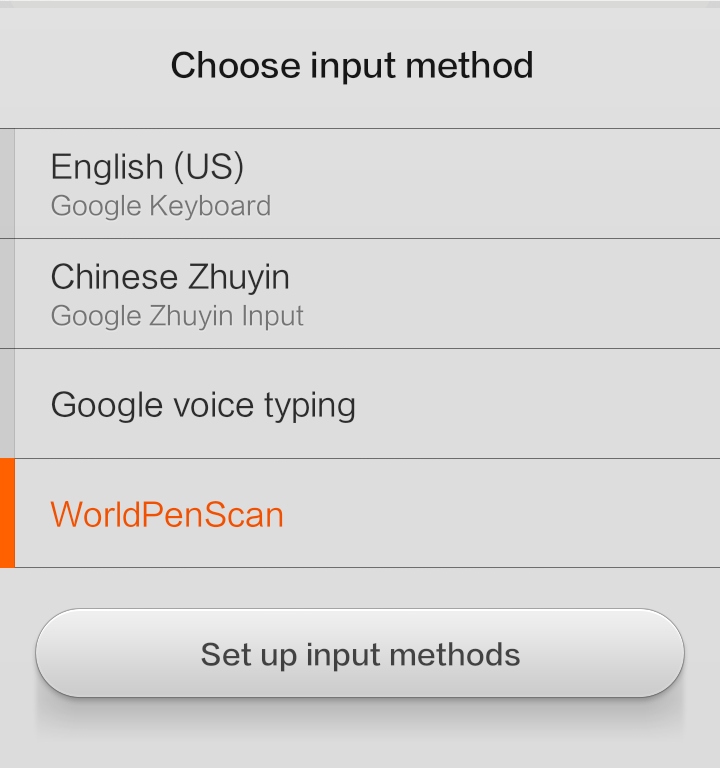
- To close [WorldPenScan Input Method], simply press the return button on the device.
Tips:
- Rotate the device and the [WorldPenScan Input Method] screen rotates too, adjusting automatically to fit the new orientation.
- If you don't find [WorldPenScan Input Method] in the input method menu, please repeat the steps above to add it in the list again.
- To allow the display of the virtual on-screen keyboard, if your tablet pc has a physical keyboard, please disable it by setting the [Use physical keyboard] as [Off].
Return to contents
WorldPenScan Input Method introduction
WorldPenScan Input Method provides Handwriter (Writing grid mode / Fullscreen mode) and onscreen keyboards. The interface of Handwriter includes the input area and tool bars.
Tip:If WorldPenScan Input Method is set as the default input method, it will automatically bring up when you tap a text field, such as in a note or new contact.
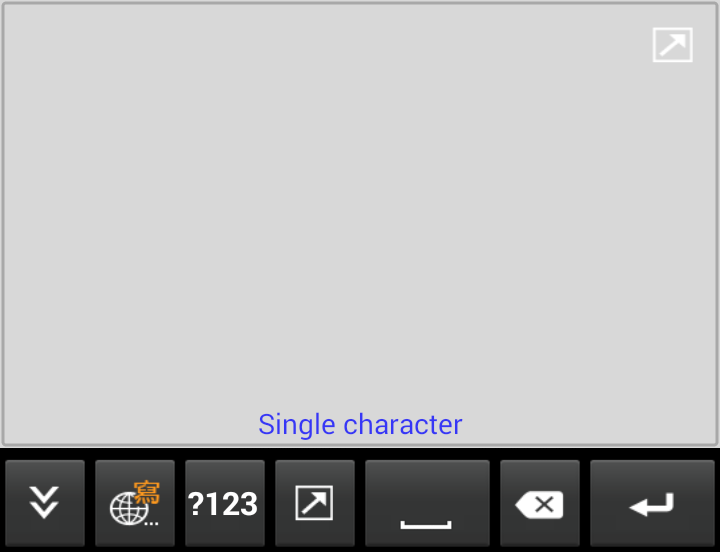
Handwriting Area
Penpower Handwriter can recognize Traditional Chinese, Simplified Chinese, English, and Numbers. When you rotate the phone, Penpower Handwriter will follow the rotation. For more information, please see
[Writing grid mode] and
[Fullscreen mode].
Tip: The landscape mode of Penpower Handwriter contains one writing grids. You can write Traditional or Simplified Chinese on either grid, or write by turns.
Tool bar
-
 Settings / Input method menu - Tap this button to close WorldPenScan
Input Method. Tap and hold this icon to open Penpower input method menu or switch to bring up the input method list of system.
Settings / Input method menu - Tap this button to close WorldPenScan
Input Method. Tap and hold this icon to open Penpower input method menu or switch to bring up the input method list of system.
 Switch among
WorldPenScan Input Method input methods - WorldPenScan Input Method provides Handwriter, English Keypad, Zhuyin Keypad, Cangjie Keypad, simplified Cangjie keypad, and Pinyin Keypad. Tap this button to switch among them.
Switch among
WorldPenScan Input Method input methods - WorldPenScan Input Method provides Handwriter, English Keypad, Zhuyin Keypad, Cangjie Keypad, simplified Cangjie keypad, and Pinyin Keypad. Tap this button to switch among them.
 Number and symbol - Tap to open the number and symbol keypad.
 Space - Tap this icon to insert a space.
 Delete - Tap this icon to delete the character before the cursor.
 Function Keys - This key will function differently according to the document or fields. Tap
  and you can switch to the next line. Tap and you can switch to the next field. Tap
  and you can finish the inputting process. Tap
  and you can go to a certain website. Tap
  to start to search.
-
 Extend
the grid - Tap it to extend the grid.
Extend
the grid - Tap it to extend the grid.
Return to contents
Writing grid mode
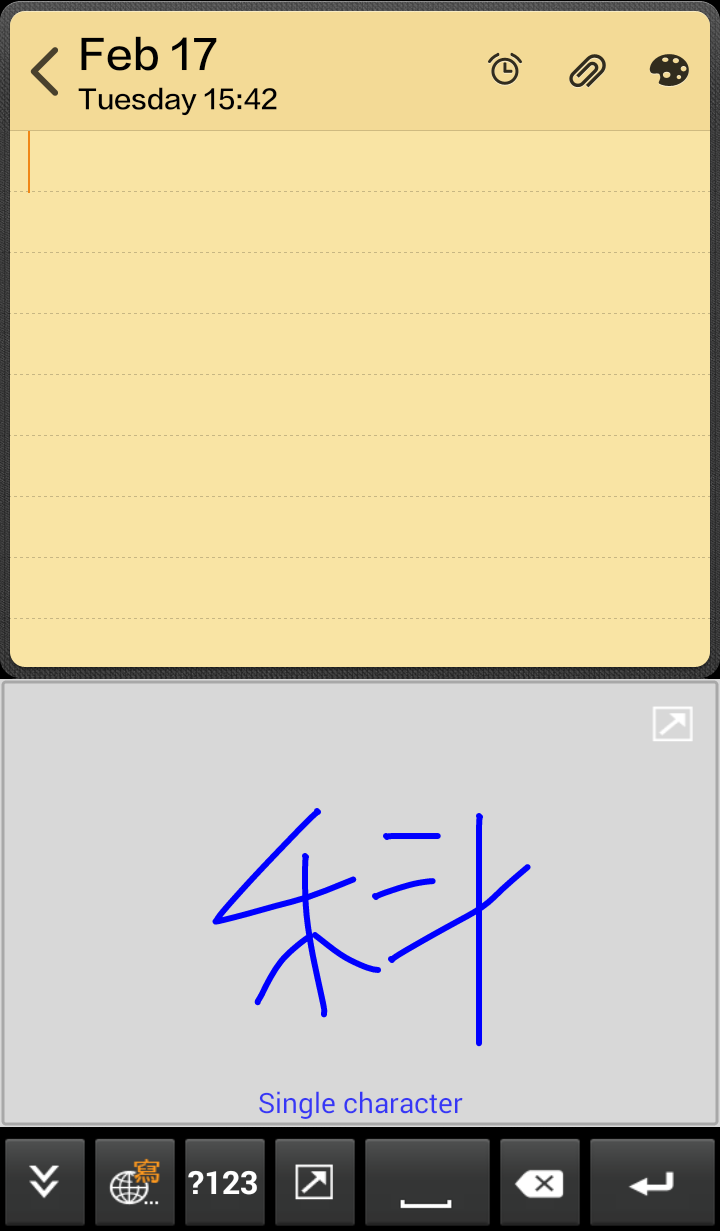
- Write a character at the handwriting area. The recognized result will be inserted to the cursor position.
Tips:
1. Chinese Handwriter can recognize Traditional Chinese, Simplified Chinese, English, and Numbers. Although Chinese Handwriter can recognize HK characters, they will not be displayed correctly on the screen if your phone does not support HK characters.
2. You can set the recognition result as [Traditional Chinese], [Simplified Chinese], or [Both]. For more about recognition results, please refer
[Settings].
- Other probable candidate words will also be listed for you to select. When you select a candidate word, it will then replace the original recognized word.
- The [post-related words] will also be listed right away.
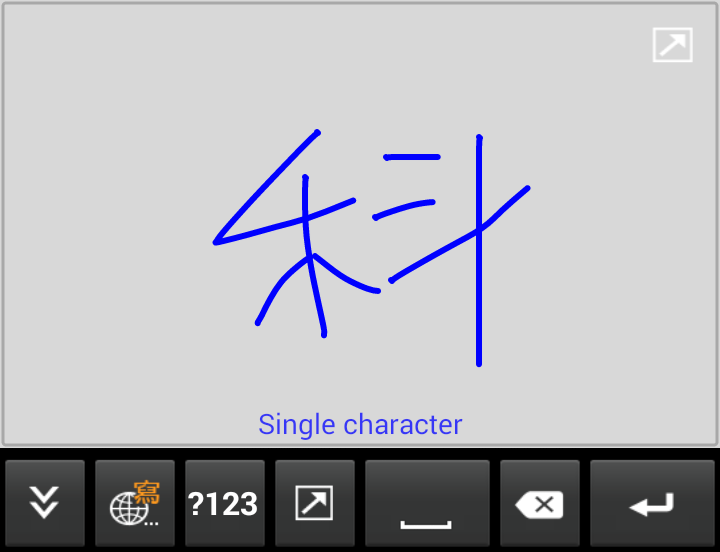
- If you want to insert numbers or symbols, you can tap to switch to number and symbol keypad. Tap [Back] to switch back to Handwriter.
- Tap to switch among
WorldPenScan Input Method input methods.
Return to contents
Fullscreen mode
- Tap the text field and then tap
 to switch to the Fullscreen mode.
- Write a character at the handwriting area. The recognized result will be inserted to the cursor position.
Tips:
- The Fullscreen mode supports [Single word writing] and [Continuous multiple word writing. Please refer to
[Settings] .
- You can set the recognition result as [Traditional Chinese], [Simplified Chinese], or [Both]. For more about recognition results, please refer to
[Settings].
- Chinese Handwriter can recognize Traditional Chinese, Simplified Chinese, English, and Numbers. Although Chinese Handwriter can recognize HK characters,they will not be displayed correctly on the screen if your phone does not support HK characters.
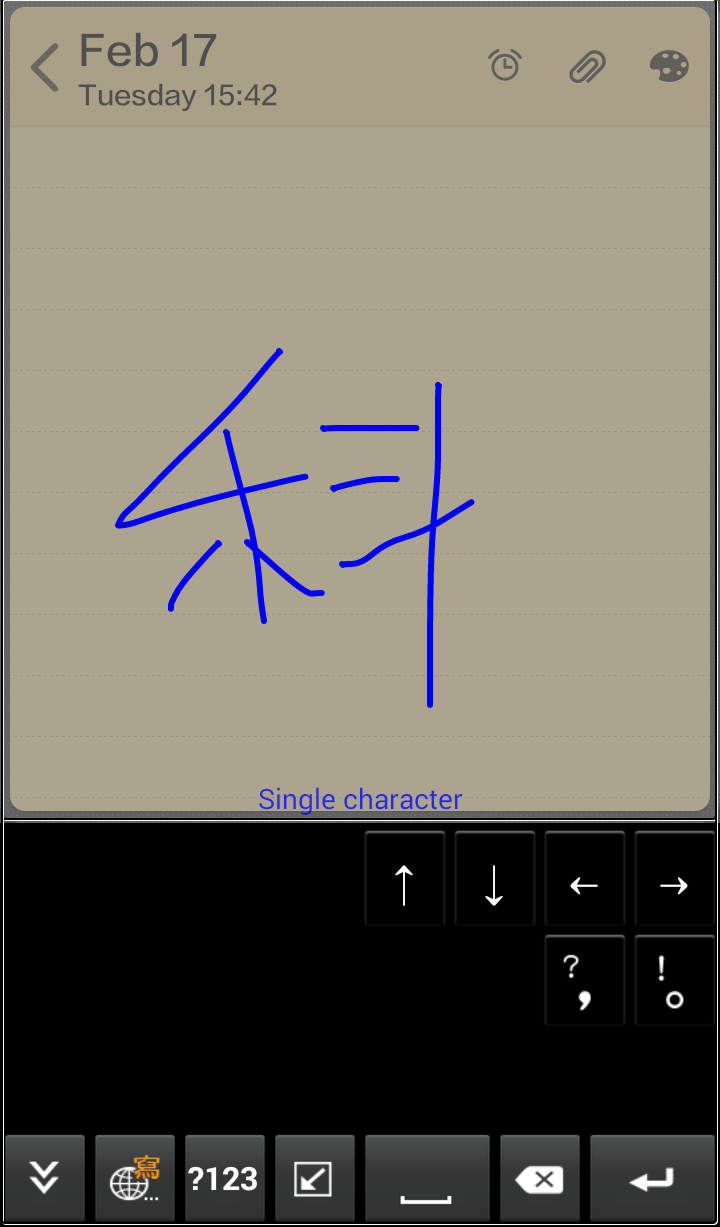
- Other probable candidate words will also be listed for you to select. When you select a candidate word, it will then replace the original recognized word.
- The [post-related words] will also be listed right away.
- If you want to insert numbers or symbols, you can tap to switch to number and symbol keypad. Tap [Back] to switch back to Handwriter.
- Tap to switch among
WorldPenScan Input Method input methods.
Return to contents
Overlap Character
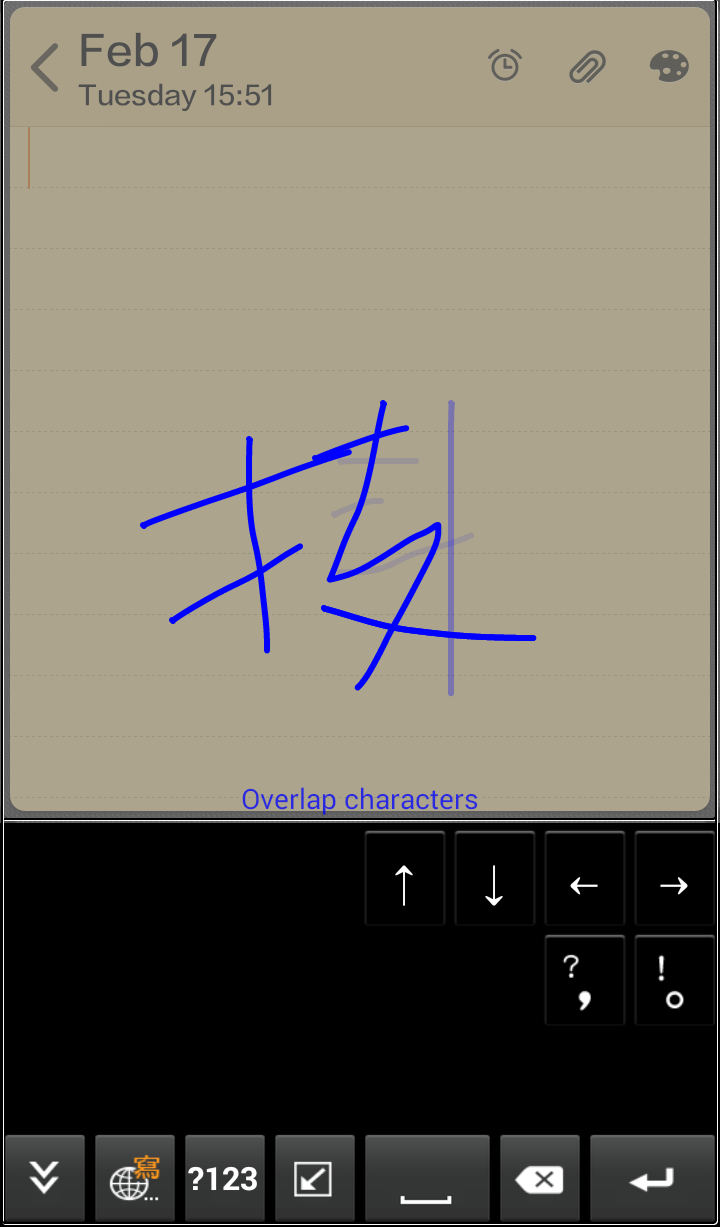
FreeWriter provide Overlap Character function which makes you do the handwriting
quickly in the limited space.
1. Long press and choose [FreeWriter Settings], then enter [Handwriter Settings].
2. Choose Overlap Character in the [Writing grid mode] or [Full screen mode],
and then go back to the writing page.
3. Star to write, and when you finish the first character, you can directly
write the second character on the first character's handwriting without waiting,
you will see the first character's handwriting fade and disappear gradually, and
text out after finish writing.
Return to contents
Onscreen Keyboards
Penpower input method additionally provides onscreen keyboards, containing English Keypad, Number and Symbol keypad, Zhuyin Keypad, Cangjie Keypad, Simplified Cangjie Keypad, and Pinyin Keypad.
English Keypad
- Tap to switch to English Keypad.
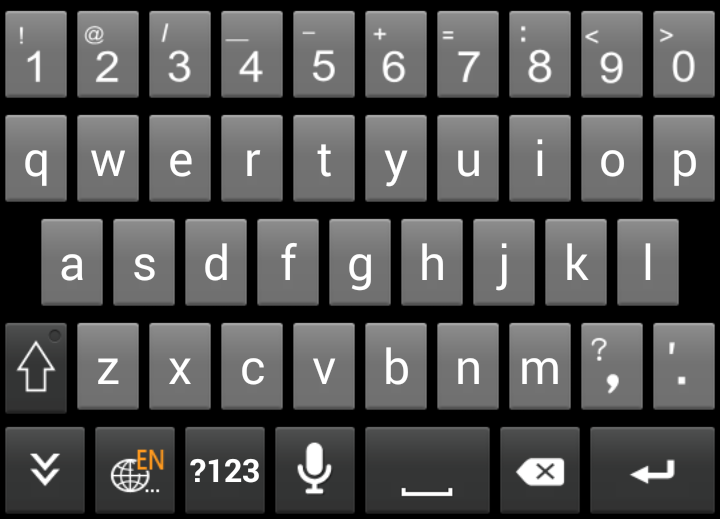
- Tap and hold a number key to enter to input the upper case symbol.
- Tap
 to input the upper case symbols and capital letters.
- Tap
 to use the English voice input function.
Note: A network connection is required for the function of voice input.
Tips:
1. When the field is for a URL address, or Email address, the English Keypad will automatically be brought up.
2. When the field is for phone number, the number keypad will automatically be brought up.
3. The English Keypad provides the word prediction function. While you are typing, the probable candidate word will be displayed on the top of the keypad for you to fast input.
Return to contents
Zhuyin Keypad
- Tap to switch to Zhuyin Keypad.
- Select [Switch to Penpower Zhuyin Keypad].
- Input Zhuyin symbols: Penpower Zhuyin Keypad will automatically filer out the impossible Zhuyin symbol combinations.
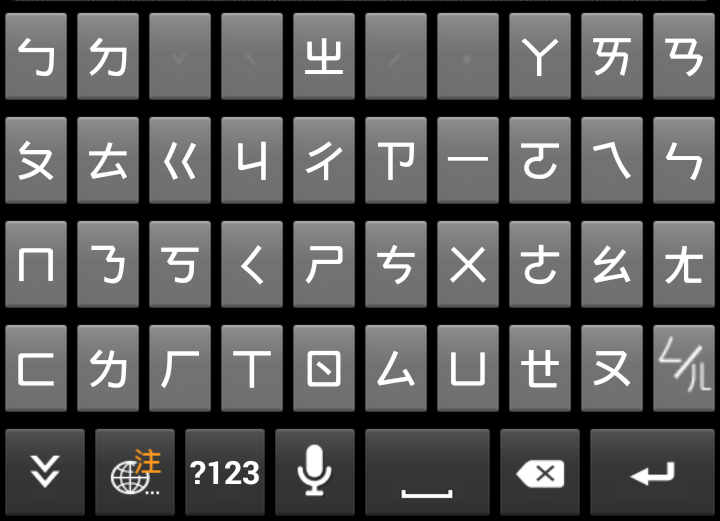
- The candidate words will be listed in the first line of the keypad. Once you select a word, its corresponding post related words will be listed.
- Tap to use the Chinese voice input function.
Note: A network connection is required for the function of voice input.
Return to contents
Cangjie Keypad
- Tap to switch to Cangjie Keypad.
- Input Cangjie radicals: Penpower Cangjie Keypad will automatically filer out the impossible radicals combinations.
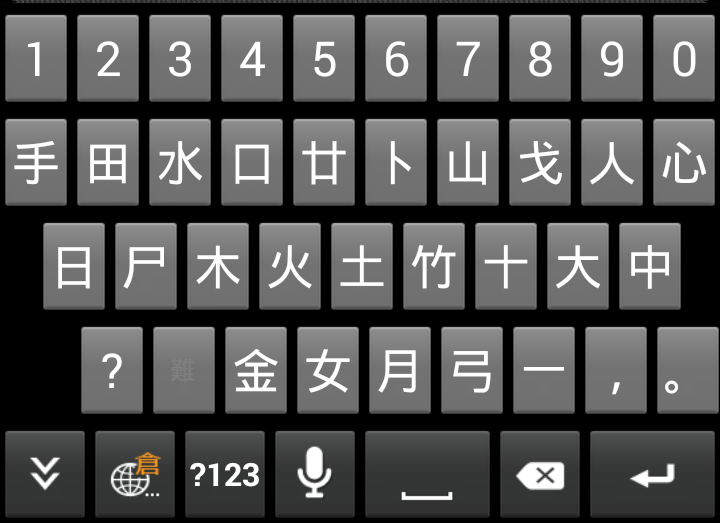
- The candidate words will be listed in the first line of the keypad. Once you select a word, its corresponding post related words will be listed.
<
- Tap to use the Chinese voice input function.
Note: A network connection is required for the function of voice input.
Return to contents
Simplified Cangjie Keypad
- Tap to switch to Simplified Cangjie Keypad.
- Input radicals: Penpower Simplified Cangjie Keypad will automatically filer out the impossible radicals combinations.
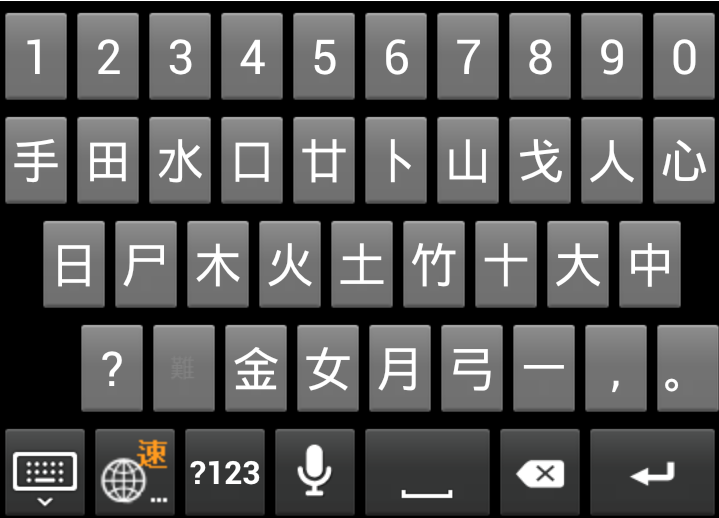
- The candidate words will be listed in the first line of the keypad. Once you select a word, its corresponding post related words will be listed.
<
- Tap to use the Chinese voice input function.
Note: A network connection is required for the function of voice input.
Return to contents
Pinyin Keypad
- Tap to switch to Pinyin Keypad.
- Input Pinyin symbols: Penpower Pinyin Keypad will automatically filer out the impossible Zhuyin symbol combinations.
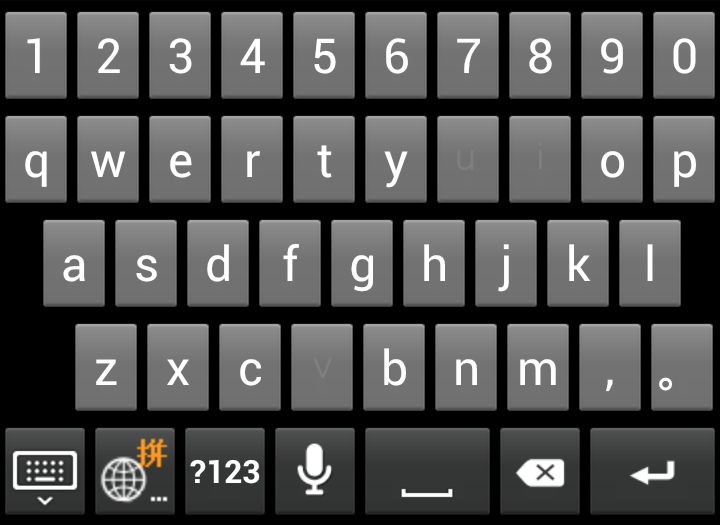
- The candidate words will be listed in the first line of the keypad. Once you select a word, its corresponding post related words will be listed.
- Tap to use the Chinese voice input function.
Note: A network connection is required for the function of voice input.
Return to contents
Number and Symbol Keypad
- Tap to switch to Number and Symbol keypad which contains two pages. Tap
 /
/ to switch.
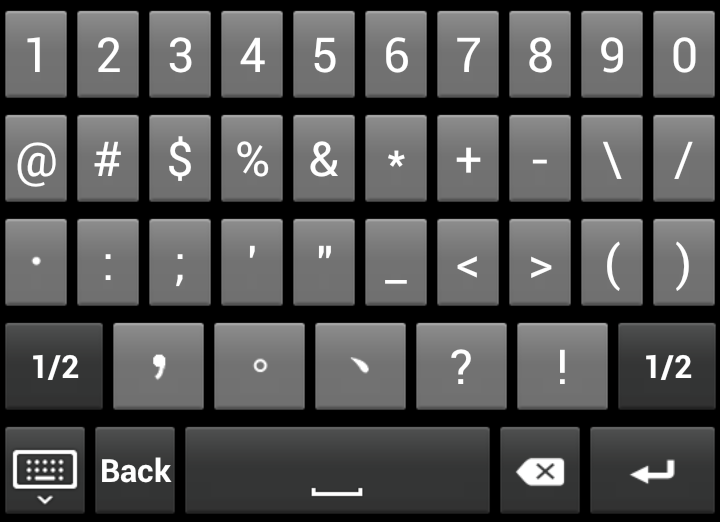
- Tap [Back] to close Number and Symbol keypad.
Return to contents
Settings
Tap and hold
and select
WorldPenScan Input Method Settings.
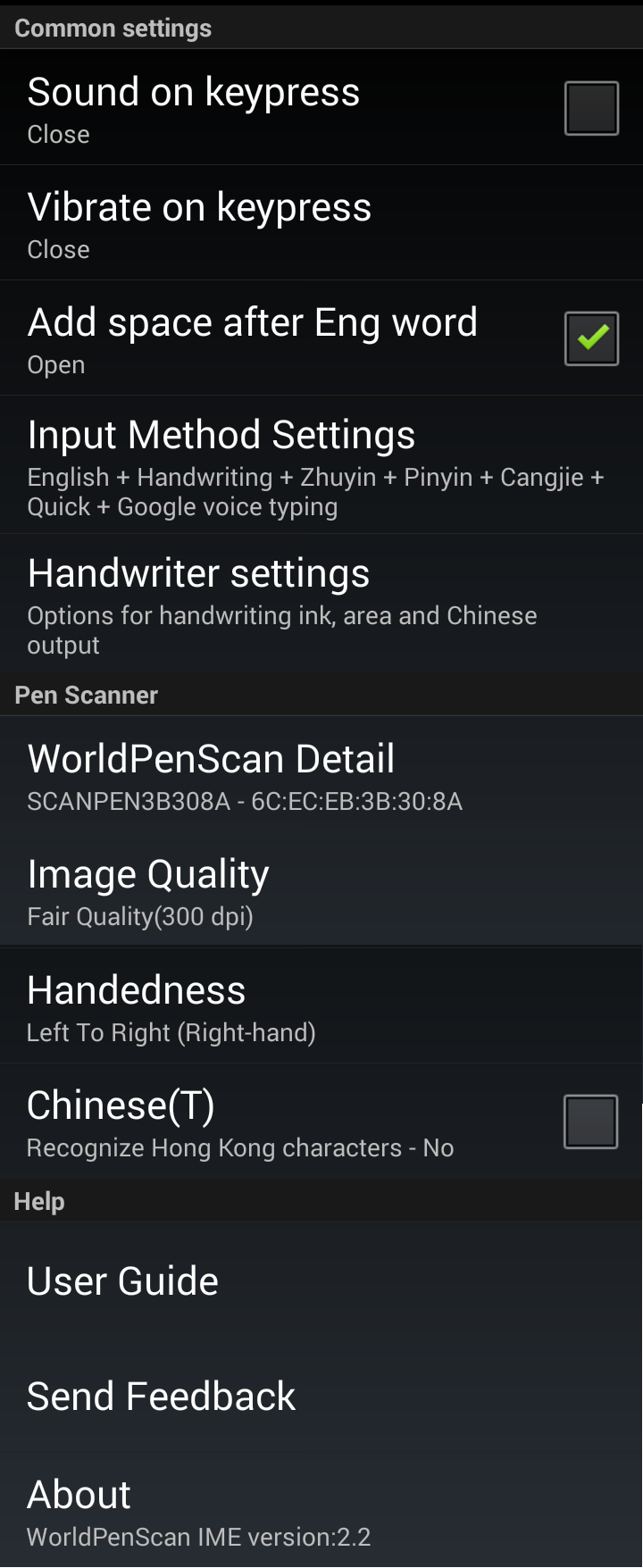
Sound on keypress
You can set the sound effect on keypress.
Vibrate on keypress
You can set the vibrate effect on keypress.
Add space after Eng word
Check to automatically add a space after inputting an English word.
Input Method Settings
FreeWriter provides various input methods. Check the commonly-used methods and
you can select them easily when you input words.
Handwriting Setting
- Chinese Recognition Result: You can set the Chinese recognition result as
- Traditional Chinese only: Whether you write Traditional Chinese or Simplified Chinese, all of the results are in Traditional Chinese.
- Simplified Chinese only: Whether you write Traditional Chinese or Simplified Chinese, all of the results are in Simplified Chinese.
- Both: You will get traditional characters while using traditional writing, and you will get simplified words while using simplified writing.
- Ink Color: Select the color of inking.
- Ink Width: Select the thickness of inking.
- Writing Speed: Select the writing speed. The less the relative value is, the shorter the timeout for recognition after you’ve stopped writing.
- Number of writing grid: You can set the writing grid as Single Character],
[Single Grid-overlap Character] or [Double Grid-Single Character] according to your preference.
Fullscreen mode:
Set the
fullscreen writing mode as [Single character], [Multiple characters] or [Overlap
character].
User Guide
Tap to open this user guide.
Send Feedback
Send your problems or suggestions to Penpower Technology.
About
You can find the version information here.
2015/2/23