WorldCard Enterprise provides personal platform for managing business cards. In [My Favorites] area, users can add, recognize and use card information; also, users can build their own category system for sorting the cards. Moreover, every information that added or edited in [My Favorites] will be uploaded to [Public Contacts]. Through the update system, you can share your contacts information with other users and get theirs information as well so as to immediately update and enlarge your contacts network.
Application in Public Contacts
Edit and Use Contacts Information
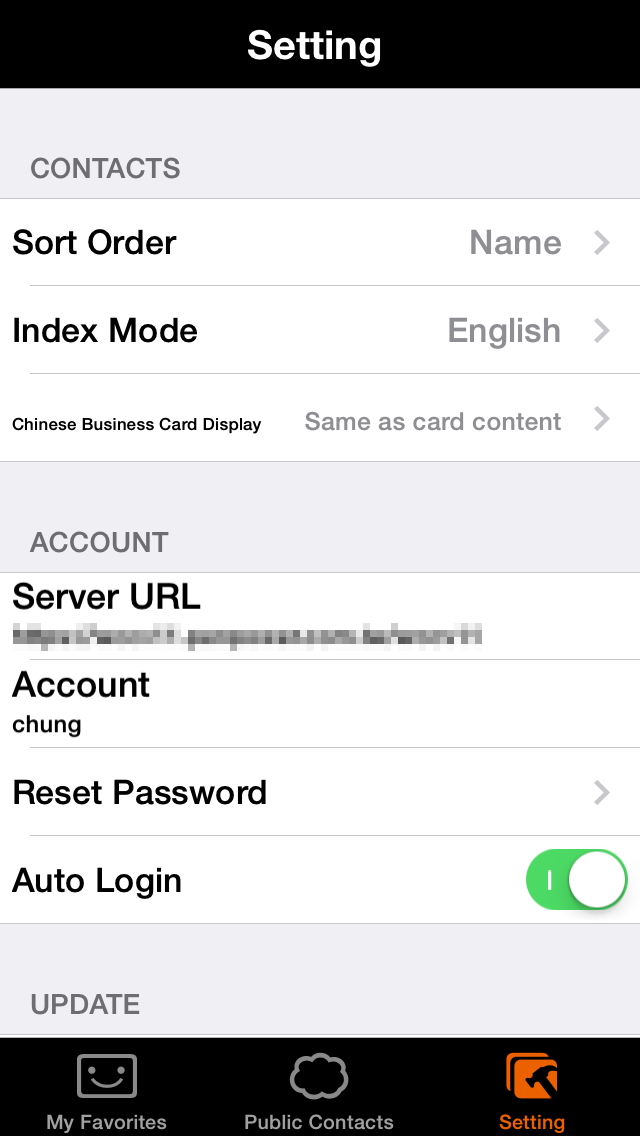
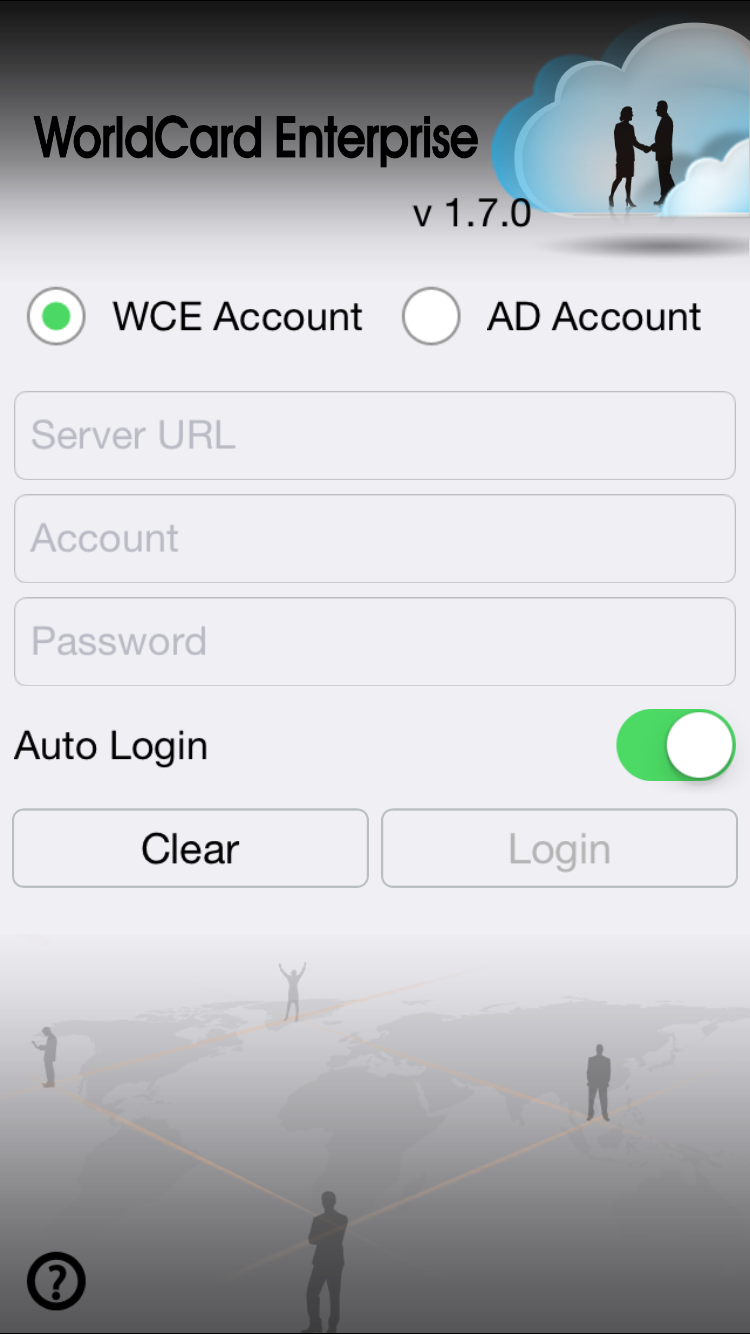
When you open the login page of WorldCard Enterprise, please choose [WCE Account] option and enter your account and password to log in to the server, if turn on [Auto Login], it will auto log in every next time.
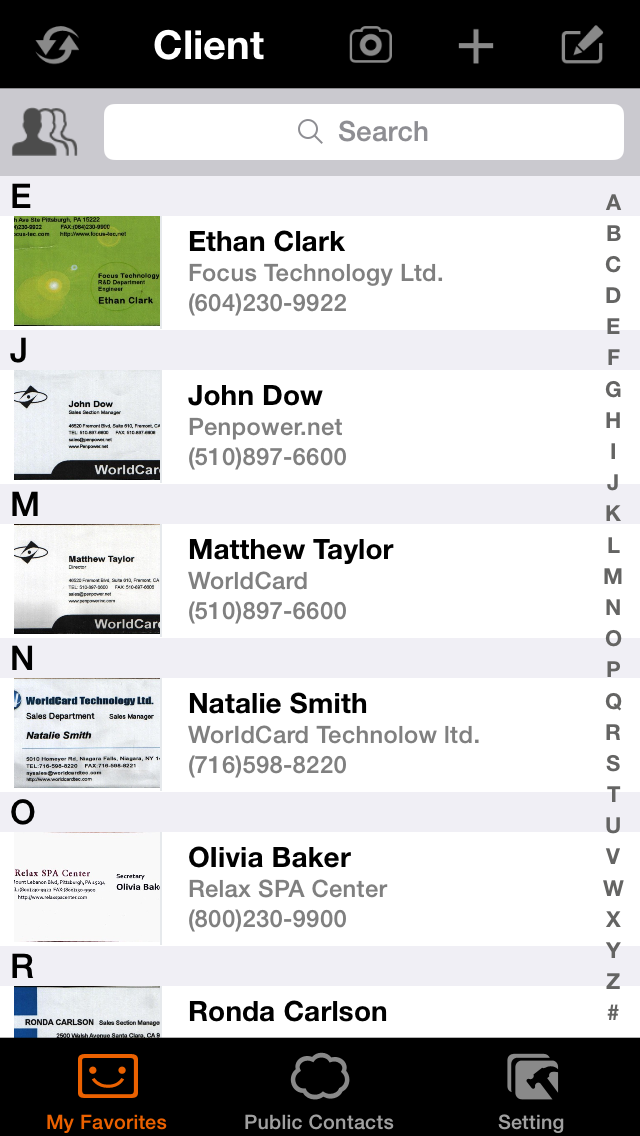
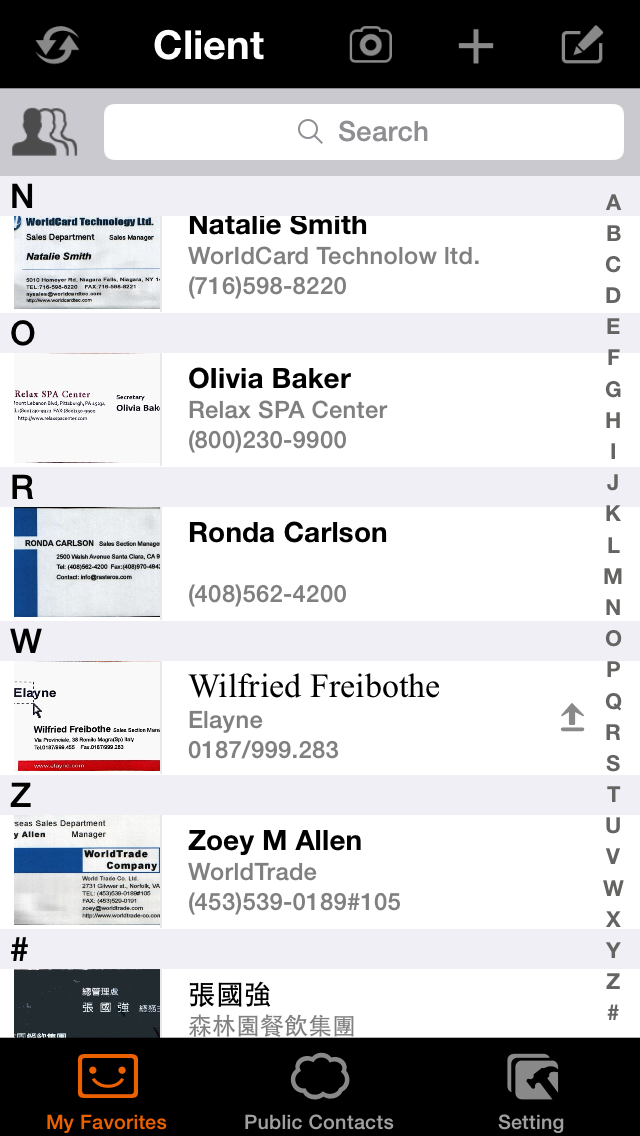
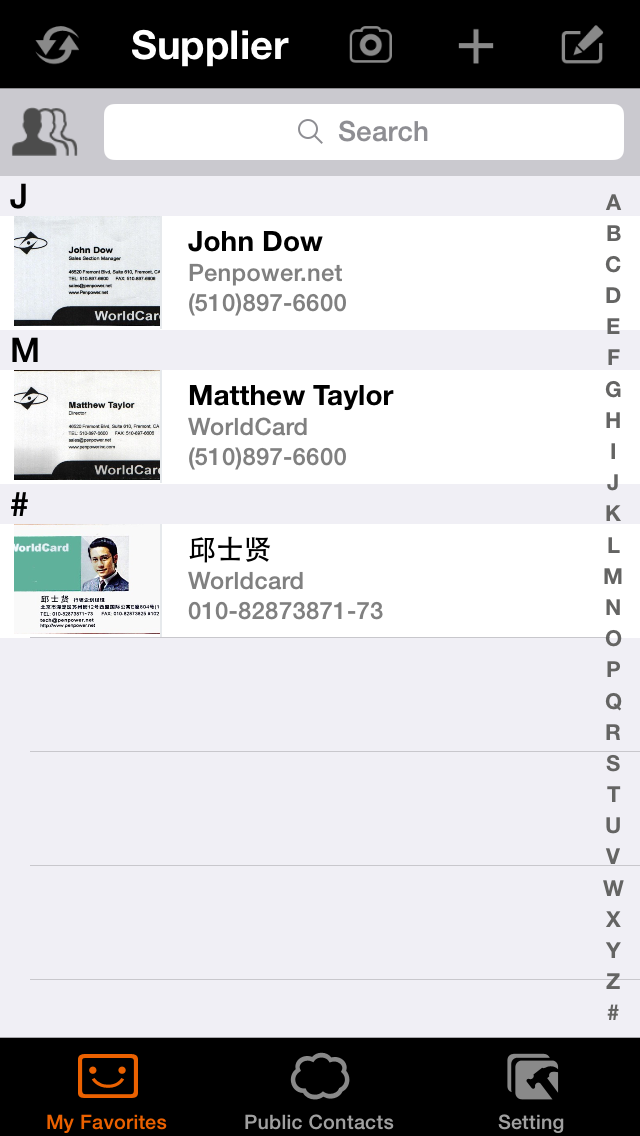
When you log in to WorldCard Enterprise app, you will enter to the preset page [My Favorite].At the top of the page, there are buttons for updating card information, advanced card function, switching category, adding cards and search bar. The contacts will be listed according to field sorting and index mode. Bethe contacts list are the tabs of [My Favorites], [Public Contacts] and [Setting]. You can switch to different page by tapping the tab.
 Search Bar- Type
in the keywords to search for contact information.
Search Bar- Type
in the keywords to search for contact information.
Index List- Click on the index character or scroll the index list to view
the contact and its card image.
 Advanced
Function- Export card information, send e-mails/text to
the contact and categorize/delete contacts information.
Advanced
Function- Export card information, send e-mails/text to
the contact and categorize/delete contacts information. Switch
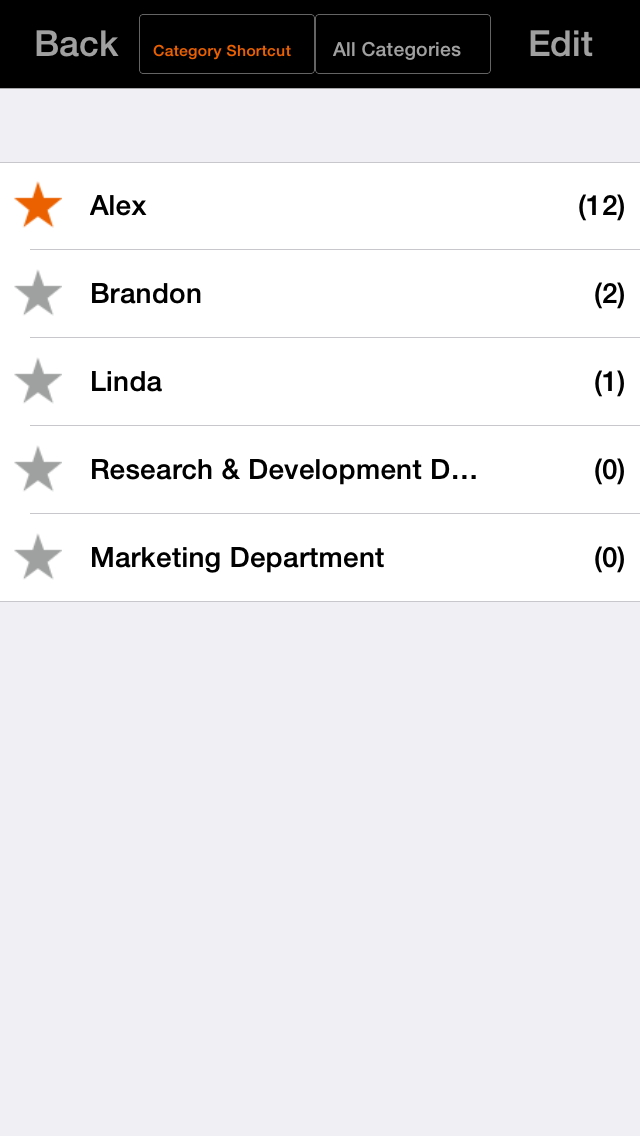
Category- Open the category list to switch the category
and edit cards information.
Switch
Category- Open the category list to switch the category
and edit cards information.
 Camera-
Use camera to add cards.
Camera-
Use camera to add cards.
 Add
Contacts- Choose the way to add cards.
Add
Contacts- Choose the way to add cards.
 Update-
Update the information between [My Favorites] and [Public
Contacts].
Update-
Update the information between [My Favorites] and [Public
Contacts]. My
Favorites- The cards in this area is for
personal use and can be updated to [Public Contacts]
automatically or manually.
My
Favorites- The cards in this area is for
personal use and can be updated to [Public Contacts]
automatically or manually. Public
Contacts- The cards in this area is for all
users to use. You need to log in online so as to have the access
to [Public Contacts].
Public
Contacts- The cards in this area is for all
users to use. You need to log in online so as to have the access
to [Public Contacts].
Tap Advance Function at [My Favorites] or [Public Contacts], the functions below will be valuable:
 Select
All-
Click this button to select all the options.
Select
All-
Click this button to select all the options.
 Export
card information- Export the selected card
information to the Phone Contacts.
Export
card information- Export the selected card
information to the Phone Contacts.
 Edit
Category- Categorize for the selected cards.
Edit
Category- Categorize for the selected cards.
 Copy to My Favorites- Copy the card information in
[Public Contacts] to [My Favorites].
Copy to My Favorites- Copy the card information in
[Public Contacts] to [My Favorites]. Send
E-mail- Send e-mails to the selected contact.
Send
E-mail- Send e-mails to the selected contact. Text-
Send text messages to the selected contact.
Text-
Send text messages to the selected contact. Trash
Can-
Delete the selected cards.
Trash
Can-
Delete the selected cards. Setting- Adjust
user settings and edit account information.
Setting- Adjust
user settings and edit account information.
Click
in [My Favorites] to
add contacts with the camera or click  to add contact by selecting pictures from Album, using
Email Signature, creating manually, Importing from iPhone Contact or recognizing
from QR Code.
to add contact by selecting pictures from Album, using
Email Signature, creating manually, Importing from iPhone Contact or recognizing
from QR Code.
a. Create Contacts from Camera
b. Create Contacts from Albums
c. Create Contacts from dock mode
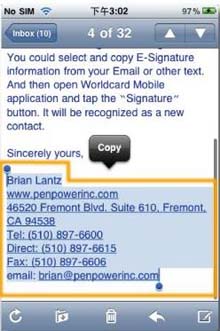
d. Recognize Email Signatures
e. Create Contacts Manually
f. Import from iPhone Contacts
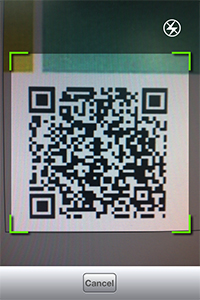
g. Recognize QR Code
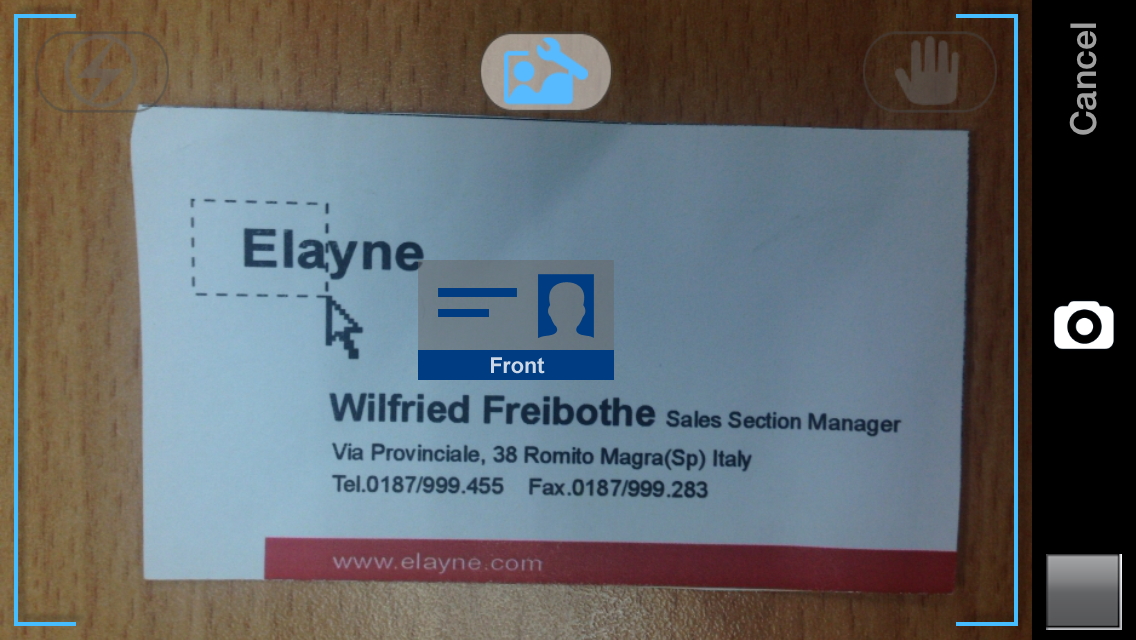
- Click
at top right of the screen and the system will
start the camera mode.
You can rotate iPhone sideways to make sure the
whole business card image is completely in the
frame area.
- Click
 to turn on Anti-Shake Mode, click
 to turn on the flash function,and
click
to turn on the flash function,and
click
 to turn on the photo enhancement function.
Note:Please take snapshots in good lighting conditions and reduce or eliminate light reflection and casting shadows. If you are in a low-light condition, please tap the flash button to enable the flash function. (Tap it again to disable the flash function).
- Click
 or press the volume button of your phone
to capture and preview the image.
or press the volume button of your phone
to capture and preview the image.
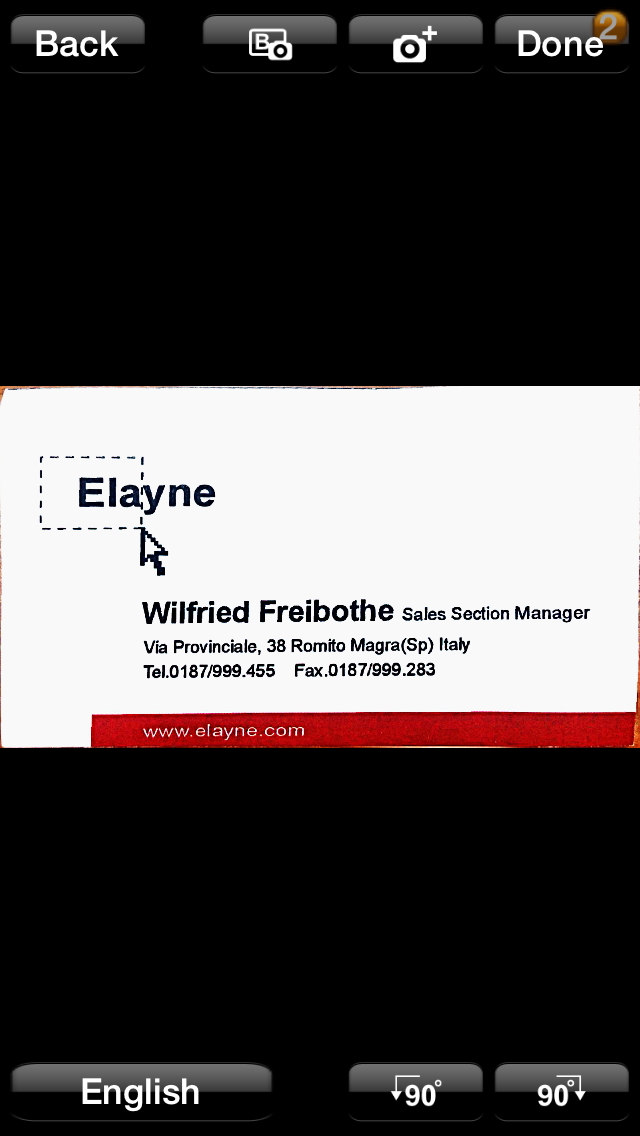
Tip:The number shown at the upper-right corner of [Done] button means the number of the captured image.
- In the preview frame, you can:
- Click
 or
or
 o rotate the image.
- Select the recognition language. This version supports Traditional Chinese, Simplified Chinese, English, Hong Kong, Japanese, Korean, French, German, Italian, Spanish, Spanish (Mexico), Portuguese, Portuguese (Brazilian), Dutch, Polish, Hungarian, Czech, Slovak, Russian, Turkish, Danish, Finnish, Greek, Swedish and Norwegian.
- If you are not satisfied with the image quality, you can tap [Back] to retake a photo.
- If you want to recognize the back side of the business card, just tap
 to capture the back side image and the
information on it will be recognized. Also,
If you want
to capture more images, just tap
to capture the back side image and the
information on it will be recognized. Also,
If you want
to capture more images, just tap
 to take the next card's photo.
- Tap the [Done] button at the upper-right corner of the screen to start recognizing the card image.
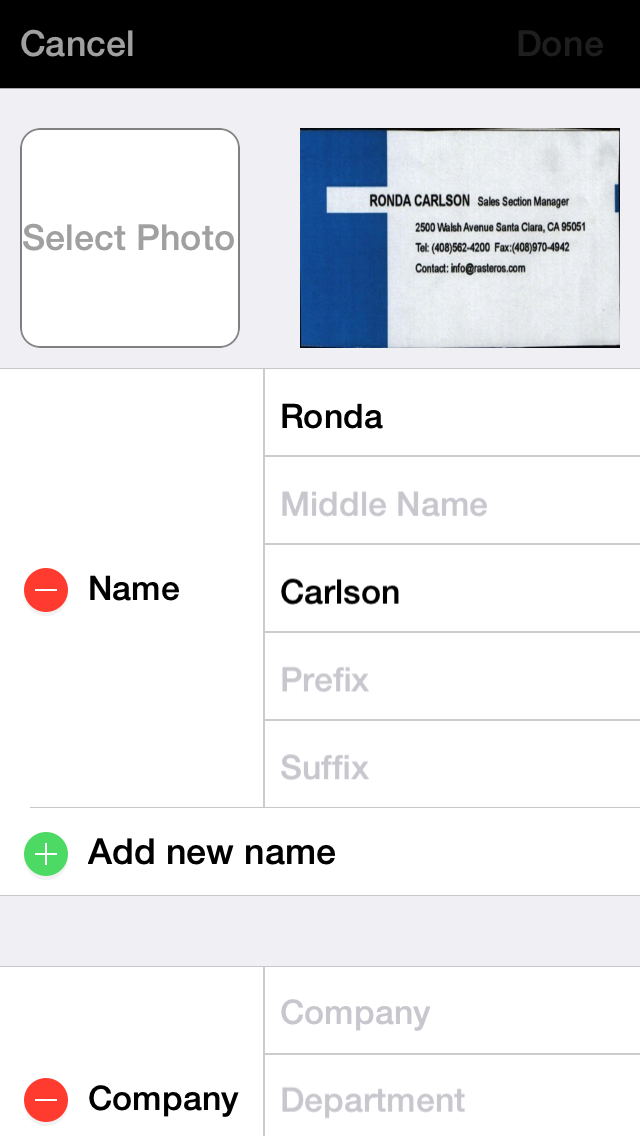
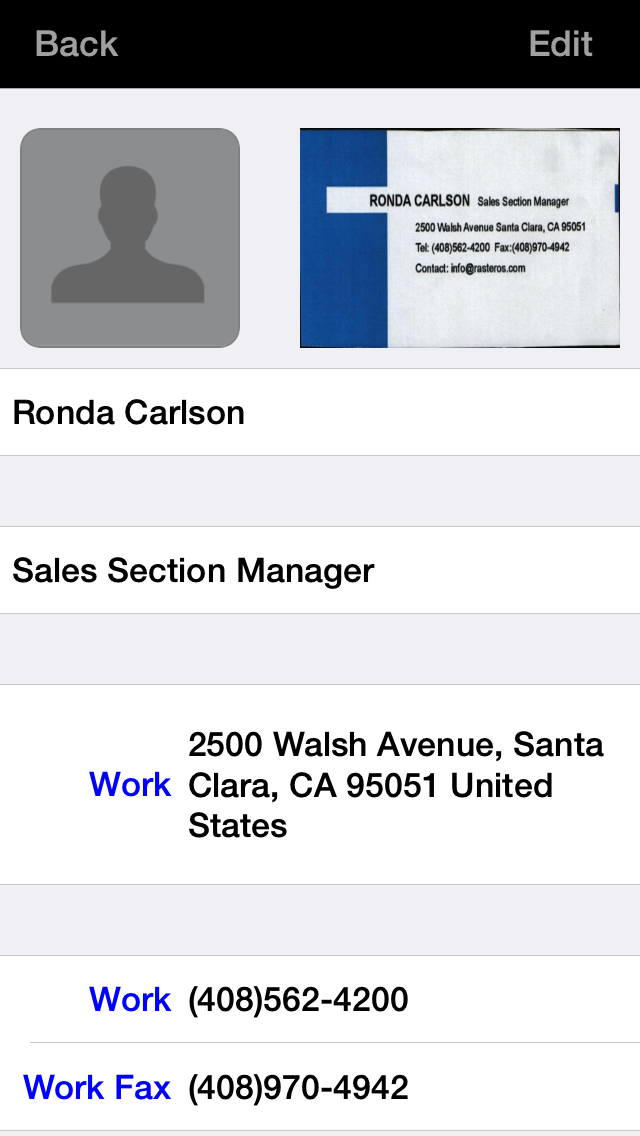
- When the recognition process finishes, you can view and edit the contact information. Click [Done] and the contact information will be saved in [My Favorites].
- Click
- Click
at top right of the screen and choose [Album].
-
Choose a
business card image from albums and preview the
image.
-
In the
preview frame, you can:
-
Click
or
o rotate the image.
- Select the recognition language. This version supports Traditional Chinese, Simplified Chinese, English, Hong Kong, Japanese, Korean, French, German, Italian, Spanish, Spanish (Mexico), Portuguese, Portuguese (Brazilian), Dutch, Polish, Hungarian, Czech, Slovak, Russian, Turkish, Danish, Finnish, Greek, Swedish and Norwegian.
-
Click
-
If you are
not satisfied with the image quality, you can
tap [Back] to retake a photo.
- If you want to select
the back
side of the business card,
please click
to select. If you want to
recognize more cards, please click
to choose for the next card image.
-
Tap the
[Done] button at the upper-right corner of the
screen to start recognizing the card image.
-
When the recognition
process finishes, you can view and edit the
contact information. Click [Done] and the
contact information will be saved in [My
Favorites].
a. Create Contacts
from Camera
b. Create
Contacts from Albums

 .
.
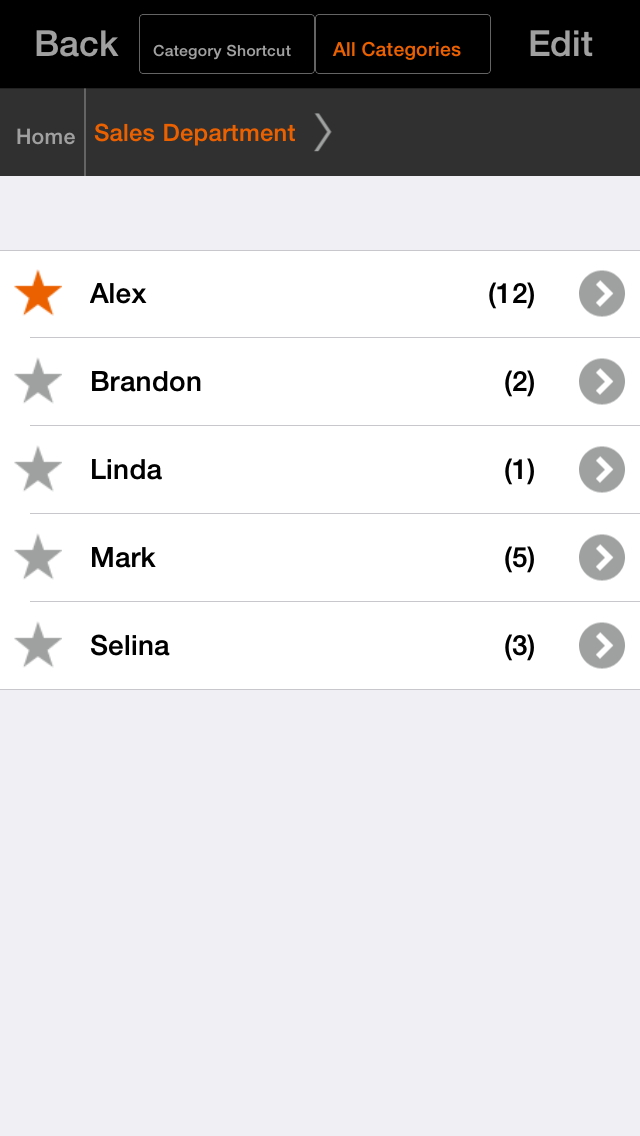
 will show in the contact list. You can wait fot the system to update
automatically or click
will show in the contact list. You can wait fot the system to update
automatically or click  beside
the root category to open the sub-category list and click [Edit].
beside
the root category to open the sub-category list and click [Edit]. 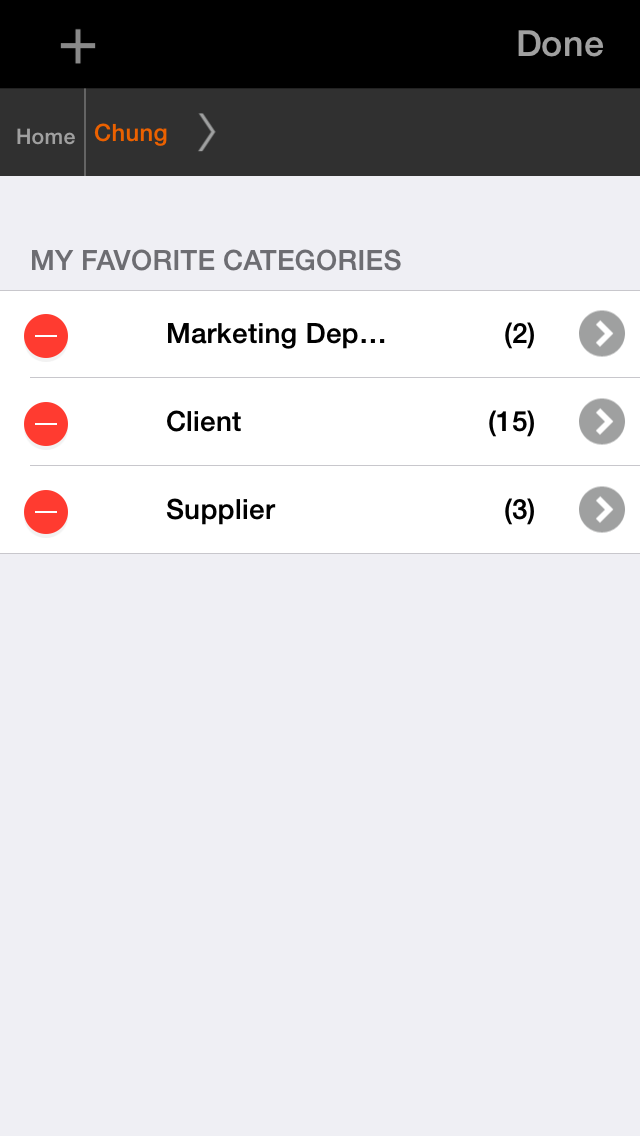
 and
click [Delete] to remove the category from the list.
and
click [Delete] to remove the category from the list. 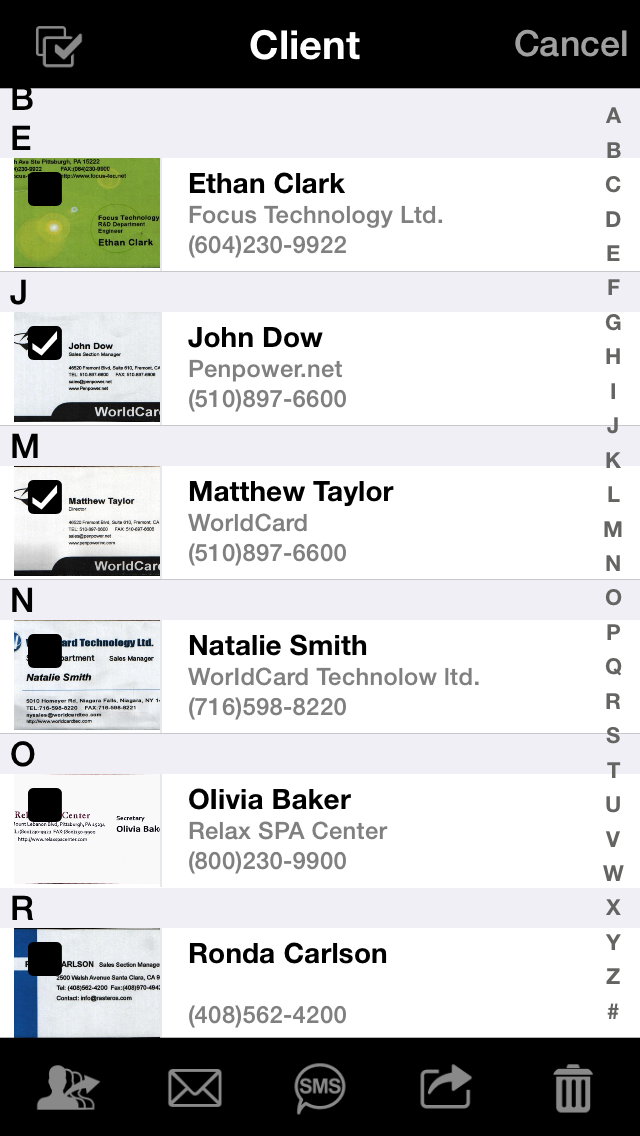

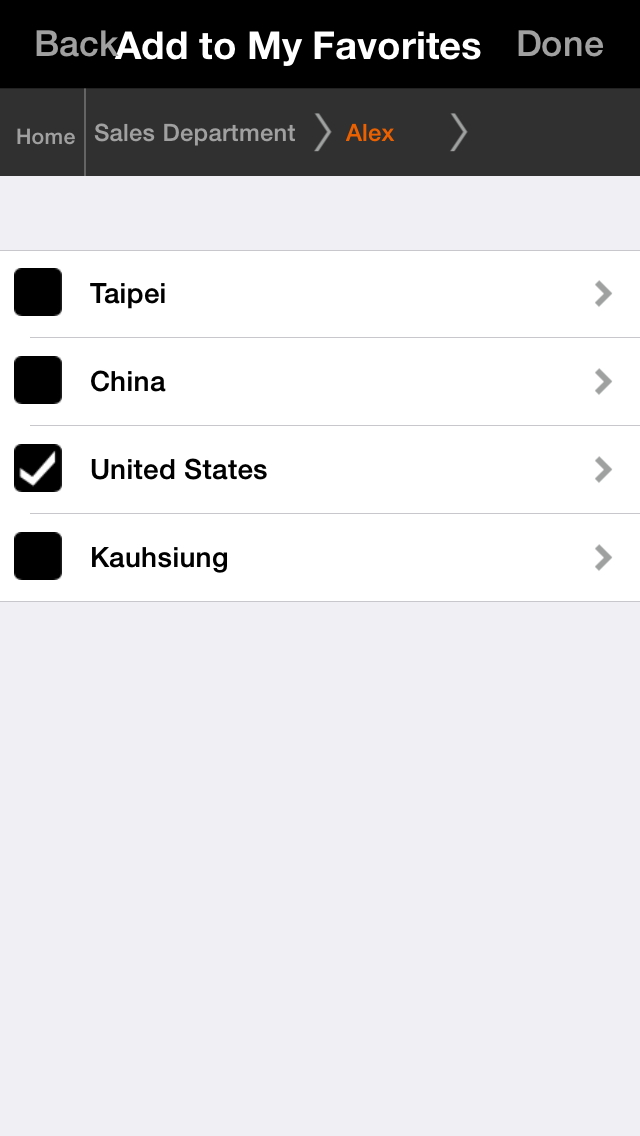
 beside the
category name and make it become
beside the
category name and make it become
 , then the
category will be added into [My Favorite Categories]
, then the
category will be added into [My Favorite Categories]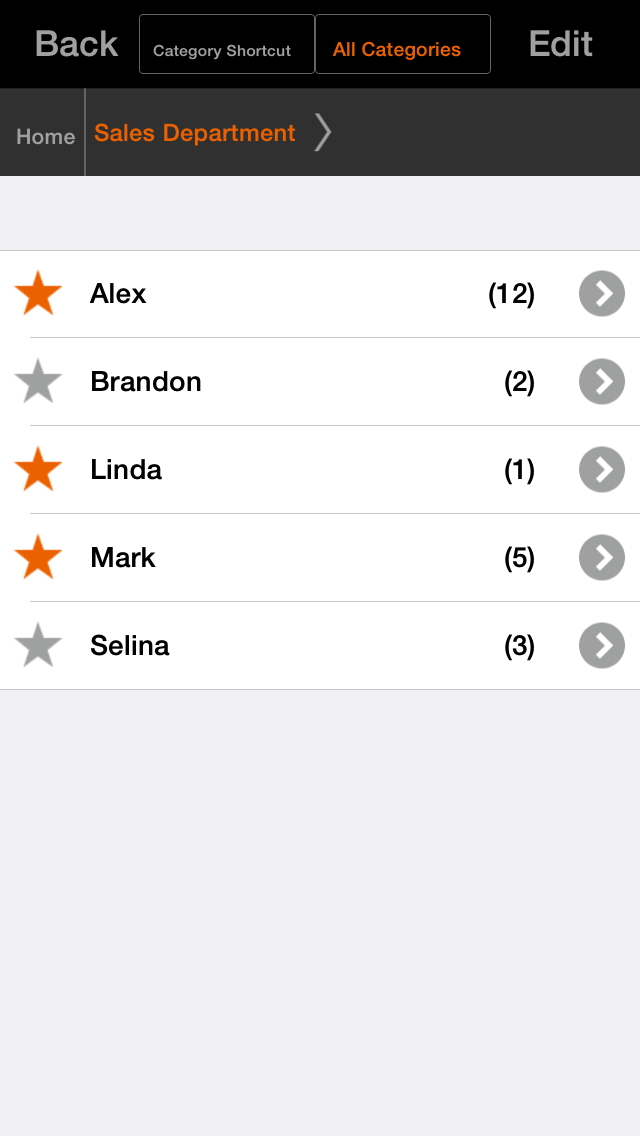
 ,
,  ,
and
,
and  , the system
will use Facebook, LinkedIn, Twitter to search for the contact, if the contact
has Skype information, you can ta
, the system
will use Facebook, LinkedIn, Twitter to search for the contact, if the contact
has Skype information, you can ta